How to check DNS propagation and tell whether you need to wait
Check the exact DNS record you changed, compare cached answers, and separate a DNS delay from a wrong record or a website problem.
In this guide
A DNS change is ready when the services your visitors use can find the intended record. There is no single worldwide switch that turns green for everyone at once. Some services may still have an older answer saved.
You can check whether waiting makes sense without changing the record again. Have three things from your host’s instructions: the full name you changed, its record type, and its expected value. For example, connecting www.example.com is a different check from connecting example.com.
This guide checks an existing change. It does not ask you to replace nameservers, remove email records or purchase anything. If you have not made the change yet, our DNS records guide helps you identify the right settings first.
Write down the result you expect
DNS is the address book that connects a name to a service. A record is one entry in that book. Match your check to the entry you actually changed:
| What you changed | Query type | Compare the answer with |
|---|---|---|
| Website's IPv4 address | A | The host's IPv4 address, unless traffic is proxied |
| Website's IPv6 address | AAAA | The host's IPv6 address, unless traffic is proxied |
| An alias such as www | CNAME | The target name supplied by the host |
| Ownership verification | TXT | The exact text supplied by the service |
| Email destination | MX | The expected mail server names and priorities |
Use the full hostname in the lookup, even if your DNS panel displays only www or @. Do not include https://, a slash or a page path. Keep private verification values out of public screenshots and support forums.
If Cloudflare proxying is enabled, A and AAAA lookups normally show Cloudflare addresses rather than your server’s addresses. A proxied or flattened CNAME can also return addresses instead of the visible alias. In those cases, compare the saved configuration with the host’s instructions and use its connection check; an IP mismatch alone does not prove a mistake. Do not switch off protection just to make the numbers match.
Look up the exact name and type
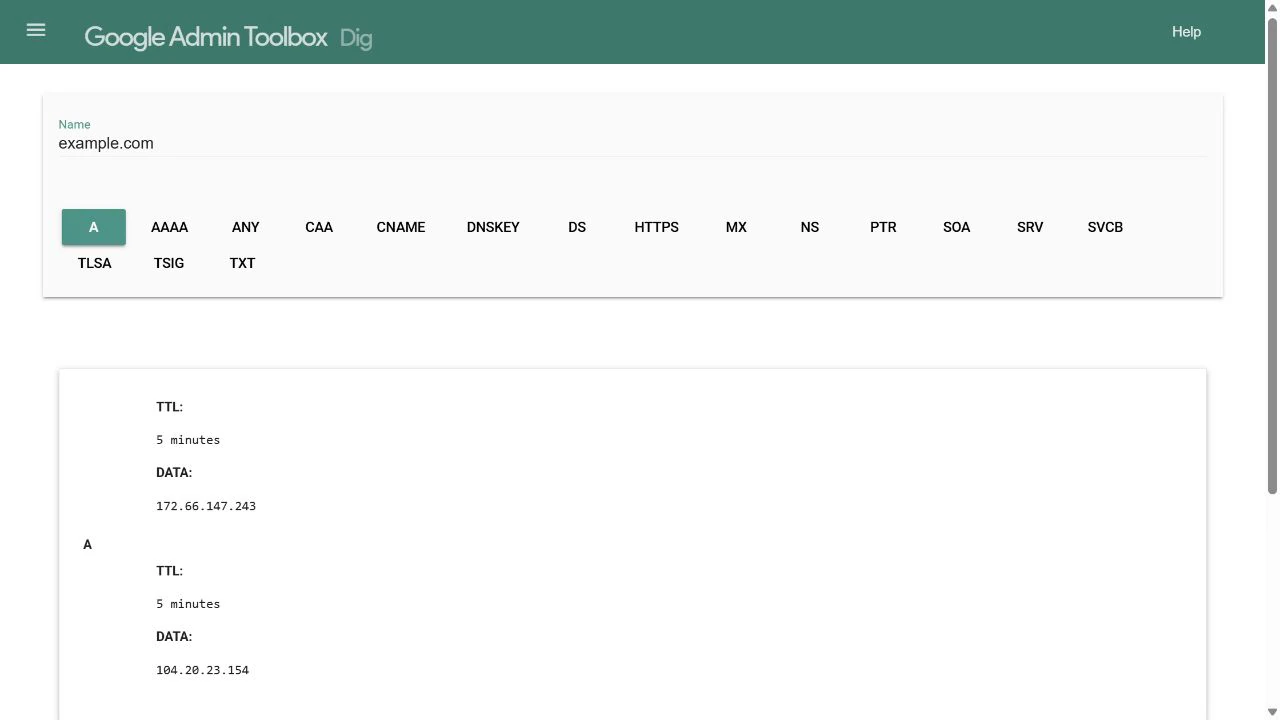
Open Google Admin Toolbox Dig, a free browser-based DNS lookup. Enter your full hostname, then select the record type you need. Read the answer for that type.
For a harmless practice lookup, use example.com and A. It is a public example domain, not a value to copy into your own DNS settings. Its live answer can change.
Compare all returned values with what you expect. Multiple addresses can be intentional, so one matching address does not cancel out an unexpected old one. TXT answers may be displayed in quoted pieces; compare their combined text rather than treating display quotes as part of your value.
If there is no answer, check the spelling and type first. An A record does not satisfy a TXT lookup. A “domain does not exist” result and a lookup timeout also mean different things: the first is a DNS answer, while the second means the tool did not get a usable reply.
Check configuration before waiting
Go back to the DNS provider that currently controls your domain. Confirm that the record is saved there with the right name, type and value. A record entered in an old provider’s panel does not affect a domain whose nameservers have moved elsewhere.
The domain’s authoritative nameservers are the servers responsible for its DNS records. A normal lookup often uses a resolver, which finds answers for users and may cache them. If your provider offers an authoritative lookup or a host connection diagnostic, compare that with the normal lookup. Correct authoritative data plus an older cached answer is a reason to wait; wrong authoritative data is a reason to fix the saved record.
If you cannot identify the active provider, check the domain’s nameserver settings in your registrar account and compare them with the provider’s assigned nameservers. Do not change them as an experiment. Ask the provider to confirm which zone is active if the two accounts disagree.
Compare two resolvers when answers disagree
An online tool sees only the answers available through its own checks. It cannot prove that every visitor sees the same thing. If the record appears correct but your browser still uses the old destination, a second resolver gives you a useful comparison.
On Windows, open Terminal or Command Prompt and run these read-only checks. Replace example.com with the full hostname you changed:
nslookup -type=A example.com 8.8.8.8
nslookup -type=A example.com 1.1.1.1
These ask Google Public DNS and Cloudflare’s resolver for the same A record. For another change, replace A with its type, such as TXT or MX. On macOS or Linux, the equivalent checks are:
dig @8.8.8.8 example.com A
dig @1.1.1.1 example.com A
Look at the answer section, not the address of the DNS server itself. If dig is not installed, stay with the browser lookup; you do not need to install it to finish this check. If your network blocks direct DNS requests, a timeout is not evidence that the domain is broken; use the browser lookup and your provider’s diagnostic instead.
Decide what to do next
TTL, short for time to live, tells a cache how long it may keep an answer. A previous record with a one-hour TTL could still be cached after you save its replacement. Lowering the new TTL does not erase a copy already saved under the old TTL. A displayed TTL is not a worldwide countdown.
- The active provider has the wrong value: correct that specific entry using the host’s instructions. Waiting will not repair it.
- The saved configuration is correct, but resolvers return old and new answers: note the time and old TTL, leave the correct record alone, and check again later. Repeated edits make the diagnosis harder.
- Both checked resolvers return the intended answer: check any configured AAAA record as well; some visitors connect over IPv6. Then try the exact HTTPS address on a second network, such as mobile data. Your device, browser or its chosen resolver may still have an older answer. If those checks agree and the site still fails, check the host’s domain status, certificate or application rather than editing an already-correct record.
Check the bare domain and www separately if you use both. A page working at one address does not establish that the other is connected, or that email still works.
If you need support, send the hostname, record type, expected destination, answers from your checks and when the change was saved. That gives the provider something specific to investigate. Two matching lookups are useful evidence, not a guarantee of worldwide propagation.
Sources and useful links
- Google Admin Toolbox Dig — perform a public lookup without installing a tool.
- Cloudflare’s TTL explanation — why caches can retain an earlier answer.
- Cloudflare proxy status — why a public address or CNAME answer may differ from the value in your panel.
- Netlify’s propagation checks — further read-only checks when a domain connection is still pending.