Too many redirects: find the loop before changing your site
Trace a redirect loop with Chrome and bounded curl requests, identify conflicting rules, and verify a small reversible fix instead of changing DNS at random.
In this guide
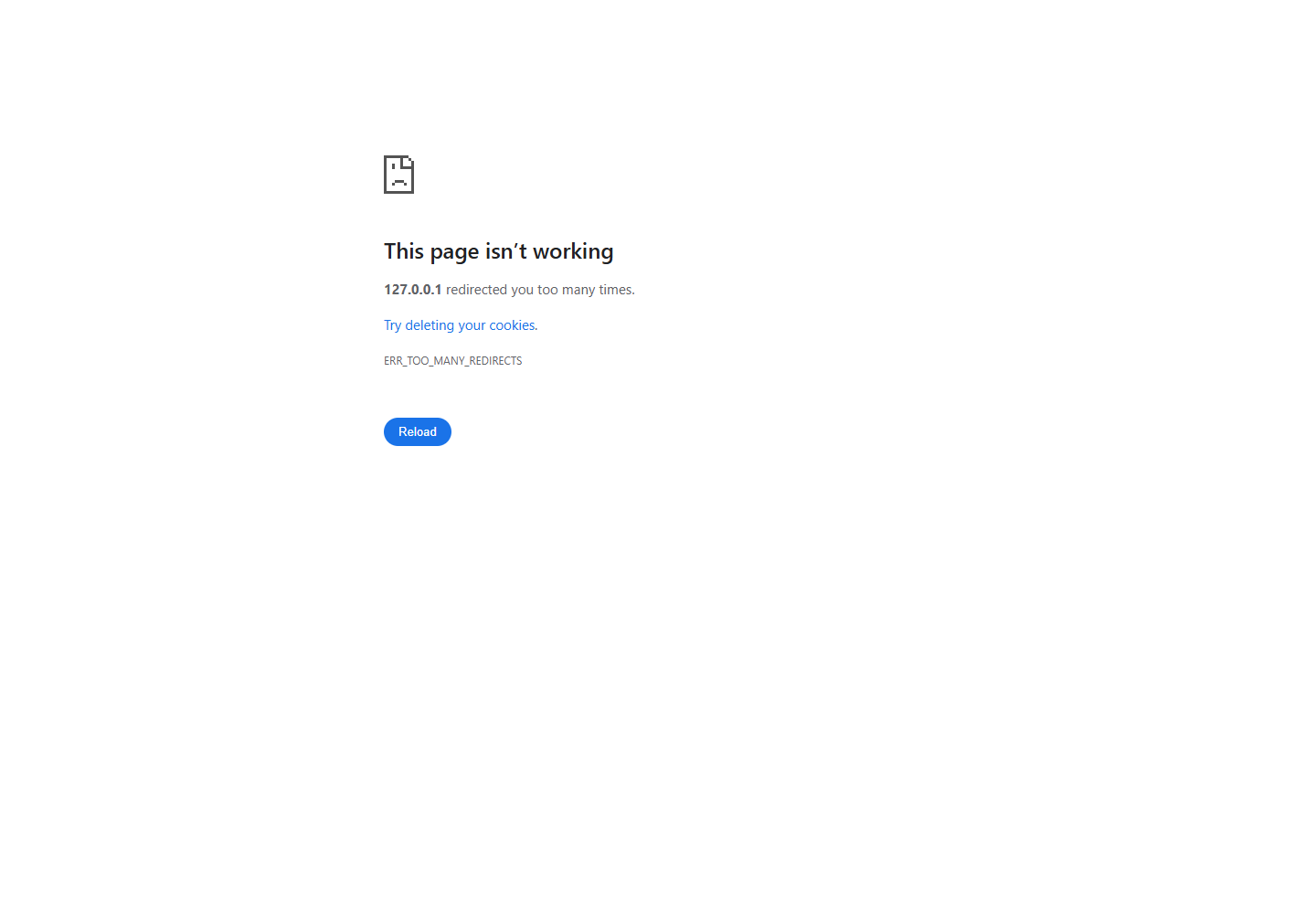
“Too many redirects” means the browser keeps receiving instructions to go somewhere else without reaching the page. The useful first step is to find which addresses repeat. Buying new hosting or changing DNS does not answer that question.
This guide uses Chrome and curl.exe in Windows PowerShell. You need the exact failing URL and permission to change the relevant site rules. The initial checks only read responses. If someone else manages your site, collect the short redirect chain and ask them to inspect the identified layer.
Check whether the loop depends on your session
Copy the whole failing URL, including its path. Open it in a new Incognito window without logging in. Compare that with the normal window.
If only the signed-in window fails, investigate the login/session path first. If both fail, shared application, proxy or origin rules are more likely. This comparison narrows the question; it does not prove which system is wrong.
Do not clear every cookie in your browser at this stage. That can sign you out of unrelated sites while leaving a server-side loop untouched.
Read a bounded redirect chain
Open PowerShell and run curl.exe --version to confirm the actual curl program is available. The .exe matters in older Windows PowerShell, where curl can refer to a different command.
Replace the example URL below with your failing address. Keep the quotes, especially if it contains & or other query characters:
curl.exe --location --max-redirs 10 --connect-timeout 10 --max-time 30 --dump-header - --output NUL 'https://example.com/problem-page/'This makes GET requests, prints each response’s headers and discards the page body to Windows’ NUL device. It stops after ten redirects or the time limit. It does not submit a form. A looping address commonly ends with curl error 47, meaning the redirect limit was reached; that is a useful diagnostic result, not a reason to increase the limit forever.
Look for each HTTP status and Location header. For example, this fictional chain repeats two addresses:
HTTP/1.1 302 Found
Location: https://example.com/login/

HTTP/1.1 302 Found
Location: https://example.com/dashboard/

HTTP/1.1 302 Found
Location: https://example.com/login/
A normal initial redirect from HTTP to HTTPS can be fine. The problem is returning to a state that redirects again. Some redirects use a relative path, which is resolved against the current URL.
Avoid putting passwords, session cookies or access-link tokens in a shared trace. A signed-out curl request also will not reproduce every signed-in browser problem. Keep those two checks distinct.
Match the repeated pattern to the rule owner
| Repeating pattern | Inspect first | A useful correction |
|---|---|---|
/login/ and /dashboard/ |
Application login/session rules | Make the signed-in check and post-login destination agree. |
www and the bare domain |
Proxy and host canonical-host rules | Choose one destination and remove the rule sending it back. |
| HTTP and HTTPS, or repeated HTTPS behind a proxy | Proxy connection mode and origin HTTPS handling | Make the proxy/origin connection and application scheme detection agree. |
| Slash and no-slash versions | Framework and host path-normalization rules | Keep one consistent canonical path policy. |
Check what changed immediately before the loop: a redirect plugin, host rule, proxy setting, application base URL or deployment. Read the matching configuration before disabling unrelated features. One visible pattern can have more than one cause.
For example, Cloudflare Flexible connects to the origin over HTTP. An origin rule that insists on HTTPS can therefore send the visitor around again. Moving to a different mode is appropriate only after checking that the origin supports the required HTTPS connection; Full (strict) also requires a suitable valid origin certificate. Do not weaken certificate checks to make a page load. The official loop troubleshooting guide explains those conditions.
Change one rule and prove the loop ended
Save the current rule or configuration first. If a recent, identified rule sends the request back to an earlier address, disable or correct that rule alone. For application code, test the change on its separate test environment before using the normal deployment process.
Repeat the same bounded curl command and the Incognito check. You want a finite chain ending at the intended page—often 200, or a deliberate login page—not merely a different error. Open a second important page too, such as the home page or login route, to check that the fix did not send everything to one destination.
If an old cached redirect persists, use the affected URL’s appropriate cache controls after confirming the rule is fixed. Avoid a whole-site cache purge as the first experiment. Restore the saved rule if the change breaks access or does not address the identified loop.
Sources and useful links
- curl manual — GET requests, headers, output, timeouts and redirect limits.
- MDN redirections — HTTP status codes, Location and loops.
- Cloudflare redirect-loop conditions — proxy/origin SSL interactions, rather than a universal switch to toggle.