How to use an Iterator in Make: turn a list into separate items
Map an array into Make's Iterator, send each item to the next module, and check three outputs without connecting an external app.
In this guide
An Iterator takes a list and sends its items forward one at a time. If an order contains three products, the next module can process three products instead of receiving one whole list.
You will see that happen with Notebook, Pencil and Folder. The next module will record each name in the run inspector. Nothing is emailed, bought or added to a customer account.
You need an existing Make account, permission to create a scenario and some available credits. The Free plan is sufficient for this small manual exercise; no trial or connected app is needed. The interface was checked on October 8, 2026, in a desktop browser.
Start with a list you can recognize
An array is a list of values. A bundle is one packet of data passed between Make modules, the circles on the canvas. Before an Iterator, one bundle can contain the entire array. After it, each item travels in its own bundle.
Open Scenarios → Create a new scenario and name it Iterator check. Keep scheduling inactive throughout the exercise.
Click the large +, search for JSON and select Parse JSON. JSON is a text format for structured data; this module turns the following text into fields Make can map. Paste it into JSON string:
{"items":["Notebook","Pencil","Folder"]}Here, items is the field name; the square brackets hold the list. Leave Data structure unset and save the module. Make can learn the shape from a manual run.
Click Run once. If Make warns that the first module is also the last, continue this deliberately one-module run. You are only teaching it the example’s fields. Do not dismiss an unrelated error or an invalid-JSON message.
Open the result bubble above the JSON module. Its output should contain items, with the three names inside it. This first run produces one bundle containing the list, not three separate outputs yet.
Give the Iterator the array, not its text
Click the + beside JSON, search for Iterator and select Flow Control → Iterator.
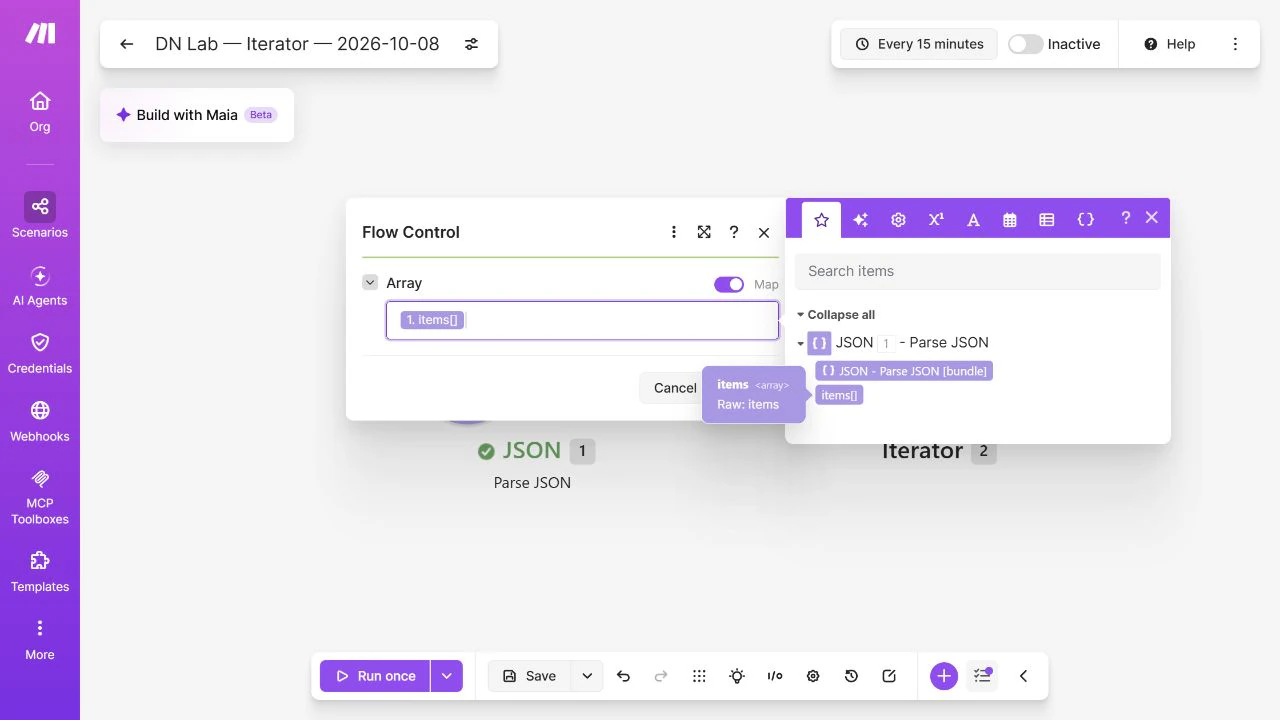
Click its Array field and select items[] from the JSON module’s output panel. Use the mapped token: do not type the word items or paste the JSON text into this field. Save.
If the output panel has no items[], return to the JSON module, run the valid example once and reopen the Iterator. The first run supplies the structure that the mapping panel needs.
Add one safe action per item
After the Iterator, add Tools → Set variable. A variable is a named value; this module gives us an easy place to inspect each item without writing to another app.
Set Variable name to item. In Variable value, select Value from the Iterator’s output, then save. Keep the default lifetime for this exercise. The source must be the Iterator’s current item, not JSON’s whole items[] array.
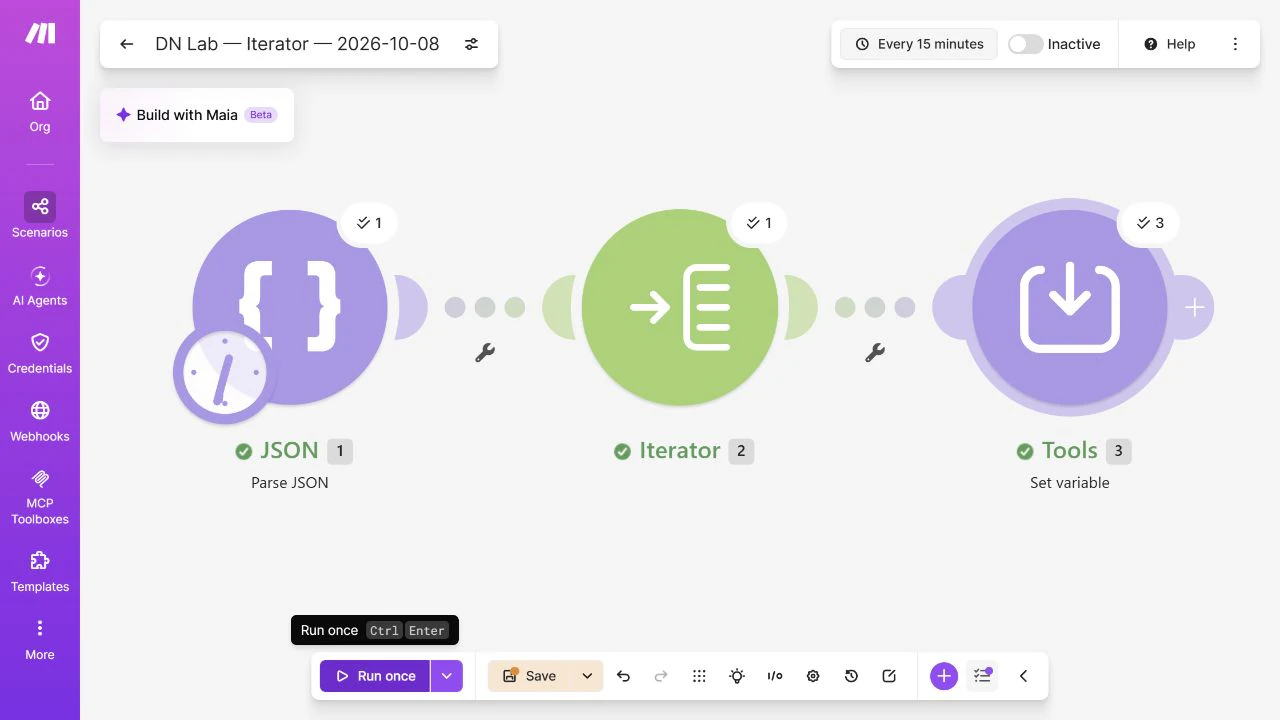
Your canvas should now read:
JSON: Parse JSON → Iterator → Tools: Set variableClick Run once, then open the result bubble above Tools. Inspect its three operations. The output should show item with these values:
NotebookPencilFolder
That is the useful check: three recognizable values reached the next module separately. A green tick alone would not tell you whether you accidentally mapped the entire list into every operation.
Check the empty-list case
Sometimes a source returns no products, attachments or matching records. In the JSON module, temporarily replace the example with:
{"items":[]}Save and run once. JSON still returns a bundle, but the Iterator has no items to pass onward. Tools should not execute for this run. Do not mistake the previous run’s three results for new output; use the latest run’s bubbles and log.
Restore the three-item example and save. Leave the scenario Inactive. Manual runs do not require switching on the schedule; saving the scenario does not mean it should start running every 15 minutes.
If the result is different
You see one long value containing all three names: check both mappings. Iterator needs JSON’s items[]; Tools needs Iterator’s Value.
There are no selectable output fields: run Parse JSON once with the valid example before configuring downstream mappings.
JSON fails before the Iterator starts: compare the quotation marks, commas and brackets with the exact example. Plain text that looks like a list is not necessarily valid JSON.
The next module runs more often than expected: each item is now separate work. A ten-item list can cause ten downstream actions. Check Make’s credit usage before replacing Tools with an external app; apps and features can have different credit rules.
An Iterator does not decide which items you want. To process only matching items, add a filter after the Iterator. Keep the test inactive until you have checked both the mappings and the real destination.
Sources and useful links
- Make Iterator — arrays, bundles and learning the structure with a manual run.
- JSON app — Parse JSON and its input/data-structure settings.
- Scenario variables — using Tools to set and retrieve named values.
- Make credits — why downstream execution and app-specific rules matter to usage.