How to add an RSS feed to a static Astro blog
Generate an Astro RSS feed from published Markdown posts, keep drafts out, and check the built XML and article links before publishing.
In this guide
An RSS feed lets readers follow new posts in a feed reader without giving you an email address. In a static Astro site, the feed can be a small XML file built alongside your HTML pages; it does not need a database or a server that stays running.
This guide adds /rss.xml to an existing static Astro project using Markdown posts in src/pages/posts/. If your site uses content collections or another routing system, use the same published-post selection that builds your pages; do not copy this folder pattern unchanged.
The example uses Node 24, Astro 7.3.3 and @astrojs/rss 4.0.19, with npm and a lockfile. You need the site source, a terminal in its project folder, and the site’s final public HTTPS address. The domain below is a placeholder; replace it before publishing.
Install the helper and set the public address
Open a terminal in the folder containing your project’s package.json. Install Astro’s RSS helper:
npm install @astrojs/rss@4.0.19Keep the resulting package-lock.json. In astro.config.mjs, set site to your site’s actual origin. For a minimal project, the configuration looks like this:
import { defineConfig } from 'astro/config';

export default defineConfig({
  site: 'https://example.com',
  output: 'static',
});
If you already have integrations or other options, keep them and add or correct site in the existing configuration. If the site lives below a path prefix, retain its existing base and use the full public URLs produced by its routing system; the code below assumes deployment at the domain root.
Do not set site to localhost just to make preview links clickable. It is the address used for the published feed’s links.
Give feed entries the required information
Each included post needs a title, a short description, a publication date and a real public URL. For this folder-based example, use frontmatter like this at the top of an existing post:
---
title: "A useful workshop checklist"
description: "What to prepare before a small Python workshop."
pubDate: "2026-10-12"
publication: published
---
The publication field is a convention used by our selection code, not an automatic Astro privacy switch. A Markdown file inside src/pages/ creates a page even if it says draft. Keep unpublished posts outside that page folder until your publishing process is ready to generate them. Do not expose a private draft and assume excluding it from RSS will hide it.
Use the post’s original publication date when editing it; changing every date on every build can make old posts look newly published.
Create the feed endpoint
Create src/pages/rss.xml.ts in your project and save this complete file:
import rss from '@astrojs/rss';
import type { APIContext, MarkdownInstance } from 'astro';

type Post = {
  title: string;
  description: string;
  pubDate: string;
  publication: 'published' | 'draft';
};

const posts = import.meta.glob<MarkdownInstance<Post>>(
  './posts/*.md', { eager: true }
);

export function GET(context: APIContext) {
  if (!context.site) throw new Error('Set site in astro.config.mjs');
  return rss({
    title: 'Workshop Notes',
    description: 'Practical workshop guides and checklists.',
    site: context.site,
    items: Object.values(posts)
      .filter(post => post.frontmatter.publication === 'published')
      .sort((a, b) => Date.parse(b.frontmatter.pubDate) - Date.parse(a.frontmatter.pubDate))
      .map(post => ({
        title: post.frontmatter.title,
        description: post.frontmatter.description,
        pubDate: new Date(post.frontmatter.pubDate),
        link: post.url!,
      })),
    customData: '<language>en-us</language>',
  });
}
Change the feed title and description to your site’s own. The GET function generates the XML during a static build. It includes summaries and links, not complete article bodies or email subscriptions.
The glob reads .md files directly in that folder; it does not include nested folders or .mdx. Adapt it to your actual public post source if yours differs. The generated post.url comes from the page path, so do not invent a second article URL from its title.
The RSS helper adds a trailing slash to relative item links by default. If your existing Astro configuration uses trailingSlash: 'never', add trailingSlash: false, beside site: context.site, in the rss() options above. Keep your site’s existing URL policy and check the resulting item links against it.
Build and inspect the actual file
Run your existing build command, then preview its output. In a project using the usual Astro scripts:
npm run build && npm run preview -- --host 127.0.0.1 --port 4321Leave the preview terminal running and open http://127.0.0.1:4321/rss.xml. A browser may show raw XML with a notice about having no style information. That is normal; RSS is meant for a feed reader.
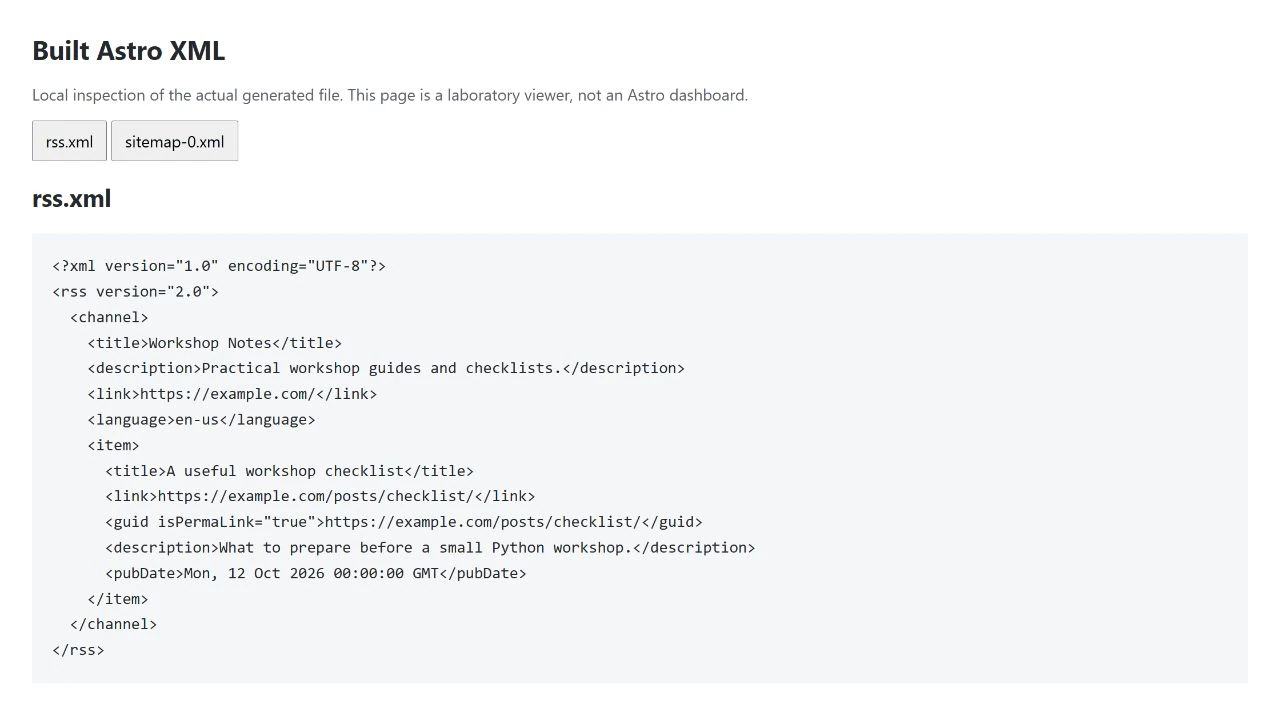
Check these four things:
- The response is XML, not a 404 page or your homepage.
- Its channel title is yours, and each intended published post has an
item. - Each item link uses your public origin and the correct existing path. Verify that path on your preview host; the placeholder origin in an unconfigured rehearsal is not a deployment target.
- Unpublished posts are absent from both the feed and the built page output. These are separate checks.
If the feed is empty, check the folder pattern and each post’s exact publication: published. If dates fail validation, check the date strings. If a feed URL already exists in public/ or another endpoint, resolve that duplicate deliberately before building another one.
Make the feed discoverable
Use an ordinary visible link to /rss.xml wherever subscriptions fit your site’s existing navigation. You can also add this to the existing shared <head>, replacing the origin with the value from your site’s central configuration rather than maintaining another hard-coded domain:
<link rel="alternate" type="application/rss+xml" title="Workshop Notes RSS" href="/rss.xml">The root-relative URL here assumes the same domain-root setup as the example. Preserve your project’s base-path helper when there is a prefix.
Stop preview with Ctrl+C. When you later publish through your normal process, check /rss.xml again on the real domain. Each new static post needs a new build for the feed to update; a successful local preview does not update a hosted site.
Sources and useful links
- Astro RSS recipe — the official helper, item fields and feed discovery.
- Astro endpoints — generating a static XML endpoint during build.
- Astro site configuration — the public base address used for generated links.
- RSS 2.0 specification — channel, item and date meanings.