How to read a DMARC report and investigate an unexpected sender
Read a small aggregate XML report, reconcile message counts and distinguish authentication from alignment before deciding what to investigate.
In this guide
Start with which domain the report covers, when it covers, and which sending sources appear. A failed row is a reason to investigate. It is not, by itself, proof that someone spoofed your domain or that your legitimate mail reached Spam.
This guide is for someone who already receives DMARC aggregate reports, usually as XML inside a compressed attachment. You will read one small example and identify a source worth checking against your actual sending services. You do not need a paid dashboard or a DNS change.
If SPF, DKIM and DMARC are new to you, think of SPF and DKIM as two ways to authenticate mail; DMARC also asks whether the authenticated domain matches the visible From domain. The short authentication guide provides optional background.
Open a copy locally
Save a copy of the attachment. Extract a ZIP in your file manager, or a GZIP with a trusted local archive tool you already use. Do not run an executable claiming to be a report. Open the resulting .xml in a browser or plain-text editor.
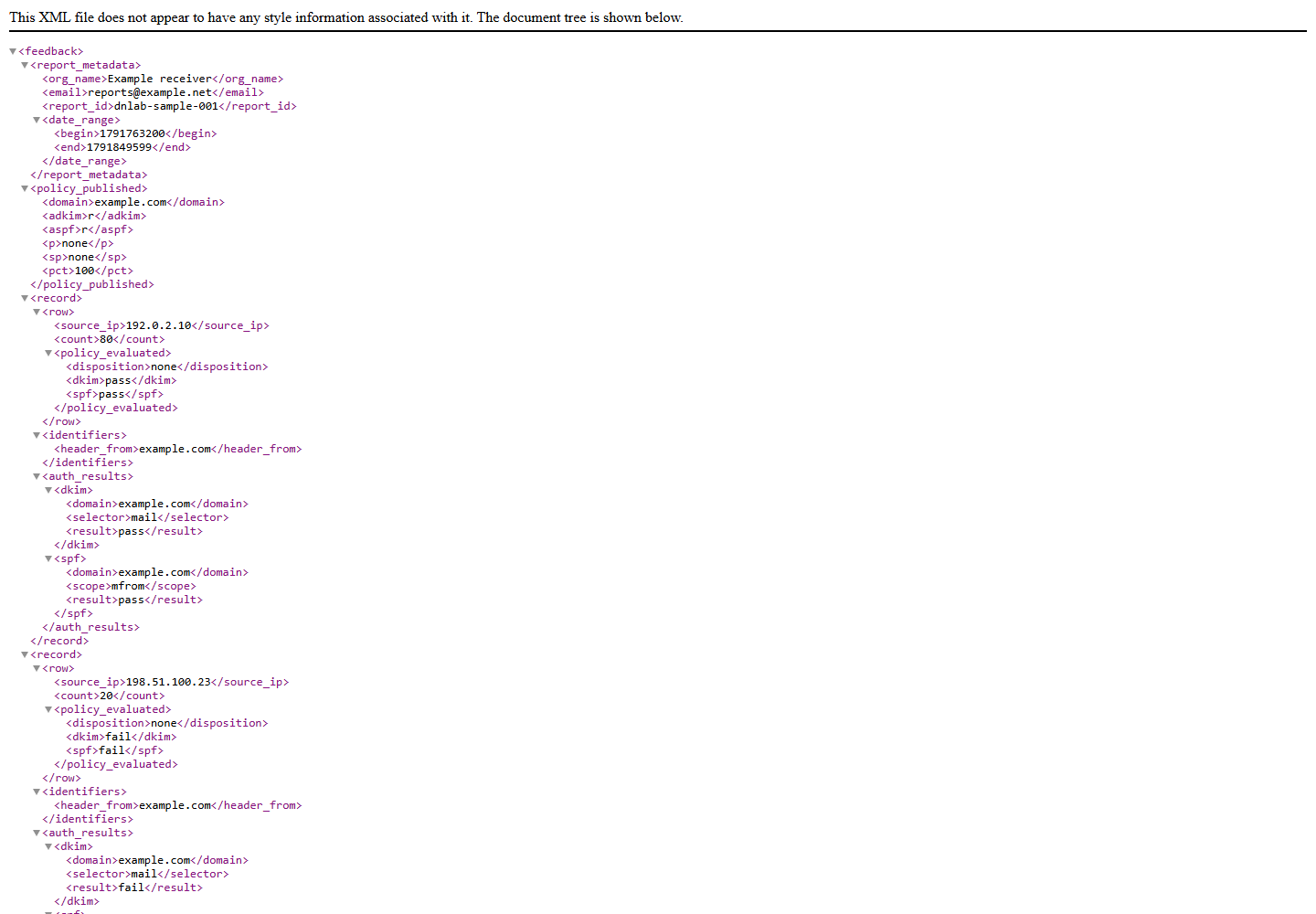
An XML tree is normal; it is structured data, not a broken webpage. Keep customer reports local while learning. They can reveal your domains, source IPs and sending patterns, so do not upload them to an unfamiliar converter just to make the table prettier.
If you have no attachment ready, save the fictional sample below as sample-report.xml, using UTF-8 and All files in Notepad. Its IP addresses and domains are documentation examples, not identified providers.
<?xml version="1.0" encoding="UTF-8"?>
<feedback>
  <report_metadata>
    <org_name>Example receiver</org_name>
    <email>reports@example.net</email>
    <report_id>dnlab-sample-001</report_id>
    <date_range><begin>1791763200</begin><end>1791849599</end></date_range>
  </report_metadata>
  <policy_published>
    <domain>example.com</domain>
    <adkim>r</adkim><aspf>r</aspf><p>none</p><sp>none</sp><pct>100</pct>
  </policy_published>
  <record>
    <row>
      <source_ip>192.0.2.10</source_ip><count>80</count>
      <policy_evaluated><disposition>none</disposition><dkim>pass</dkim><spf>pass</spf></policy_evaluated>
    </row>
    <identifiers><header_from>example.com</header_from></identifiers>
    <auth_results>
      <dkim><domain>example.com</domain><selector>mail</selector><result>pass</result></dkim>
      <spf><domain>example.com</domain><scope>mfrom</scope><result>pass</result></spf>
    </auth_results>
  </record>
  <record>
    <row>
      <source_ip>198.51.100.23</source_ip><count>20</count>
      <policy_evaluated><disposition>none</disposition><dkim>fail</dkim><spf>fail</spf></policy_evaluated>
    </row>
    <identifiers><header_from>example.com</header_from></identifiers>
    <auth_results>
      <dkim><domain>example.com</domain><selector>mail</selector><result>fail</result></dkim>
      <spf><domain>mailer.example.net</domain><scope>mfrom</scope><result>pass</result></spf>
    </auth_results>
  </record>
</feedback>
This sample uses the legacy, unnamespaced format still found in existing reports. RFC 9990 defines the current aggregate-report format; newer files can have namespaces and additional fields. A namespace prefix does not change the basic question a field answers. This example is for reading existing reports, not a current-schema validator or a template for generating reports.
1. Confirm the report belongs to your question
Read report_metadata: the reporting organization and report ID identify the report. The begin and end values are Unix timestamps—seconds since 1970 in UTC. Here they cover 12 October 2026 UTC. Your viewer may show a different local date near the boundaries.
For your own report, open PowerShell and replace the two numbers below with its begin and end values. This converts them locally, without uploading the report:
[DateTimeOffset]::FromUnixTimeSeconds(1791763200).UtcDateTime.ToString('yyyy-MM-dd HH:mm:ss UTC')
[DateTimeOffset]::FromUnixTimeSeconds(1791849599).UtcDateTime.ToString('yyyy-MM-dd HH:mm:ss UTC')
The sample prints 2026-10-12 00:00:00 UTC and 2026-10-12 23:59:59 UTC. Read both endpoints before comparing reports from different periods.
Next read policy_published/domain. It is example.com, the domain whose DMARC policy the receiver evaluated. The reporter’s contact domain is not automatically a sending source.
This report says the published policy was p=none: monitor rather than request quarantine or rejection. That explains why a failed row can still show disposition=none. It does not establish inbox delivery, and it does not describe every receiver’s independent filtering decision.
2. Reconcile the rows before drawing a conclusion
The source_ip identifies the sending connection the reporting receiver observed. count is the number of messages represented by that row. There can be several rows for one IP when other recorded characteristics differ; do not treat every row as a different provider.
For this sample:
| Observed source | Count | Aligned DKIM / SPF | Next check |
|---|---|---|---|
| 192.0.2.10 | 80 | pass / pass | Match it to your known sender inventory. |
| 198.51.100.23 | 20 | fail / fail | Investigate the service, forwarding path or unrecognized sender. |
The rows represent 80 + 20 = 100 messages in this report; 20 fail both alignment checks. That is 20% of this receiver’s reported sample, not 20% of all your domain’s mail. One receiver and reporting window are not a complete sending inventory.
3. Separate raw authentication from DMARC alignment
Look at the second record. Under auth_results, SPF says pass for mailer.example.net. Yet policy_evaluated/spf says fail for DMARC.
Those results can both be correct. SPF authenticated one domain; that domain does not align with the visible From domain, example.com. Even relaxed alignment does not make unrelated domains match. The DKIM result also fails, so neither aligned mechanism passes in this row.
DMARC can pass when either an aligned DKIM signature or aligned SPF passes; both are not required. A forwarding service can affect SPF while a surviving aligned DKIM signature still helps. Read the domains and any reported override reasons before labelling a row malicious.
4. Turn the unexpected row into a concrete investigation
Compare the source with the services you actually use: your website’s sender, invoicing system, marketing tool and support system. Check their official sending-domain setup and recent message headers. A shared IP or reverse-DNS name alone is not proof of which customer sent a message.
For a known service, inspect its authenticated return-path/DKIM domain and whether it is correctly configured for your domain. For an unknown source, preserve the report ID, period and count, then look for more evidence across reports. Do not add an unfamiliar IP to SPF just to turn a red row green.
The useful result here is a small list of known senders and one unresolved source with a next check. Keep your policy unchanged until legitimate sending paths are accounted for. Changes to quarantine or reject belong to a separate rollout with current evidence and a rollback plan.
Sources and useful links
- RFC 9990: aggregate reporting — current report structure, timestamps and privacy considerations.
- RFC 9989: DMARC — alignment, evaluation and policy semantics.
- RFC 7489: legacy format — the older layout represented by this reading sample; superseded by the current specifications.