How to use a Make router with filters and a fallback route
Build a small Make router, send a request down the matching branch, and check a fallback without connecting email or a CRM.
In this guide
A Make router lets one incoming item take different paths. For example, a booking request can go to a booking action while an unfamiliar request goes to a review action.
The important detail: a router sends an item through every matching route, not just the first match. Its routes run in sequence, not in parallel. A fallback is the backup route used when none of the other routes accepts the item.
We will check a matching branch and its fallback with two small branches that only store text. Use a desktop browser and an existing Make account. No connection to Google, email or a CRM is needed. Manual runs consume your plan’s credits; leave scheduling Inactive throughout this practice.
Create one incoming value
Open Scenarios → Create a new scenario and name it Router practice.
Click the large plus, search for Tools, open that app and select Set variable. Enter:
- Variable name:
request_type - Variable value:
booking
Save the module. A variable is simply a named value; here it stands in for a field that a real form or app would supply. There is no actual booking being made.
Click the plus after the module, search for Router, and choose Flow Control → Router. You should now see two outgoing branches.
Give both branches a visible result
On the first branch’s empty plus, choose Tools → Set variables. Add one variable named route_result with the value Booking route. Save.
On the second branch, add another Set variables module with route_result set to Needs review. Save. The labels are just results we can inspect; these modules do not contact anyone or create a record elsewhere.
If you accidentally add a module after an empty placeholder rather than replacing it, right-click only that empty gray plus and remove it. Use Auto-align in the bottom toolbar to make the two completed routes easier to follow.
Filter the booking branch
Click the connecting line from the router to the first branch. In Set up a filter:
- Set Label to
Booking. - Leave Set the route as a fallback at No.
- Click the upper condition field. In the mapping panel, choose request_type from the first Tools module. This inserts a token referring to that module’s output; typing the word
request_typeas ordinary text would not read the variable. - Keep Text operators: Equal to.
- Type
bookingin the lower field, then Save.
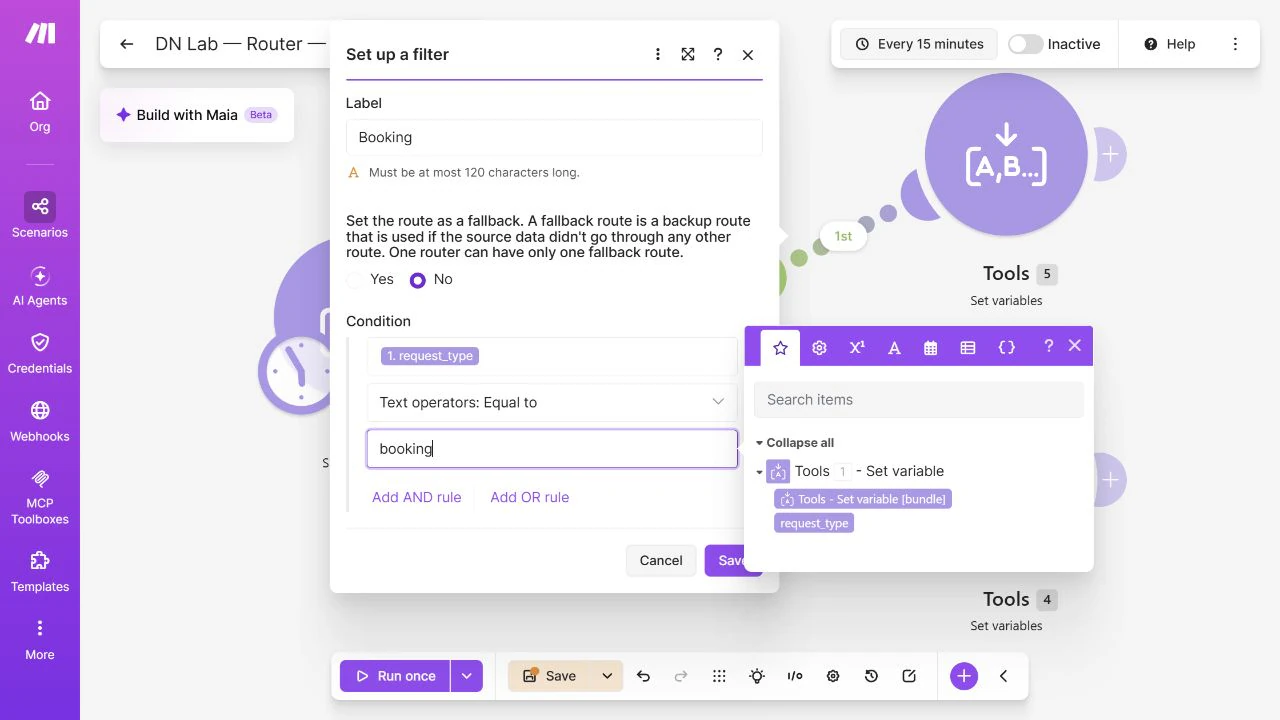
On the second connecting line, set Label to Needs review and Set the route as a fallback → Yes. Leave its condition empty and save. One router can have only one fallback.
Save the scenario using the bottom toolbar. Confirm the top switch still says Inactive.
Check a match and a non-match
Click Run once. With request_type set to booking, the booking filter should pass one item, the first result module should run, and the fallback result module should not run.
Click the small numbered execution bubble above the first result module. Under Output, check route_result: Booking route.
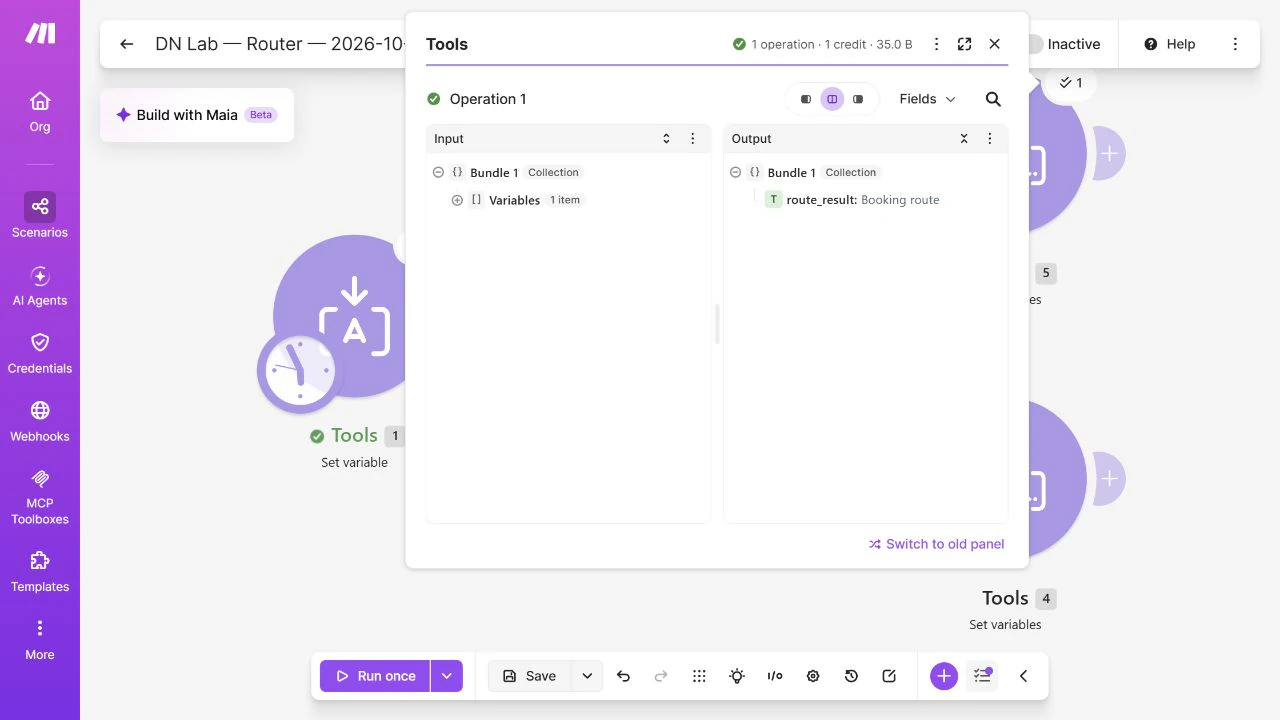
Close the inspector. Open the first Tools module, change its value to question, and save that module. Run once again. Now the booking filter should show zero items passing, and the fallback module should output Needs review. Save the scenario after the test.
If both normal branches run in your real scenario, check for overlapping conditions. That is expected router behavior when both match. Make the conditions mutually exclusive if the task requires exactly one action. A route with no filter is not automatically a fallback; it accepts everything unless you explicitly mark it as the fallback.
Apply it to a real workflow, or stop here
Replace the practice input with your real source only after checking which field identifies the request type. Replace each text result with the intended action, then test with data you are authorized to use. Do not attach live payment or email actions to an untested branch.
For practice, leaving Inactive stops scheduled runs; Run once remains a manual action. The saved scenario is useful as a reference. No external connection needs to be removed because we did not create one.
Sources and useful links
- Make routers — matching routes, execution order and fallback behavior.
- Make filtering — conditions and mapped fields between modules.
- Make tools — the built-in tools used to keep this rehearsal self-contained.