FastAPI example: build a small API and send your first request
Run a small FastAPI app locally, use its browser interface to request workshop availability, and understand the response before thinking about hosting.
In this guide
A Python script can print information for you. An API lets another program ask for that information too. In this example, a small FastAPI app returns a workshop name and its available seats, and you send the first request from your browser.
You will run it on your computer, not on a VPS. No hosting purchase, database or account is needed. The seat count is fixed sample data; the app does not take bookings or track real availability.
The commands below use Windows PowerShell and Python 3.12. The example uses FastAPI 0.143.0 and Uvicorn 0.54.0. Uvicorn is the program that listens for requests and runs your app. You need permission to install packages into a new local folder and an internet connection for those downloads.
Create an isolated project
If Python is missing, use the official Python downloads first. Open PowerShell and run python --version; it must report your intended Python 3.12 interpreter. Do not continue if it opens the Microsoft Store or reports a different interpreter you did not mean to use.
Create a new empty folder named fastapi-practice in File Explorer. Open it, type powershell into its address bar, and press Enter. The terminal should open in that folder.
Create a virtual environment, a separate place for this project’s packages:
python -m venv .venvAfter that command succeeds, install the two packages using the environment’s own Python:
.\.venv\Scripts\python.exe -m pip install fastapi==0.143.0 uvicorn==0.54.0This avoids changing packages for your other scripts. You do not need to activate the environment; every command below explicitly selects its interpreter. If installation fails, read that error before trying to start the app.
Save the complete app
In a plain-text editor, save this as main.py in fastapi-practice, beside .venv. In Notepad, use Save as type → All files so it does not become main.py.txt.
from fastapi import FastAPI

app = FastAPI()

@app.get("/workshop")
def workshop():
    return {"name": "Python basics", "available_seats": 6}
/workshop is the address path for this piece of information. GET means “read.” The function returns a dictionary, and FastAPI turns it into JSON: structured text with named fields that other programs can read.
Start the app and send a request
From the same folder, run:
.\.venv\Scripts\python.exe -m uvicorn main:app --host 127.0.0.1 --port 8000main:app means the object named app inside main.py. 127.0.0.1 keeps the server on your own computer; 8000 is its port, the numbered connection point. Leave this terminal open while using the app.
Look for Application startup complete and the listening address. Open http://127.0.0.1:8000/docs in your browser. This is Swagger UI, FastAPI’s built-in page for exploring and trying requests.
Click GET /workshop, then Try it out → Execute. Under Server response, expect code 200 and this information:
{"name":"Python basics","available_seats":6}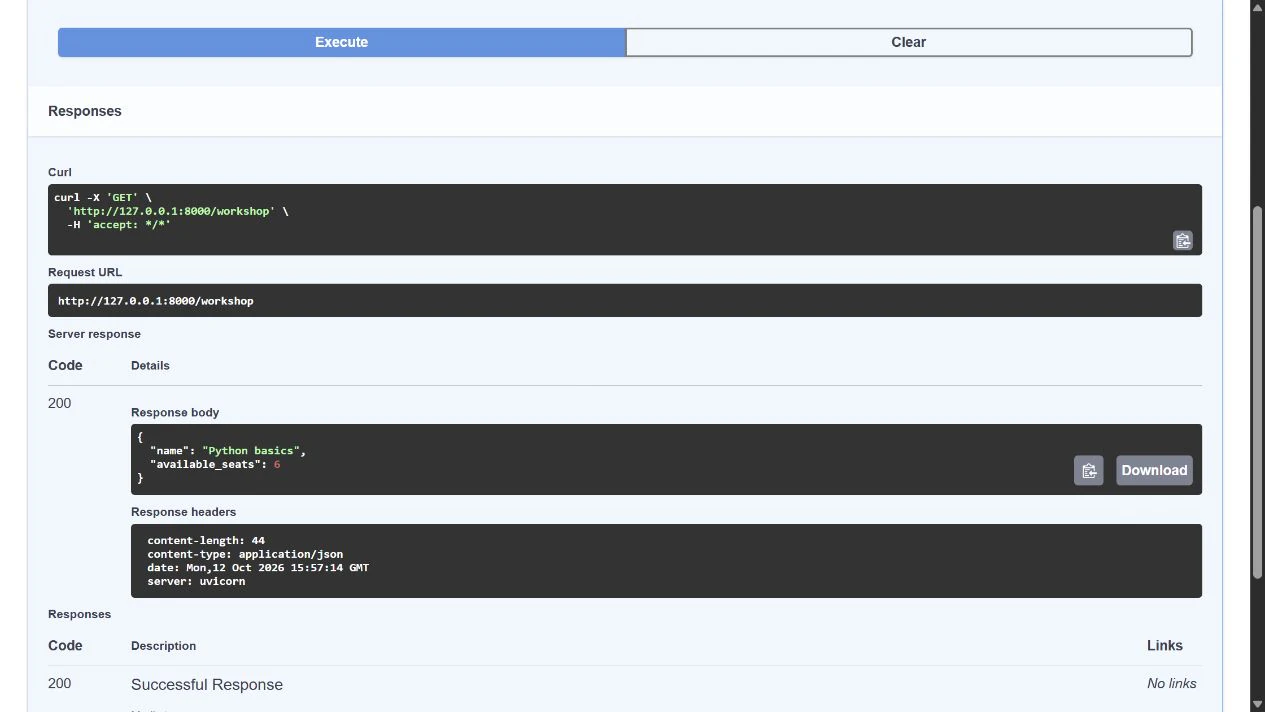
You can also open http://127.0.0.1:8000/workshop directly. Your terminal should record a GET /workshop request with 200 OK. That confirms the browser reached your running Python app.
Understand the common wrong turns
The root address shows Not Found: the app defines /workshop and /docs, not /. Open the full path. A 404 at / does not mean the app failed to start.
Could not import module main: check that the terminal is in the folder containing main.py, the filename is exact, and the code was saved. main:app must match both the file and object name.
Address already in use: another process is listening on port 8000. Leave it alone if you do not know what it is. Use --port 8002 instead and update the browser address to http://127.0.0.1:8002/docs.
The browser cannot connect: check that the terminal is still running and that its startup did not end with an error. A browser tab alone cannot keep the Python server running.
Stop, change, and continue
Return to the server terminal and press Ctrl+C. Wait until you get a PowerShell prompt. Reloading the API address should now fail to connect.
To change the seat count, edit and save main.py, then run the same start command again and execute a fresh request. This command does not automatically reload edits.
You now have a working local request-and-response path. Before exposing an app to other people, you need a deployment plan, appropriate authentication and real data handling. Merely changing the listening address does not supply those protections. Keep this practice server local.
Sources and useful links
- FastAPI first steps — app objects, routes and interactive documentation.
- Run a FastAPI server manually — the Uvicorn import string and server process.
- Python virtual environments — isolate project packages and use the environment’s interpreter.
- Official Python downloads — install Python if it is not already available.