Add search to a static site with Pagefind
Generate a local search index from public HTML, add a working Pagefind search box, and verify its results without a hosted search account.
In this guide
Visitors should not have to guess which page contains an answer. Pagefind reads your built HTML and creates search files you can publish alongside it. Searching then happens in the visitor’s browser; you do not need a separate hosted search account.
Here you will add a search box and check that it finds the right documentation page. The example uses Pagefind 1.5.2, Windows PowerShell, Node.js 24 with npm, and Python 3.12 for a local static-file server. It does not change your hosting or make private content safe to publish.
Start with the output folder
For an existing static site, use the folder containing the built, public HTML—often dist or public. Add the search markup to the source template so it survives your next build, build normally, then run Pagefind against the resulting folder. Do not index a source folder that also contains drafts or private documents.
Keep your own pages: skip creating the two sample files below. Add the Pagefind CSS/script references, search container and initialization script from the first sample to the page or template that should show search; put data-pagefind-body on each eligible page’s main content. Then use your output folder instead of public in both commands and verify a distinctive phrase from one of your real pages.
For a small standalone check, create search-practice, with a folder named public inside it. Open search-practice in File Explorer, type powershell into the address bar and press Enter. Check node --version, npm --version and python --version. Use the official Node downloads or Python downloads if the needed runtime is missing.
Mark the page content and add the search box
Save this complete file as public/index.html, using plain text and All files in Notepad:
<!doctype html>
<html lang="en">
<head>
  <meta charset="utf-8">
  <meta name="viewport" content="width=device-width, initial-scale=1">
  <title>Workshop notes</title>
  <link href="/pagefind/pagefind-ui.css" rel="stylesheet">
  <script src="/pagefind/pagefind-ui.js"></script>
  <style>
    body { max-width: 760px; margin: 3rem auto; padding: 0 1rem; font-family: system-ui; }
  </style>
</head>
<body>
  <h1>Workshop notes</h1>
  <div id="search"></div>
  <nav><a href="/backups.html">Back up a report</a></nav>
  <main data-pagefind-body>
    <h2>Start here</h2>
    <p>Short notes for maintaining a small workshop website.</p>
  </main>
  <noscript>Search needs JavaScript. Use the page link above instead.</noscript>
  <script>
    window.addEventListener('DOMContentLoaded', () => {
      new PagefindUI({ element: '#search', showSubResults: true });
    });
  </script>
</body>
</html>
Save the second file as public/backups.html:
<!doctype html>
<html lang="en">
<head>
  <meta charset="utf-8">
  <meta name="viewport" content="width=device-width, initial-scale=1">
  <title>Back up a report</title>
</head>
<body>
  <nav><a href="/">Workshop notes</a></nav>
  <main data-pagefind-body>
    <h1>Back up a report</h1>
    <p>Keep a backup copy of your CSV report before changing its rows.</p>
    <p>Open the copy and check a known record before relying on it.</p>
  </main>
</body>
</html>
data-pagefind-body tells Pagefind which text is the useful searchable body. Once any page uses this marker, pages without it are excluded from the index. Apply it to every page you intend to search and check the indexed page count. The ordinary links stay available without JavaScript. This example uses the documented, still-supported classic PagefindUI, with files hosted on your own site, not a remote script service. Pagefind also offers a newer Component UI; this guide keeps one complete classic-UI path.
The /pagefind/ paths assume the site is served at the domain root. If it lives under /manual/, use /manual/pagefind/pagefind-ui.css and /manual/pagefind/pagefind-ui.js, and set baseUrl: '/manual/' in the new PagefindUI(...) options. Also prefix your ordinary page links with /manual/. Verify the result URLs under that same path; root paths cannot be copied unchanged into every project.
Generate the index and serve it over HTTP
From search-practice:
npx --yes pagefind@1.5.2 --site publicnpx downloads and runs that pinned package when it is not cached. A successful run should report two indexed pages and create public/pagefind/. For an existing site, replace public with its real output folder and expect a count matching its eligible HTML pages.
If python --version does not select Python 3.12, check py -3.12 --version with the Windows Python launcher. If that interpreter is installed, use py -3.12 -m http.server 8765 --bind 127.0.0.1 --directory public for the sample below; use your actual output folder instead of public for an existing site. No Python virtual environment is needed for this static-file server.
Only after indexing succeeds, start the local file server:
python -m http.server 8765 --bind 127.0.0.1 --directory publicLeave it running and open http://127.0.0.1:8765/. Do not double-click index.html: the resulting file:// address is not the same environment, and browsers can block loading the search index there.
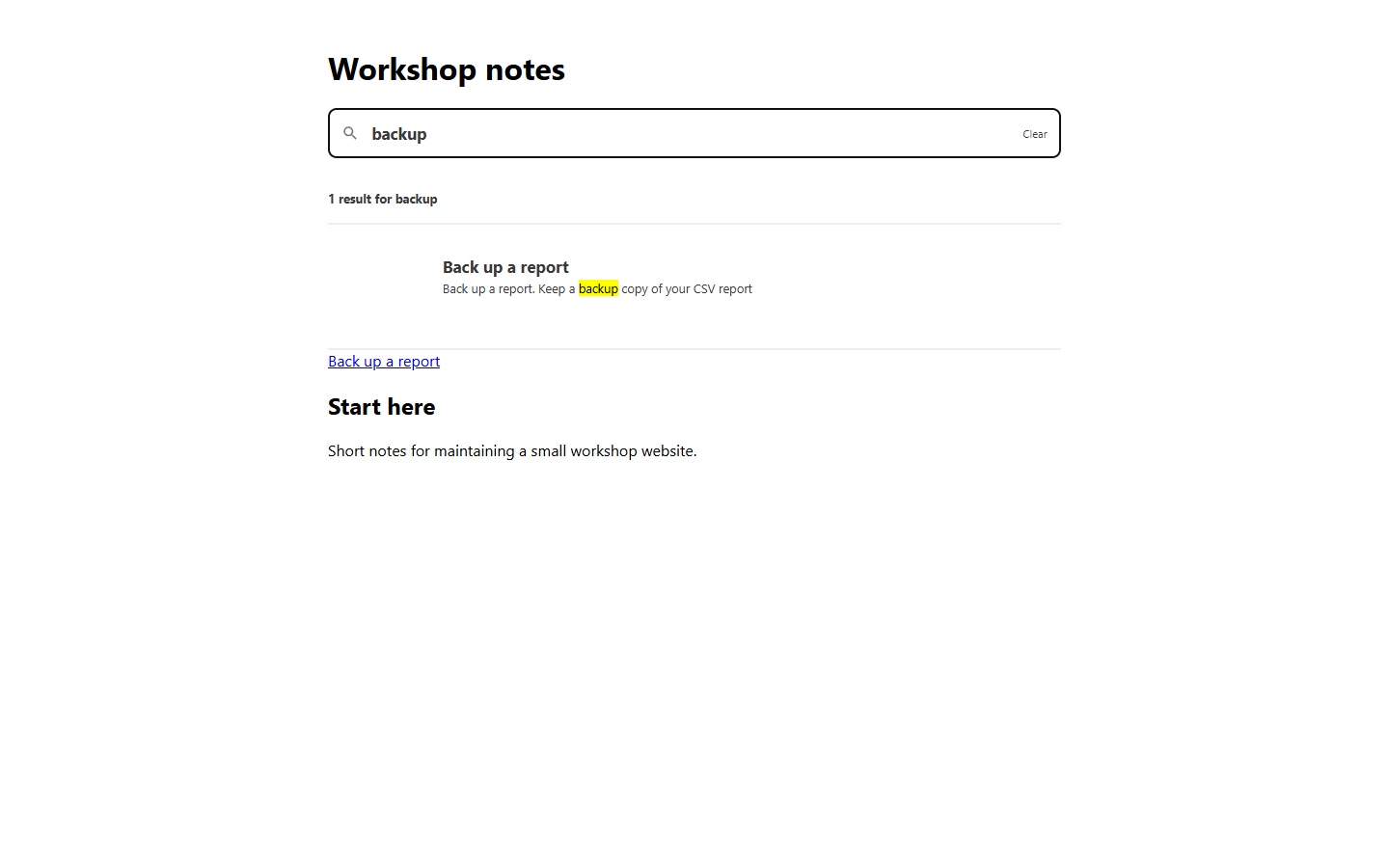
Type backup. You should get Back up a report with an excerpt. Open the result and confirm it reaches /backups.html. Search for zzznomatch and check the no-results message too.
For your existing site, use a phrase from the page you chose, follow its result and check the correct published path. The backup check belongs only to the sample. If your local output is dist, the commands use --site dist and --directory dist; do not point the server at a different folder from the one you indexed.
Keep search aligned with each publication
After changing content, build the site first, then regenerate the index. Publish the HTML and the generated pagefind folder together using your existing process. A new HTML page paired with an old index can be perfectly readable but absent from search.
If the search box is missing, check that pagefind-ui.js and pagefind-ui.css exist at the paths your page requests. If the box appears but results fail, check the generated index files were uploaded too and that the server returns them as files rather than an HTML fallback. Do not fix this by adding an unrelated hosted-search subscription.
The index is public data. A noindex search-engine tag is not an access barrier, and hiding a page link does not protect text copied into the search files. Exclude private and draft pages before indexing; do not rely on search UI styling to hide them.
Search needs JavaScript; reading the pages and following the normal links should not. Press Ctrl+C to stop the local file server. To remove search later, remove the UI markup from the source template and rebuild without generating its index; preserve ordinary navigation.
Sources and useful links
- Pagefind installation — pinned npx execution and supported platforms.
- Choosing indexed content — body markers and content selection.
- Classic Pagefind UI options — the UI used in this example.
- Pagefind search API configuration — base URL for path-mounted sites, passed through the classic UI options.