How to close a Google Form and show a useful message
Stop accepting Google Forms responses, show visitors a clear message, preserve the answers you already have, and reopen the form when needed.
In this guide
To close a published Google Form, open it in the editor, click Published at the top right, turn off Accepting responses, and click Save. People opening its responder link will see a closed-form message instead of the questions. Your earlier responses remain available.
Use this when a signup period ends or you need to pause collection. You do not need to delete answers, unlink a spreadsheet or install an add-on. The steps below use the current desktop Forms interface; older tutorials may show the acceptance switch directly in the Responses tab.
Close the form and explain what happens next
Sign in with an account that can edit the form and open it from Google Forms. If you only see the questions and a Submit button, you have opened the responder view. Return to the form in your own Forms or Drive file list.
Before changing anything, open Responses and note the count. If a linked spreadsheet is part of your work, keep it open too. This gives you a starting point for checking that the answers remain.
- Click Published in the top-right corner.
- Turn off Accepting responses.
- Under the message visitors will see when the form is closed, click Edit.
- Replace the default message with a short explanation that fits your situation.
- Click Save and wait for the setting to finish saving.
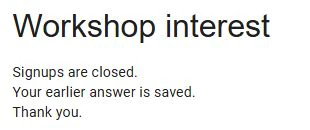
For a completed workshop-interest check, a useful message is:
Signups are closed. Your earlier answer is saved. Thank you.
If you know the next intake date or have a real alternative contact route, include it. Do not promise a reopening date or a confirmation email you have not arranged. This message is shown to visitors; changing it does not send an email to previous respondents.
Check the link people actually use
Open the original responder link in a separate tab and refresh it after the change has saved. You should see your closure message and no submission fields.
An owner may also see a link for editors to resume collection. That is an owner control, not an invitation for ordinary respondents to reopen the form. Check a signed-out or private window as well if the form was meant to be public.
Return to Responses and confirm the earlier count and answers remain. Closing is not deletion. If the count increased around the time you closed, inspect the timestamps: a submission may have arrived before the change took effect.
If the form still accepts answers, reopen Published and check the saved switch state. Then refresh the responder tab and confirm that its title matches the form you edited. An already-open tab is not a reliable check of a newly saved setting.
Reopen it without starting again
In the editor, click Published, turn Accepting responses back on, and Save. Once saved, refresh the responder link; the questions should return. The form keeps its previous answers and uses the same responder link.
If this was only a test, close it again when you finish. If you also want to stop edits to earlier submissions, review Settings → Responses → Allow response editing rather than relying on closure alone. See how response editing works for the distinction.
Closing, unpublishing and deleting are different
Closing collection keeps a published responder page with your message. Unpublishing removes responder access to the form. Deleting responses removes data and is not needed for either action. Keep your questions and answers unless you have a separate reason to delete them.
The current Published settings may also offer Set close date or response limit. Use those controls only if the displayed date, time and rule match your intended intake. A response limit is not a guaranteed seat cap: Google’s documentation says simultaneous submissions can exceed it. For a simple manual close, the acceptance switch is enough.
Sources and useful links
- Google Forms — find the form you can edit.
- Manage responses and close collection — current closure controls, messages and the simultaneous-response limit caveat.
- Publish and share a form — publishing, responder access and response-editing settings.
- Where responses are stored — how Forms answers differ from a linked spreadsheet and what deletion does.