How to let people edit a Google Forms response safely
Enable response editing, keep the correct private edit link, and verify that a correction updates an existing Google Forms answer instead of adding a duplicate.
In this guide
A respondent can correct a Google Forms answer if you enable Allow response editing and they have the edit link for that submission. Opening the ordinary form link and submitting again creates another response; it does not reliably replace the first one.
This guide is for the form owner. You will enable editing, submit a fictional answer, change it through its edit link, and check that the response count stays the same. Use a desktop browser and a form you can edit. No script, add-on or paid upgrade is needed.
For a simple preference form, that can save a lot of duplicate cleanup. For a sensitive application or a workflow that needs verified identities and an audit history, a reusable edit link is not a complete access-control system.
Enable editing before collecting the answer
Open your form’s editor, select Settings, expand Responses, and turn on Allow response editing. Wait for the change to save.
Keep View results summary off under Presentation unless you deliberately want respondents to see submitted results. Allowing someone to edit their own answer is different from sharing a summary of everyone’s answers.
For the test, use a form with one editable choice and an optional text answer. The two-question workshop form works, but you can use an existing practice form instead. Do not run a test in a live form that sends messages or triggers other actions you are not ready to repeat.
If the form is not published, click Publish, review its responder audience and publish without sending invitations. If collection was paused, use Published → Accepting responses → Save to open it for the test.
Submit once and keep the right link
Open Copy responder link from the editor in another tab. Choose Afternoon and enter TEST-B — response after linking in the optional text field, or use an equally distinctive fictional value in your own form. Submit and wait for confirmation.
On the confirmation page, find Edit your response. Right-click that link and copy its address, or open it and bookmark the resulting page privately. Keep it until you have checked the correction.
Treat this link as private. In a form without additional identity restrictions, possession of an edit link can allow changes to that response. Do not put it in a shared spreadsheet, group chat or screenshot. The general responder link is the one to distribute to new respondents.
If the confirmation page has no edit link, return to Settings → Responses, check that editing is enabled and saved, then make a fresh practice submission. Do not repeatedly submit real data while diagnosing the setting.
Correct the answer and check for a duplicate
In the editor’s Responses tab, note the count and inspect the test submission under Individual. If the form is connected to Sheets, find its marked row there too. A spreadsheet is optional for this test.
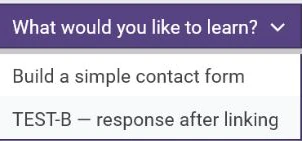
Open the saved edit link. Your earlier answers should already be filled in. In the workshop example, change Afternoon to Morning and the text to TEST-B — corrected, then click Submit again. Typing alone does not save the correction.
After the confirmation, return to Responses → Individual and inspect the same submission. The value should have changed and the overall response count should be unchanged. Refresh a linked response sheet and check its existing row as well.
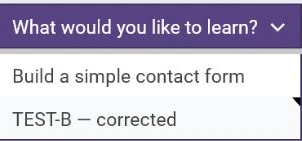
In this example there were two responses before and two afterwards. If your count increases, check whether you opened the ordinary blank form rather than the saved edit link. Inspect both entries before removing anything; do not assume the newest row is automatically the only correct one.
Do not substitute a spreadsheet edit
Changing a cell in the response spreadsheet is a change to that spreadsheet. It does not correct the original submission stored in Forms. Use the response’s edit link when you want the respondent to update the form answer itself.
A corrected answer can also arrive after someone has already acted on the original. If you use responses to schedule work, send messages or allocate places, decide how your team will notice and handle later changes. Turning on editing does not automatically reverse that earlier work.
Stop editing when the correction period ends
Return to Settings → Responses, turn off Allow response editing, and wait for it to save. Open the saved test edit link again: it should now say the response cannot be edited. The existing answer remains; this setting does not delete it.
To stop new submissions too, separately close response collection. If you were only rehearsing, leave both collection and editing disabled when you finish.
If a respondent has lost their edit link, the ordinary form URL is not a replacement. Ask them to check the confirmation tab or a private bookmark. Do not promise that signing in will recover every earlier submission. For an essential correction with no link, arrange it with the owner and reconcile the old and replacement records deliberately.
Sources and useful links
- Publish and share a form — allow response editing, responder access and response-summary exposure.
- View and manage responses — inspect individual submissions and control collection.
- Choose where to save responses — the separate response spreadsheet and its permissions.