How to link Google Forms to Google Sheets without losing responses
Connect an existing Google Form to Sheets, check earlier answers and a new test row, and understand what unlinking does before changing the connection.
In this guide
Google Forms can send answers straight to a Google spreadsheet. Use the built-in Link to Sheets control; you do not need Make, a script, or a paid connector for this job.
You will connect a form you can edit, check that its existing answers arrived, then submit one clearly marked test and find its new row. The main path creates a new spreadsheet so you do not have to reorganize an existing file.
Use a desktop browser, a Google account and a small form you own or have permission to edit. If you do not have a form yet, create one and collect a test response first. Do not experiment on a live form that triggers payments, messages or other downstream work.
Check the starting point
Open your form’s editor and select Responses. Note the count and a recognizable value from an earlier answer. For the workshop example, the starting point is one answer containing Build a simple contact form.
If the button already says View in Sheets, the form is already connected. Open that spreadsheet and go directly to the new-response test below. Creating another destination is unnecessary.
For important existing data, use the three-dot menu in Responses → Download responses (.csv) to keep a separate export before changing the connection. Downloading a copy does not delete the answers. Do not use Delete all responses: Google warns that deleting Forms responses cannot be undone.
Create the response spreadsheet
If other people can edit the form, they automatically gain access to its new response spreadsheet too. Check that those collaborators should see the answers before creating it; later access changes must be made separately on both files.
- In Responses, click the green Link to Sheets button.
- Keep Create a new spreadsheet selected.
- Name it something recognizable, such as Workshop responses, and click Create.
- Wait for the connection to finish, then open the new spreadsheet. If a browser tab did not open, use View in Sheets in the form.
A spreadsheet is the whole file. A sheet, or tab, is one page inside it. Open the response tab at the bottom; its name may be Form Responses 1 or a localized equivalent.
Look for a timestamp column and columns matching your questions. Each submitted response occupies one row beneath the headings. Google may format this range as a table automatically. Count the data rows, not the heading row, and compare the earlier answer with Forms.
Already have a spreadsheet for this project? In the destination dialog, Select existing spreadsheet lets you choose that file instead. Forms uses a response tab inside it; do not expect it to place answers into a hand-designed table. Check the destination before connecting, especially if other people can access that file.
Prove that new answers arrive
If the form is unpublished, click Publish, review its responder audience and publish without sending invitations. If it is already published but closed, use Published → Accepting responses → Save to reopen your practice form. Keep the existing audience restrictions appropriate to its data. Use Copy responder link near the Published button and open it in another tab, rather than editing spreadsheet cells.
Fill in a fictional answer with a distinctive value such as TEST-B — response after linking, then submit it and wait for the confirmation. If a practice form limits each person to one response and you have already answered, temporarily turn off Settings → Responses → Limit to 1 response for this test. Restore that rule afterwards if it is part of your intended setup.
Return to Sheets. You should now see the earlier row and the new marked row. In Forms, the response count should have increased by one. In our two-question example, that is two responses and two data rows, not counting the heading.
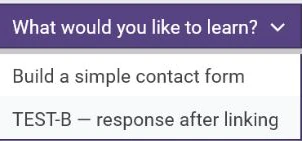
If the new row does not appear, check these in order:
- Confirm that the form showed its submission confirmation. Filling in a form without submitting is not a new response.
- Use View in Sheets from the form to open the actual destination; do not rely on a similarly named file in another tab.
- Check the response tab and remove any filter that is hiding the test row. Refresh after the form has finished saving.
- If the button has reverted to Link to Sheets, the form is no longer connected. Choose its destination again.
Google documents additional limits for very large response collections. This guide is for a small form; if yours has more than 100,000 responses, consult the response and synchronization limits before treating a missing row as a setup mistake.
Keep the response connection predictable
If you reopened a closed practice form just for the test, use Published → Accepting responses → Save to close collection again. The connection and both answers remain.
Treat the response tab as incoming data. Do calculations and reporting in a separate tab rather than replacing its headings or inserting your own answer rows. Typing an answer into Sheets does not submit a Forms response.
If someone needs to correct their submission, use response editing in Forms. Changing a spreadsheet cell is not the same as changing the answer stored in the form.
Do not publish a response sheet just because the form itself is public. Respondent access and access to the collected answers are different permissions.
Disconnect without deleting answers
To stop new answers going to this spreadsheet, open Responses → More (three dots) → Unlink form, then confirm Unlink. The existing spreadsheet data remains, and Forms can still collect responses. This is different from closing the form, which stops submissions themselves.
To connect again later, use the response-destination control and check the resulting tab and counts before using it. Do not manually paste old rows into a new response destination as a substitute for that check; you could create duplicates in your report.
Sources and useful links
- Choose where to save responses — new and existing destinations, unlinking, permissions and deletion consequences.
- View and manage responses — CSV export, response views and limits for large forms.
- Publish and share a form — get the responder link used for a real submission test.