How to embed a Google Form in your website
Put a published Google Form inside an existing page, make its iframe fit small screens, and verify that a submitted answer reaches the form owner.
In this guide
You can put a Google Form inside an existing website without building your own submission system. Publish the form, copy its embed code, and paste it into the page’s HTML or custom-HTML block. Google stores the answers in Forms; your website gives visitors a convenient place to fill it in.
This guide assumes you can edit your form and one page on your site. We will embed a short workshop-feedback form, make it fit the page, and check one submitted answer. You do not need a new hosting plan, an add-on or an automation service.
If you do not have the form yet, create a basic Google Form first. Use harmless sample questions while checking the embed. The desktop controls below follow Google’s current publishing interface, checked on October 8, 2026; older instructions may place the embed option in a Send dialog.
1. Publish the form for the intended audience
Open the form in its editor, where you can see Questions, Responses and Settings. The page containing only the questions and a Submit button is the responder view.
Click Publish at the top right. Check the responder access: for a public website form, the intended audience must be allowed to open it. A work or school account may have organization restrictions; do not change those just to make an embed public. Then publish. If the button already says Published, open it and make sure Accepting responses is on.
Open the responder link in a private or signed-out window. Confirm that the questions are available to the audience you intended. An embed does not bypass a sign-in requirement. For a form containing a file-upload question, use a normal responder link instead: the current editor refuses to generate an embed for that form. This example uses ordinary feedback questions.
2. Copy the embed code, not the editor address
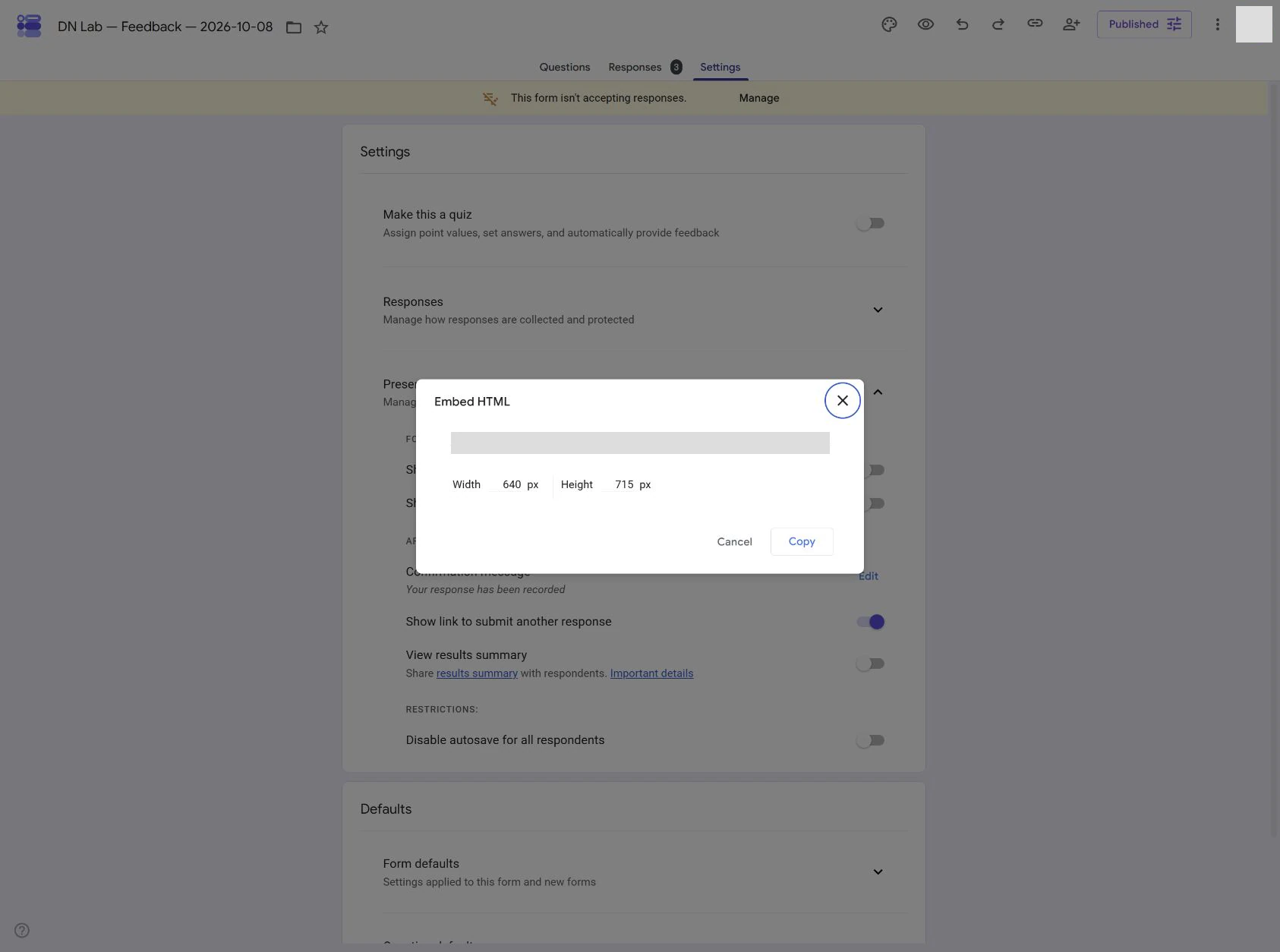
In the editor, open More — the three-dot button — and choose Embed HTML. Copy the iframe code shown in the dialog. Its address contains the responder path and embedded=true.
An iframe is a small window showing another page inside your page. Here that window shows Google’s form. Do not paste the private editor address from your browser bar; it is not the visitor’s form.
If your page editor offers an HTML, Embed or Custom HTML block, paste the code there. A normal text block may display the code as text instead of rendering the form. Save and preview the page using the editor’s normal workflow.
3. Let the form fit the page
Google’s dialog supplies a fixed width and height. The fixed width can be wider than a phone screen. In a page where you control HTML, keep your own copied src, give the iframe a descriptive title, and let the width fill its container:
<iframe
  title="Workshop feedback form"
  src="https://docs.google.com/forms/d/e/YOUR_FORM_ID/viewform?embedded=true"
  height="850"
  style="border: 0; display: block; width: 100%; max-width: 100%;"
>
  Loading the feedback form…
</iframe>
<p>
  <a href="https://docs.google.com/forms/d/e/YOUR_FORM_ID/viewform">
    Open the feedback form in its own page
  </a>
</p>
Replace the whole example src with the address in your copied embed code, and the link’s href with your normal responder link. YOUR_FORM_ID is a placeholder, not a working form. Keep embedded=true in the iframe address. Do not use these literal sample addresses on your site. The separate link lets visitors continue when their browser blocks the embed.
The height of 850 pixels is a starting value for this short example, not a rule for every form. Preview your actual questions and confirmation page. Increase it if the last question or Submit button is awkward to reach. A longer form may still scroll inside the iframe; that is normal, but visitors should not have to guess where the button went.
Some website builders remove inline styling or limit embeds. In that case, use the builder’s width controls or link directly to the responder page. Do not buy a plan before confirming that the current editor actually blocks the required embed.
4. Check the real result
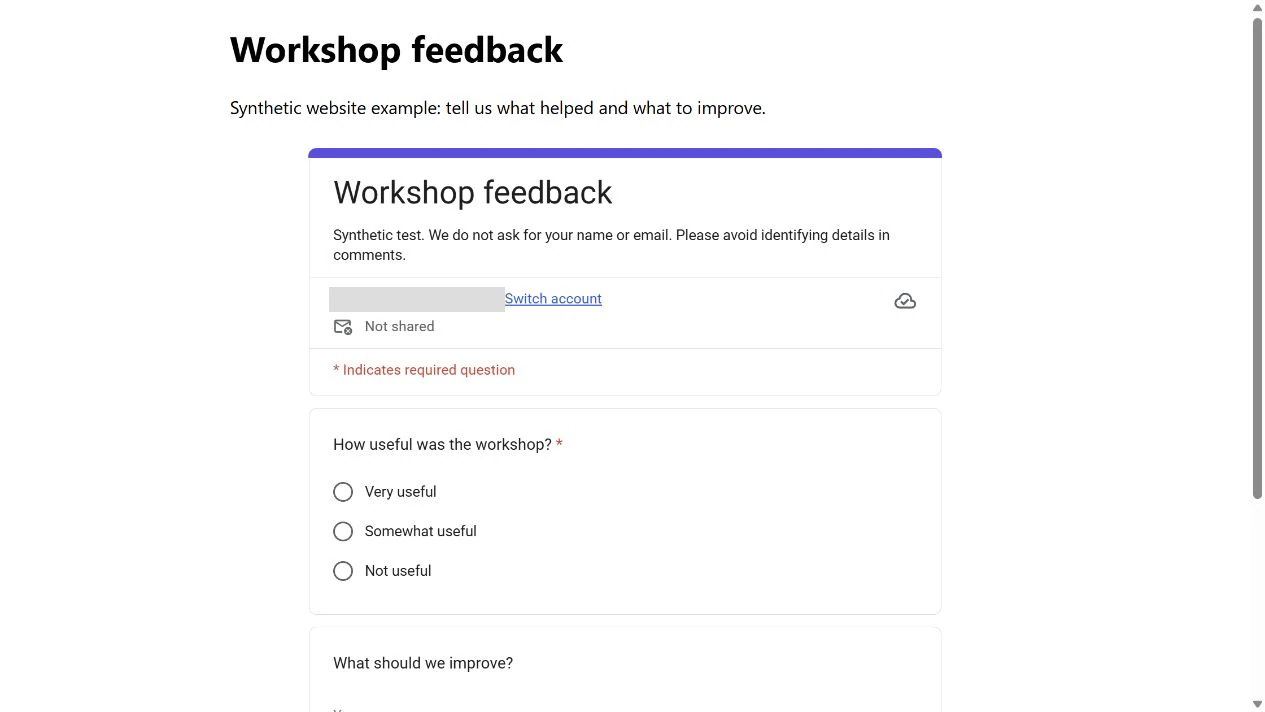
Open the saved website page on a desktop and a phone-sized screen. Check that the form fits horizontally and that its last field and Submit button can be reached. Also open the fallback link on the narrow screen: it should lead to the same form in its own page.
Submit one harmless answer from the embedded form, rather than from the editor’s preview. Wait for Google’s confirmation, then return to Responses in the form editor. The count should increase and the individual answer should contain your test values.
Try leaving a required question empty. It should prevent submission and show a message near the field. This checks that visitors can recover from an ordinary mistake. A visible form alone does not prove that submissions work.
If responses are linked to a spreadsheet, check the new row there too. Forms can store the answer even if you are looking at the wrong or disconnected sheet.
If the embed is blank or asks for permission
A sign-in or access message: check the form’s published responder access and any account restrictions. Test the responder link separately. The iframe cannot fix permission settings.
Code printed on the page: move it into a real HTML/embed block. Check the published page, not only the text editor.
The direct link works but the embed does not: privacy tools, browser settings or the site’s security policy may block embedded Google content. Keep a normal “Open the feedback form” link beside the embed so visitors have another route. Use your responder link for that link too.
Questions appear but no answer arrives: confirm the submission reached its confirmation page and that you are checking the same form’s Responses tab. Do not assume a button click completed the request.
Keep the form, or close the test
When the embedded form works, replace test questions or values only where needed and recheck the saved page. Embedding does not copy the form: edits to the same form appear in the iframe.
If this was only a test, close response collection using Published → Accepting responses → off → Save. Refresh the embedded page and check that it shows the closed message. Existing answers stay available. To remove the form from the website, remove the embed block separately; that does not close the form’s direct link.
Sources and useful links
- Publish, share and embed Google Forms — responder access and the Embed HTML control.
- Google Forms question types — file uploads and sign-in restrictions.
- Manage form responses — checking stored answers and closing collection.
- MDN iframe reference — what iframe attributes such as title, width and height mean.