How to make a Google Forms survey anonymous to you
Collect ordinary feedback without name or email fields, remove sign-in barriers where allowed, and test what respondents and form owners can see.
In this guide
For ordinary anonymous feedback, turn off email collection, avoid identifying questions, and check the published form while signed out. Google Forms can collect answers without recording a respondent’s name or email in the response you receive.
That is a useful way to ask “What should we improve?” after a workshop. It is not a guarantee that nobody can infer who answered, or that Google cannot associate activity with an account. For sensitive reporting where identity protection is critical, do not treat this checklist as a secure anonymous-reporting system.
You need a Google account and a form you can edit. The steps use the desktop web interface; a managed work or school account may restrict who can respond. You will check one sample answer before inviting anyone.
Choose questions that do not identify people
For a new survey, open Google Forms and choose Blank form. Give it a clear title, such as “Workshop feedback.” Use an existing form only if you can safely change its settings; avoid experimenting on one that is collecting live answers.
Start with two questions:
- “How useful was the workshop?” — Multiple choice: Very useful; Somewhat useful; Not useful. Make it required.
- “What should we improve?” — Paragraph text. Leave it optional and add: “Please do not include your name, email or other identifying details.”
Edit the blank form’s first question and enter each answer choice on a separate option line. Click Add question (the + in the side toolbar) to create the second. Use each question’s type menu to choose Multiple choice or Paragraph, and its Required switch to decide whether an answer is needed. For the comment’s reminder, open that question’s More menu (three dots), select Description, and enter the text there. These questions are enough for a useful first survey; adding more is optional.
Do not ask for names, email addresses, employee numbers or file uploads. An unusually specific question—such as a person’s exact role in a tiny team—can identify them even without a name field.
In the Form description field under the title, make the promise precise: “We do not ask for your name or email. Please avoid identifying details in your comments.” Say who will read the responses and why. Do not promise absolute anonymity.
Set up responses without collecting identity
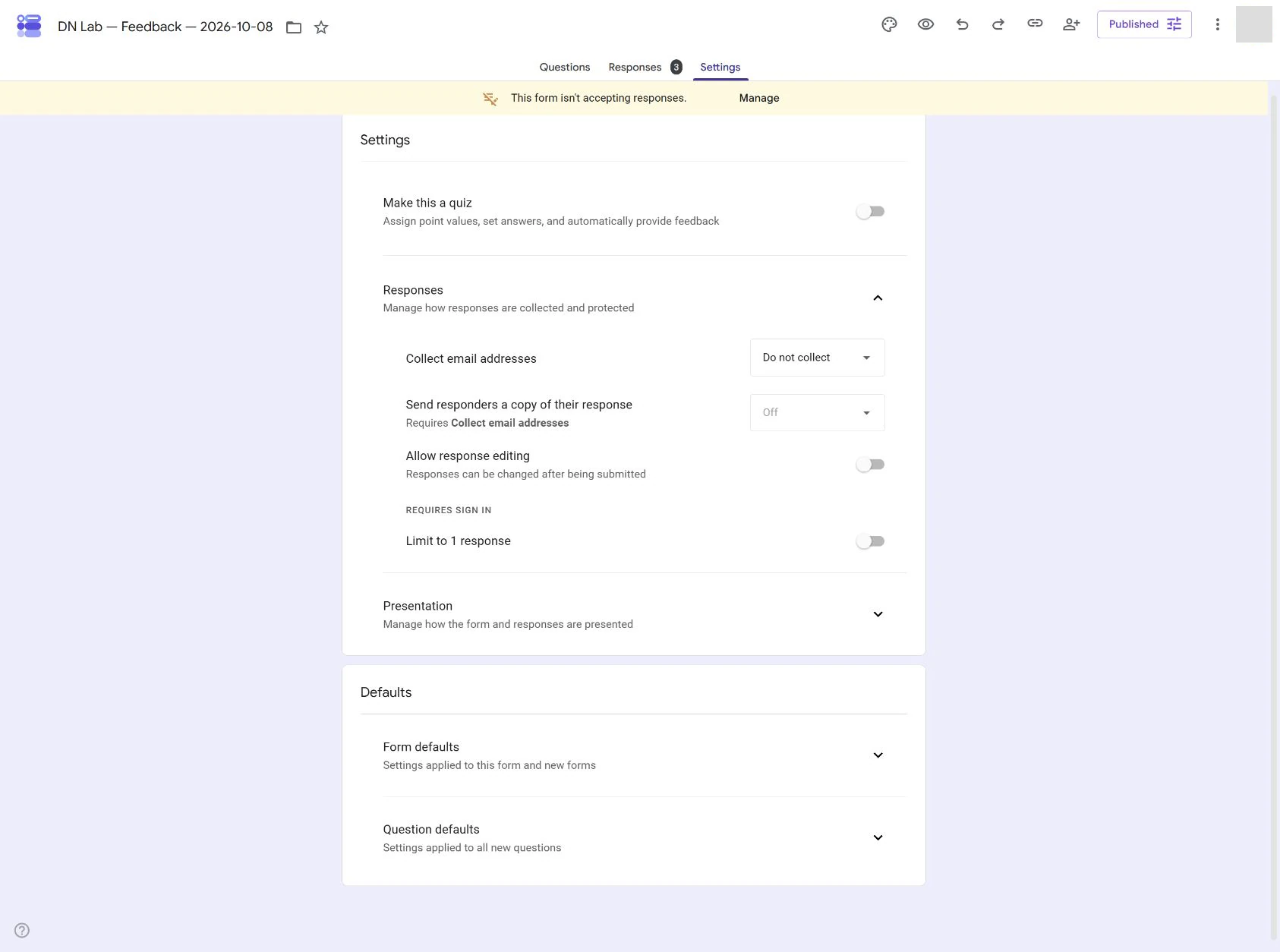
Open Settings → Responses. Check these choices deliberately rather than relying on defaults:
- Set Collect email addresses to Do not collect. Verified collection and responder-entered collection both add identity data to the answers.
- Turn Limit to 1 response off for the no-sign-in path. That option requires a Google sign-in, even when email collection is off.
- Leave Allow response editing off unless you need it. The basic feedback example does not require an ongoing private edit link.
There is a trade-off: removing the one-response restriction means the form does not enforce one answer per person. If duplicate prevention matters more than a sign-in-free experience, decide that openly; do not promise both through these settings.
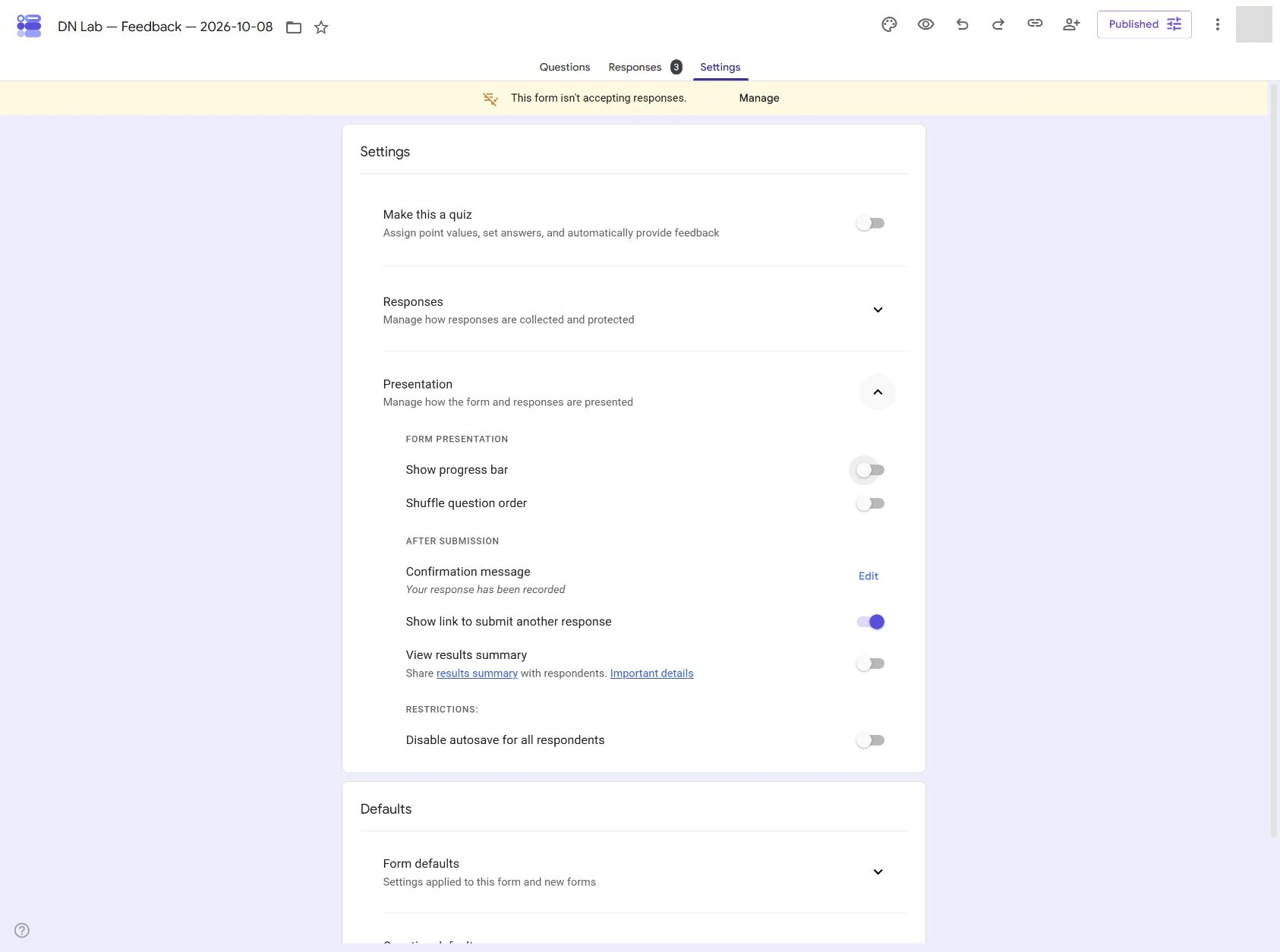
Under Settings → Presentation, turn View results summary off. A shared summary can expose full text answers to other respondents. A private feedback survey should not publish comments just because it does not collect email.
Changing these settings does not remove names or emails already collected in earlier responses or spreadsheet copies. A fresh form is usually the clearer starting point when an older survey collected identity.
Publish for the people you intend to reach
Click Publish. Review Manage or the responder-access choices and, for this open feedback example, allow anyone with the link if your account permits it. Confirm Publish, then copy the responder link from Published or the sharing controls.
This is access to answer the form, not access to edit it. Do not send a collaborator/editor link. Do not invite people or send notifications while you are still testing.
If a work or school account only allows responses from its organization, do not assume the public setting bypasses that policy. Confirm the permitted audience with its administrator. You can still collect feedback without email fields, but should explain any sign-in requirement to respondents.
Test the link as a respondent
Open the responder link in a private/incognito window where you are not signed into Google. An editor’s preview can look fine while the published link has an access barrier.
Check that you can reach both questions without signing in and that there is no name or email field. If sign-in is required unexpectedly, return to responder access and the one-response setting. File uploads and managed-account rules can also introduce sign-in requirements.
Try submitting without the required usefulness answer. You should see a required-field message and no successful submission. Then choose Somewhat useful, enter “Please add a short practice exercise” in the optional comment and submit. Expect a confirmation message.
Back in the editor, open Responses and inspect the sample under Individual. Confirm the two expected answers and check that there is no collected email or identifying question. A submitted response can still include a timestamp; in a small group, timing and the content of a comment can reveal identity. Avoid using those clues to match answers to people.
If the form shows an email-collection notice or records an email, stop sharing it and correct the settings before collecting real feedback. If your account cannot offer the intended sign-in-free access, describe that limit instead of calling the result fully anonymous.
Share carefully, then close collection
Share the same responder link with the intended audience after the test. Keep editor access limited to people who need the answers. If responses go to a linked spreadsheet, check its sharing separately; changing form settings does not secure a separately shared sheet.
Once feedback is complete, open Published and turn off Accepting responses, then save. Check the responder link again: it should show that collection has ended rather than accept another answer. Our closing a Google Form guide covers that control in more detail.
The result is a feedback form that asks for no identity, has been checked from the respondent’s side, and keeps the collected comments out of a public summary. Keep that specific promise, rather than turning “no email field” into a broader claim about anonymity.
Sources and useful links
- Google Forms basics — create and edit a native form.
- Publish and share a form — responder access, the one-response sign-in requirement and results-summary visibility.
- Manage responses — email collection choices and inspecting the answers you receive.
- Create your first Google Form — a complete basic form guide if the editor is unfamiliar.