Google Forms confirmation email: send a copy of the answers
Enable built-in response receipts, choose when Google sends them, and check the difference between a submitted response and a delivered email.
In this guide
Google Forms can email someone a copy of the answers they submitted. Turn on email collection, then set Send responders a copy of their response to Always or When requested.
This is a response receipt. It is useful when someone wants a record of their workshop preference or request. It is not a custom welcome email, an invoice or proof that you accepted a booking. The message shown after submission is also separate from an email receipt.
Use a desktop browser and a form you can edit. Ordinary Forms settings are enough; no paid add-on is needed for this built-in copy. If you need a first practice form, follow our Google Forms starter guide and use fictional answers.
Collect an address before enabling copies
Open the form’s Settings tab and expand Responses. With Collect email addresses → Do not collect, the copy setting is unavailable: Google has nowhere to send the receipt.
For a public, non-sensitive practice form, select Responder input. Respondents type their address into the built-in email field. You do not need to add a second email question.
Google checks the address’s format, but a typed address is not verified ownership. For a form that requires a verified Google account address, consider Verified instead; this requires respondents to sign in. Choose according to the form’s audience and data, rather than removing a necessary restriction to make testing easier.
Choose when the receipt is sent
In the same Responses settings, change Send responders a copy of their response:
- Always requests a copy for every new submission with the collected address. Use this when providing a record is part of the form’s purpose.
- When requested lets respondents choose whether to receive one.
- Off stops these copies while leaving email collection and the saved responses in place.
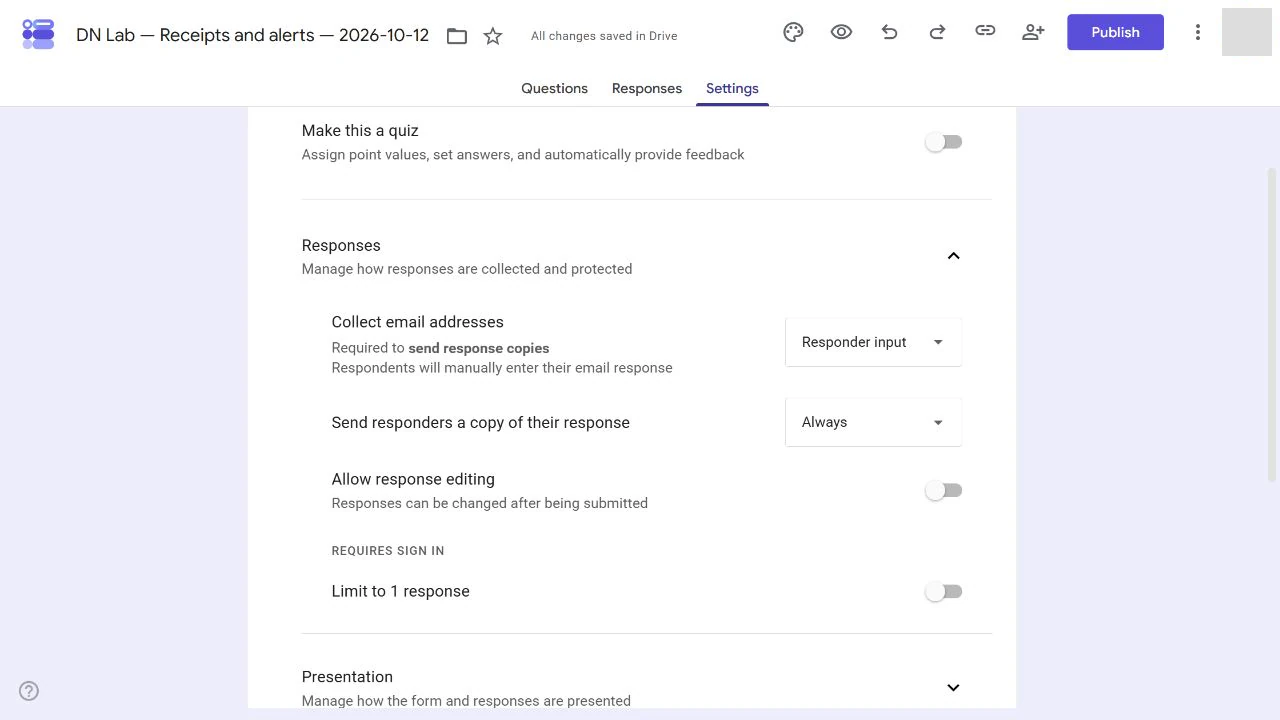
For this rehearsal, choose Always. Wait for the saved status. This affects new submissions; it does not resend all earlier answers.
Submit one answer and check the receipt
- Publish the practice form to its intended audience. If it is already published but closed, click Published, enable Accepting responses, then Save. Do not widen access to confidential information.
- Click Published, then Copy responder link and open it in another tab.
- Enter an email address you control. Use a fictional session choice and a recognizable text answer. If you chose When requested, also select the receipt option before submitting.
- Click Submit and wait for the response confirmation.
- Return to the editor’s Responses tab. Check that the count increased and your answer is saved.
- Open the recipient inbox, including Spam. Look for the Google Forms response receipt and confirm its answers match your submission.
The saved answer proves that Forms collected it. Only the received email proves inbox delivery. Google notes that spam filtering or anti-abuse measures can prevent copies from arriving, so Always is a sending setting, not a delivery guarantee.
Do not type a stranger’s address just to see what happens. A receipt includes submitted answers, which may be sensitive in a real form.
Fix the most common problems
The copy setting is disabled: enable built-in email collection. An ordinary question named “Email” does not replace that setting.
The response is saved but no email arrived: check the address used, Spam and whether When requested was selected without requesting a copy. Changing the setting afterward does not send that earlier receipt. Correct the setup before one new, permissioned test.
You need a personalized confirmation: this setting copies answers; it does not create your own email sequence. Keep the form’s description and confirmation message honest about what happens next. A request for a place is not a confirmed place until your separate booking process accepts it.
You wanted an alert for yourself: enable the editor’s notification setting in Responses → More options instead. Respondent copies and owner alerts serve different people.
Leave the form in the right state
For a real form, keep receipts enabled only if respondents should receive their submitted information by email. For a rehearsal, set copies to Off, then click Published, turn off Accepting responses and Save. Keep the test answer if you want a record; closing the form does not delete it.
Your result is a saved submission and, if delivered, its matching response receipt—not a new mailing list or a booking system.
Sources and useful links
- View and manage responses — email collection, response copies and delivery limitations.
- Publish and share forms — access choices and respondent settings.
- Create a Google Form — Google’s basic create, publish and review path.