How to get email notifications for new Google Forms responses
Turn on the form owner's email alerts, check a real submission, and switch them off without deleting your form or its answers.
In this guide
You do not need to keep a Google Form open to find out that someone has answered it. Turn on Get email notifications for new responses in the form’s Responses menu.
This sends an alert to you, the signed-in editor who enabled it. It is different from emailing respondents a copy of their answers. You do not need to collect their email addresses just to receive an owner notification.
Use a desktop browser and a form you can edit. If you have not made one yet, our first Google Form guide covers the questions, publishing and first response. For a rehearsal, use a separate form with fictional answers.
Turn on the alert for this form
- Open your form in the editor, where you see Questions, Responses and Settings.
- Choose Responses.
- Open the three-dot menu beside Link to Sheets. Its accessible label is More options for responses.
- Click Get email notifications for new responses. A check mark beside the item means it is enabled; Google also shows an enabled message.
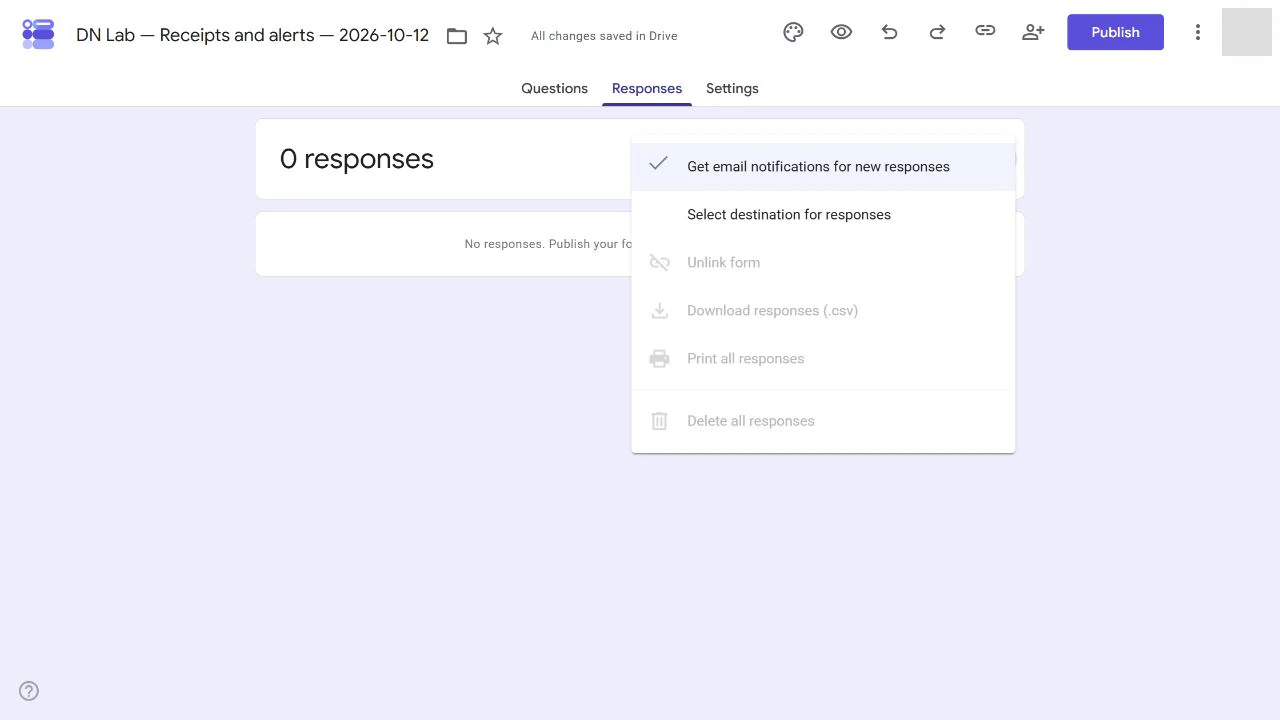
There is no recipient field here. This built-in setting is not a way to send alerts to an arbitrary team address or customer. Each collaborator who wants these alerts should enable them while signed in to their own account.
Check a new response, then check your inbox
An existing answer is not a useful notification test. Make one new submission after enabling the setting:
- If your practice form is not available to respondents, click Publish, review its responder audience and publish it. Do not make a private working form public just for this test.
- If it is already published but closed, open Published, enable Accepting responses and Save.
- Click Published, then Copy responder link. Open that link in another tab. The editor address is not the respondent’s link.
- Submit one recognizable fictional answer, such as a session choice and Notification test in a text field. Look for the submission confirmation.
- Return to Responses. Its count should increase by one. Check Individual to confirm that this is your test answer.
- Check the inbox for the same Google account that enabled notifications. Also look in Spam and other filtered folders. Confirm the message refers to this form, rather than another form with a similar title.
The response count verifies collection; the email verifies delivery. One does not prove the other. Do not use an email alert as your only record of an important request: the saved answer remains in Forms.
If the email does not arrive
First check the response count. If it did not increase, finish the submission or check that both tabs belong to the same form. If the response is saved, reopen the menu and check that notifications are still enabled for your current account.
Then check Spam, inbox rules and the account you are reading. Delivery can be delayed or filtered. Repeatedly submitting the same form creates more answers, so avoid using a burst of test responses as a repair.
If you need the alert to reach another person, share editor access only when that person should be able to see the collected answers, then have them enable their own notifications. For a separate automated routing system, define the recipient and data permissions first; it is a different setup from this one checkbox.
Switch off alerts or close a practice form
To stop your alerts, return to Responses → More options → Get email notifications for new responses and click the checked item. Google shows Email notifications disabled. Your form can still collect answers, and no answers are deleted.
To stop new submissions as well, click Published, turn off Accepting responses and Save. Reopen the responder link to check the closed message. Our closing guide explains how to change that message and reopen later.
You are finished when a new answer is visible in Responses, you have checked delivery separately, and the form is left in the state you actually want.
Sources and useful links
- View and manage form responses — Google’s notification menu and response-management guidance.
- Publish and share a form — responder access and publishing controls.
- Create your first Google Form — Google’s overview if you need a new practice form.