Google Forms spam: reduce junk responses without blocking everyone
Choose practical Google Forms controls for junk responses: pause collection, restrict repeats, validate fields and check the access trade-off with a real test.
In this guide
Google Forms can restrict who responds and reject some invalid answers, but those controls do different jobs. “Limit to 1 response” reduces repeat submissions from the same Google account. It requires sign-in and does not prove that every answer is honest. Validation rejects a wrong format; it is not a bot detector.
Start with the least restrictive control that fits your audience. A public enquiry form and a survey for known workshop attendees should not automatically use the same access settings.
This guide assumes you can edit a published form and inspect its responses. The current desktop interface and official controls were checked on October 8, 2026. We will protect a small feedback form, test one valid answer and a repeat, then leave collection in the state you intend.
If junk is arriving now, pause collection first
Click Published at the top right, turn off Accepting responses, and Save. Refresh the responder link to check that the form is closed. Your earlier answers remain; you do not need to delete them to stop new entries.
Use a brief closure message if visitors need to know what happened, such as This form is temporarily closed while we review responses. Do not promise a reopening time you cannot meet. See closing a Google Form if you need the full sequence.
Inspect the suspect answers before choosing a fix. Are they repeated answers, blank or badly formatted fields, unsolicited links, or submissions from an audience you never intended to invite? An odd answer alone does not establish how it was sent.
Choose the control that matches the problem
| Problem | Useful control | Trade-off |
|---|---|---|
| Many repeats from one account | Settings → Responses → Limit to 1 response | Respondents must sign in; another account can still submit |
| The form is only for a known group | Review published responder access | People outside the permitted audience cannot respond |
| Missing or malformed values | Required fields and response validation | A correctly formatted answer can still be junk |
| Collection should have ended | Turn Accepting responses off | Legitimate new entries stop too |
Restricting access is sensible for an internal form. It can be a poor fit for public leads if customers do not have Google accounts. Do not enable several restrictions at once and then wonder why legitimate people cannot submit.
Limit one response, then check the actual effect
For a workshop-feedback form where Google sign-in is acceptable:
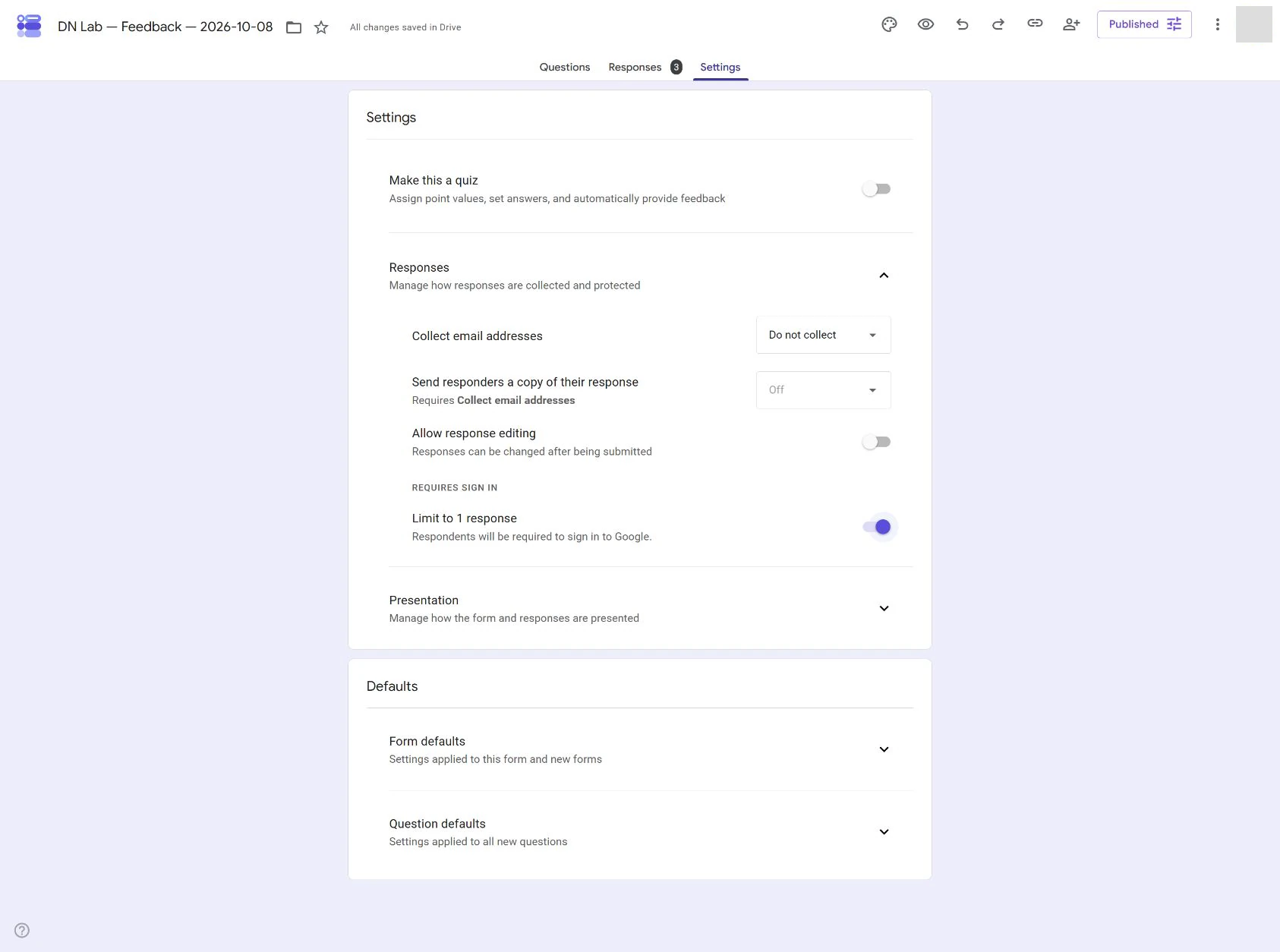
- Open Settings → Responses.
- Turn on Limit to 1 response.
- Decide separately whether to collect email addresses. The one-response limit does not by itself mean the owner receives the respondent’s email.
- Under Settings → Presentation, keep View results summary off. Otherwise respondents may see summaries including full-text answers; reducing spam is not permission to expose the collected data.
- If collection is paused, reopen it through Published → Accepting responses → on → Save when you are ready to test.
- Open the responder link in a separate tab, sign in if asked, and submit one harmless answer.
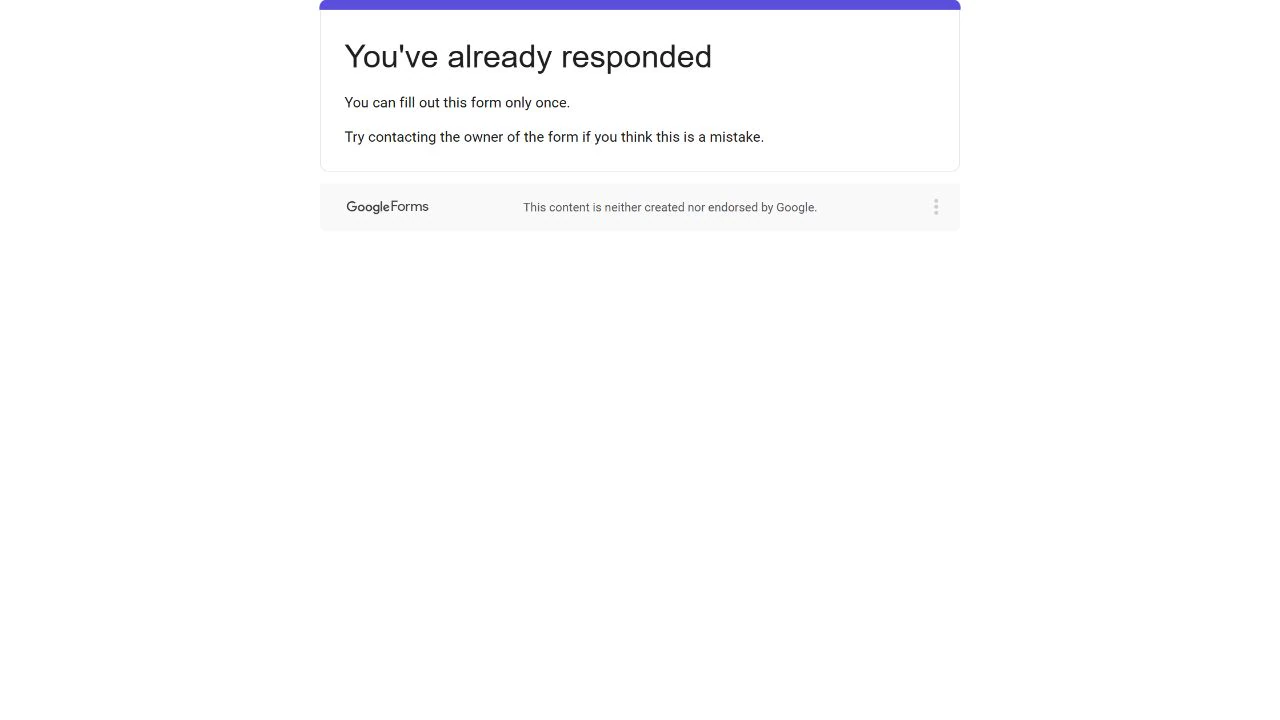
- Refresh the same responder link in the same Google account.
You should now see a message that you have already responded, instead of a fresh form to submit. In the editor’s Responses tab, confirm your valid answer is present and that the refresh did not create another one.
A response made before enabling the restriction is not a reliable repeat test. Make the test submission after the change has saved. Also check access using the kind of account your audience will use; an owner’s sign-in cannot establish that every external visitor is permitted.
If the limit is unsuitable, turn it off again under Settings → Responses. Refresh the responder page after saving. That restores the possibility of repeat answers; it does not remove earlier data.
Make invalid input easy to correct
Choose Required only for fields needed to complete the request. For a reply address, a Short answer question with Response validation → Text → Email rejects malformed text. It does not verify mailbox ownership.
For a small quantity, validate the allowed value and give a useful error message. A field rejecting lots while accepting 2 is doing format checking, not judging intent. Do not make honest respondents guess an unexplained secret word or solve a confusing homemade puzzle.
Open the responder link and try one invalid value. The message should identify the field and help the person fix it. Then submit a valid test and check the stored answer. Controls that merely look enabled in the editor have not yet passed that check.
Keep the data useful and finish deliberately
Treat answers as untrusted input: do not open suspicious links or automatically forward every entry into customer-facing messages. If a spreadsheet helps review, separate your notes or filtered view from the original response data rather than overwriting evidence indiscriminately.
If junk remains despite access and input controls, decide whether an open public form is still the right tool. A different form service may offer controls you need, but verify the actual feature and plan before moving or paying. Do not buy an automation subscription just to add Google Forms’ native one-response setting.
At the end, check Published → Accepting responses. Leave a real form open only if collection should continue; close a test. Your useful outcome is a deliberate access choice and a verified response path, not a promise that spam can never return.
Sources and useful links
- Publish and share Google Forms — responder access, one-response sign-in and email settings.
- Response validation — what format rules can actually check.
- Manage responses — inspect answers and pause collection without deleting them.
- Google account security — help if suspicious messages or links involve your account.