Which WordPress backup plugin fits your restore plan?
Choose between existing host backups, UpdraftPlus Free and Duplicator Lite by what you can recover, automate and keep outside the server.
In this guide
Choose a backup plugin by how you would restore the site, not by whether it can create a ZIP file.
If your current host already keeps suitable off-server backups, lets you restore files and the database, and provides a recovery route when WordPress cannot open, you may not need another plugin. Check its retention, restore access and exclusions first.
For a standard single-site WordPress installation, UpdraftPlus Free is worth considering for regular backups to a supported destination. Duplicator Lite is worth considering for a manual backup or migration workflow. Its current 5.x features differ from older comparisons: do not assume Lite has no one-click restore or cloud option.
These are workflow choices, not a performance ranking or a claim that one product is best for every store. Features below were checked against official documentation on 14 October 2026, including UpdraftPlus 1.26.9 and Duplicator Lite 5.0.6. There is no affiliate relationship asserted here.
Compare the parts that change the decision
| Question | Existing host backup | UpdraftPlus Free | Duplicator Lite 5.x |
|---|---|---|---|
| What is included? | Host-specific; check files, database and exclusions. | WordPress database and selected content files; core files and wp-config.php are not part of the standard Free backup. | A selected site backup/archive; inspect exclusions and build warnings for your site. |
| Automatic schedule? | Check the actual plan and retention. | Regular interval schedules are available; do not assume Premium’s precise timing/incremental features. | Manual local backups in the free workflow; do not assume Pro scheduling is included. |
| Copy away from the server? | Confirm it is genuinely separate from the site’s failure domain. | Configure a supported remote destination and verify the completed copy. | Download the backup; optional Duplicator Cloud is a separate paid service compatible with current Lite. |
| Restore when wp-admin works? | Host panel or support workflow. | Existing Backups → Restore, with all needed components available. | Current Lite has one-click restore; check the backup and current recovery instructions. |
| When WordPress cannot load? | Confirm panel/support access still works. | Plan the documented manual/fresh-install recovery and missing core/configuration pieces. | Preserve the required archive/installer or documented recovery files outside the failed site. |
A paid destination, extra storage and backup retention can add costs even when the plugin is free. Existing storage is already paid for, not automatically unlimited. Neither plugin label proves a successful remote copy or a working restore.
When UpdraftPlus Free is a reasonable fit
Choose this direction if you want recurring backups to a destination it supports and you can complete its recovery procedure. Open Settings → UpdraftPlus Backups. If the first-run welcome guide opens, use Exit setup to inspect the controls before choosing a destination. Its Backup / Restore tab is where manual backups and existing components appear; Settings holds schedules and destinations.
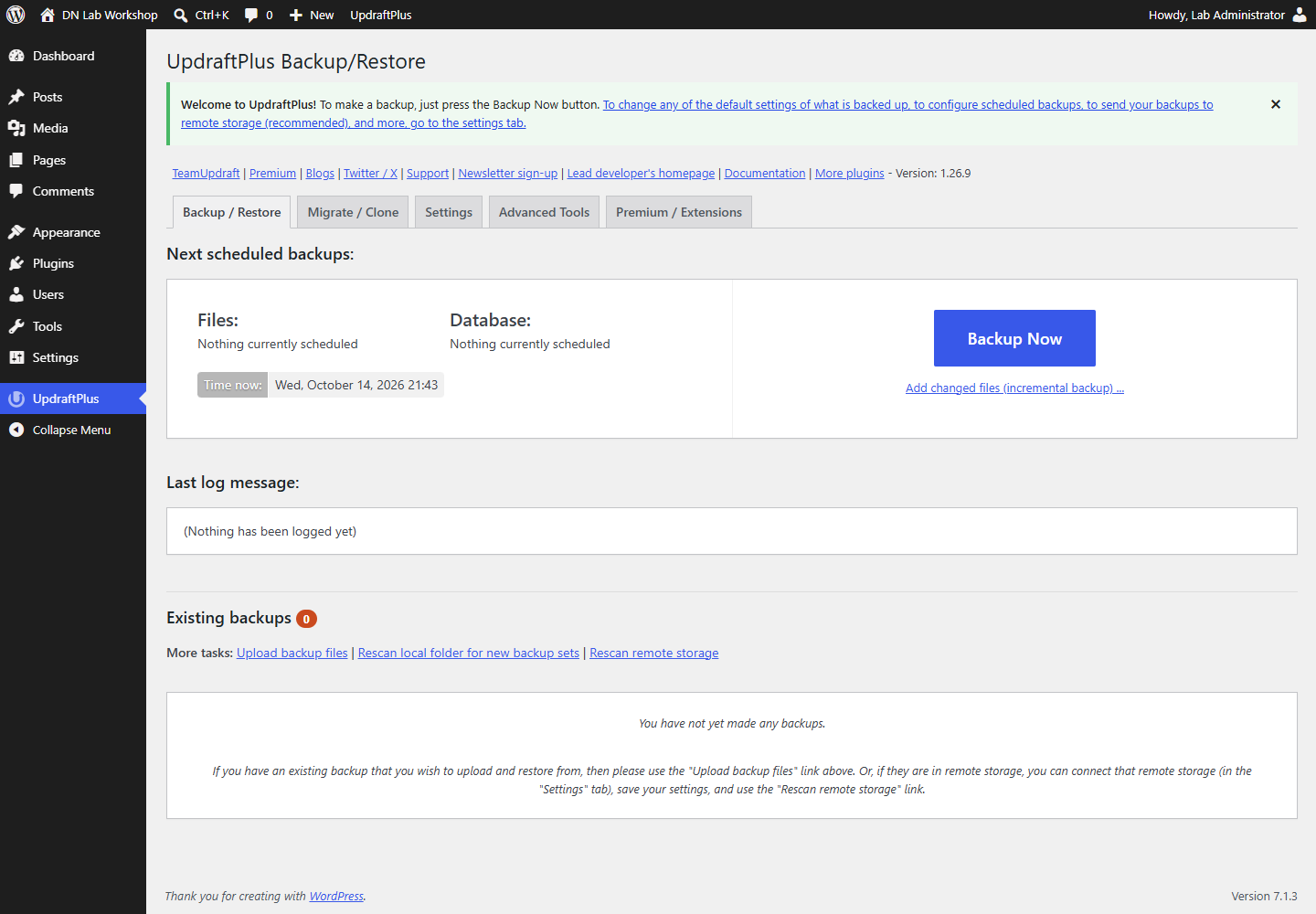
Check the exact files needed for your site. Free’s omission of WordPress core/configuration matters when rebuilding a lost server, even if a content/database restore on a working installation is straightforward. Keep a secure record of how to recreate the installation and retrieve the required configuration; do not store secrets in a public backup guide.
When Duplicator Lite is a reasonable fit
Choose this direction for a deliberate manual snapshot or move when you can preserve its required recovery files. If the first-run screen asks about optional updates/usage sharing, Skip lets you continue without that opt-in. Open Duplicator → Backups and inspect Add New before assuming the current free workflow matches an old tutorial.
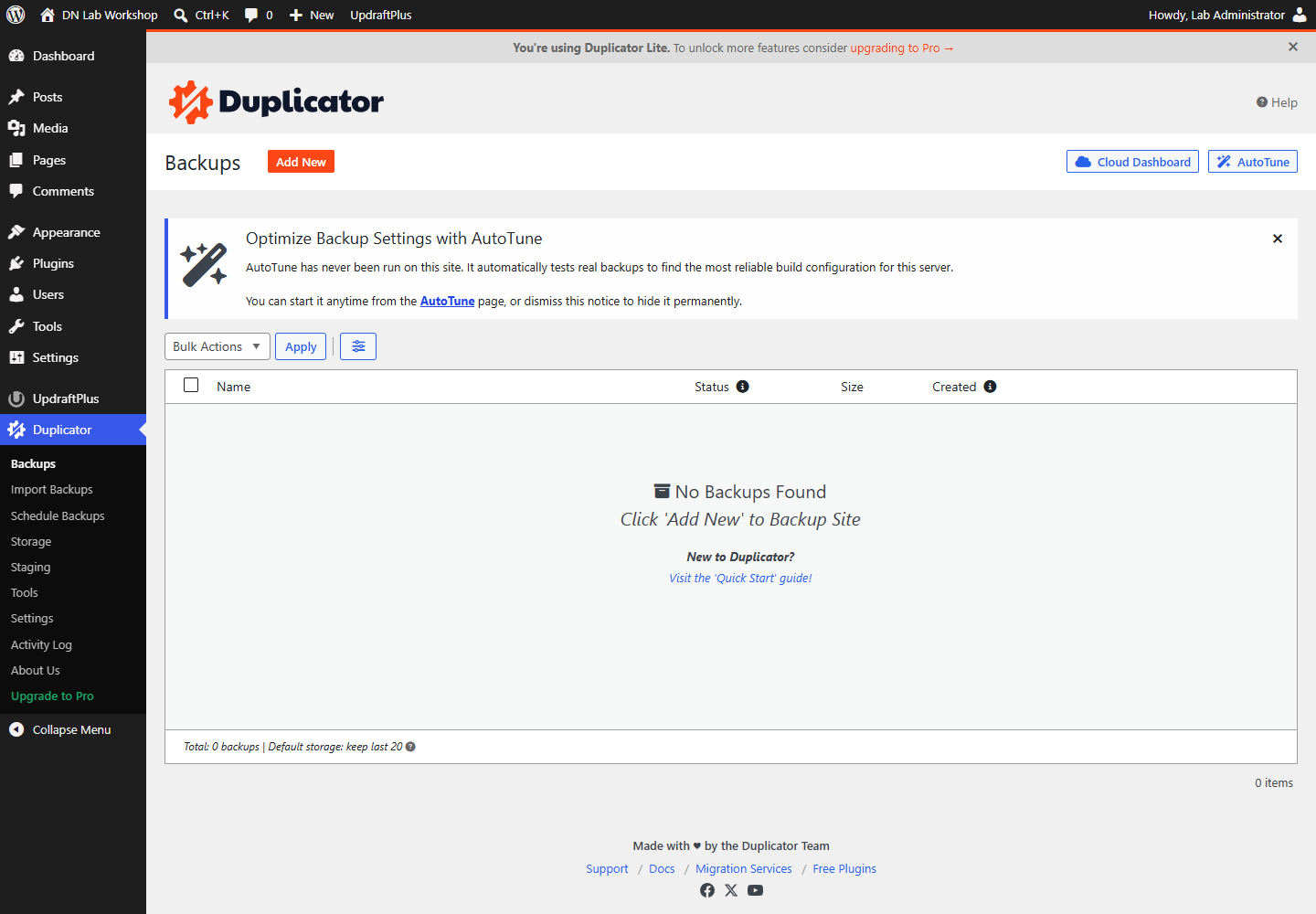
Do not treat a downloaded archive as a tested migration. Large sites, host limits, database differences and protected data can change the restore requirements. Review build warnings and the current instructions for a site that cannot start, not only the one-click path inside a healthy dashboard.
Make the choice with one restore drill
Before relying on any option, identify an isolated test destination that can support your site’s WordPress, PHP and database requirements. Do not restore over the live site to test the button.
Before importing or starting the restored copy, protect the test destination from public access and block outbound emails, payments and scheduled integrations. A backup can contain real customer data and live service credentials; an isolated URL alone does not prevent outgoing actions.
Use a recent backup and the provider/plugin’s current recovery procedure. Confirm you can obtain it without the failed site’s login. After restoring to the test destination, check the homepage, a second page, media and administrator access. For a shop or membership site, include its important data and features while keeping those outbound integrations disabled.
Record the backup date, missing files and steps that required support. Then remove the isolated copy safely when it is no longer needed. A usable archive is only the start: the drill should show that the site can be recovered outside its original server.
If your host passes those checks already, keep the simpler arrangement. If not, choose the plugin whose off-server copy, schedule and recovery path you can actually operate. A new hosting purchase is not the first answer to an incomplete backup checklist.
Sources and useful links
- UpdraftPlus backup guide — schedules, components and remote storage.
- UpdraftPlus manual recovery — recovery outside a working dashboard and Free’s file exclusions.
- Duplicator Lite 5.0 changes — current restore/cloud changes that make older comparisons unreliable.
- Duplicator cloud storage — Lite-compatible Duplicator Cloud and different Pro destinations.