WordPress critical error: isolate a failing plugin safely
Use the error evidence to disable an identified plugin, preserve the files and check normal visitor and administrator access again.
In this guide
The “There has been a critical error on this website” page means WordPress could not finish a request. It does not tell you that the whole site is lost—or which component is responsible.
Start by identifying the failing component, then make one reversible change. This guide follows the common case of a plugin failure on an existing WordPress site. You need Administrator access, or authorized access to your host’s file manager/SFTP. Keep a current backup available before changing files; do not restore over newer orders or submissions without accounting for them.
Preserve the clue before changing anything
Note the failing URL, approximate time, and the last change: a plugin update, activation, theme change or PHP-version change. Check whether the homepage, one other public page and /wp-admin/ all fail or only one route does.
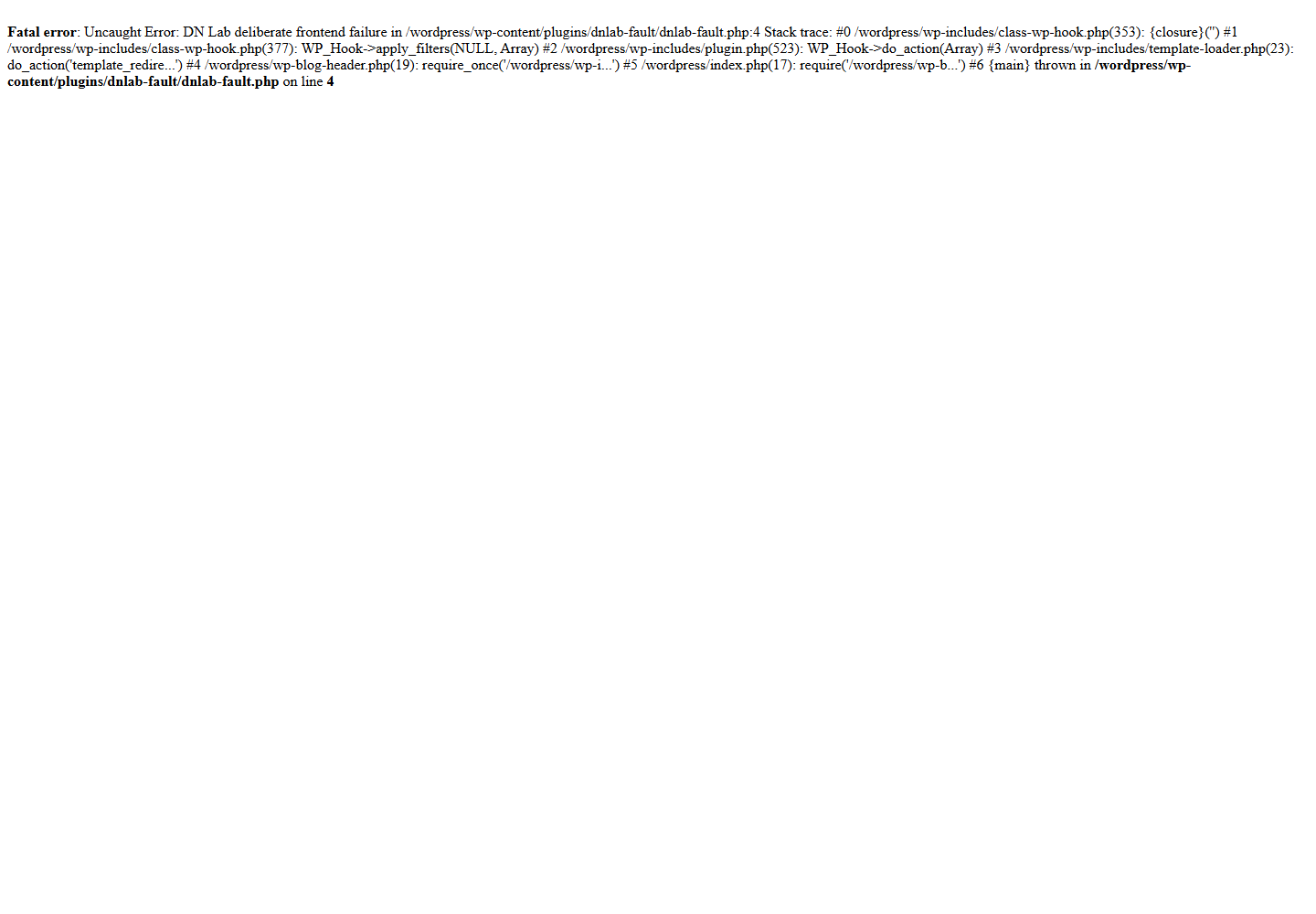
Look for WordPress’s recovery email at the site’s administrator address. When available, it can identify the component and provide a temporary Recovery Mode login link. Keep that private link out of screenshots and public support posts.
Recovery Mode pauses the faulty component for the recovery session; it does not necessarily repair the public site. Follow the email’s current instructions, then deactivate or fix the identified component. Click Exit Recovery Mode in the administrator toolbar, then check ordinary administrator access and a signed-out request to the failing page. Staying in the paused session is not proof that normal access has recovered.
If no email arrives, use the host’s PHP error log around the noted time. Ask support for the failing file/component and a redacted error excerpt if you cannot access it. An error path such as wp-content/plugins/plugin-folder/... is useful evidence; do not publish full logs, credentials or customer data.
If the dashboard still works
Open Plugins → Installed Plugins. Find the plugin identified by the error or the immediately reproducible change. Record its name/version and click Deactivate for that plugin only.
Reload the failing public URL in a private window. If it works, also check another page and /wp-admin/. Keep the plugin inactive while investigating its current requirements or contacting its developer. Do not reactivate it on the live site just to see the same error again.
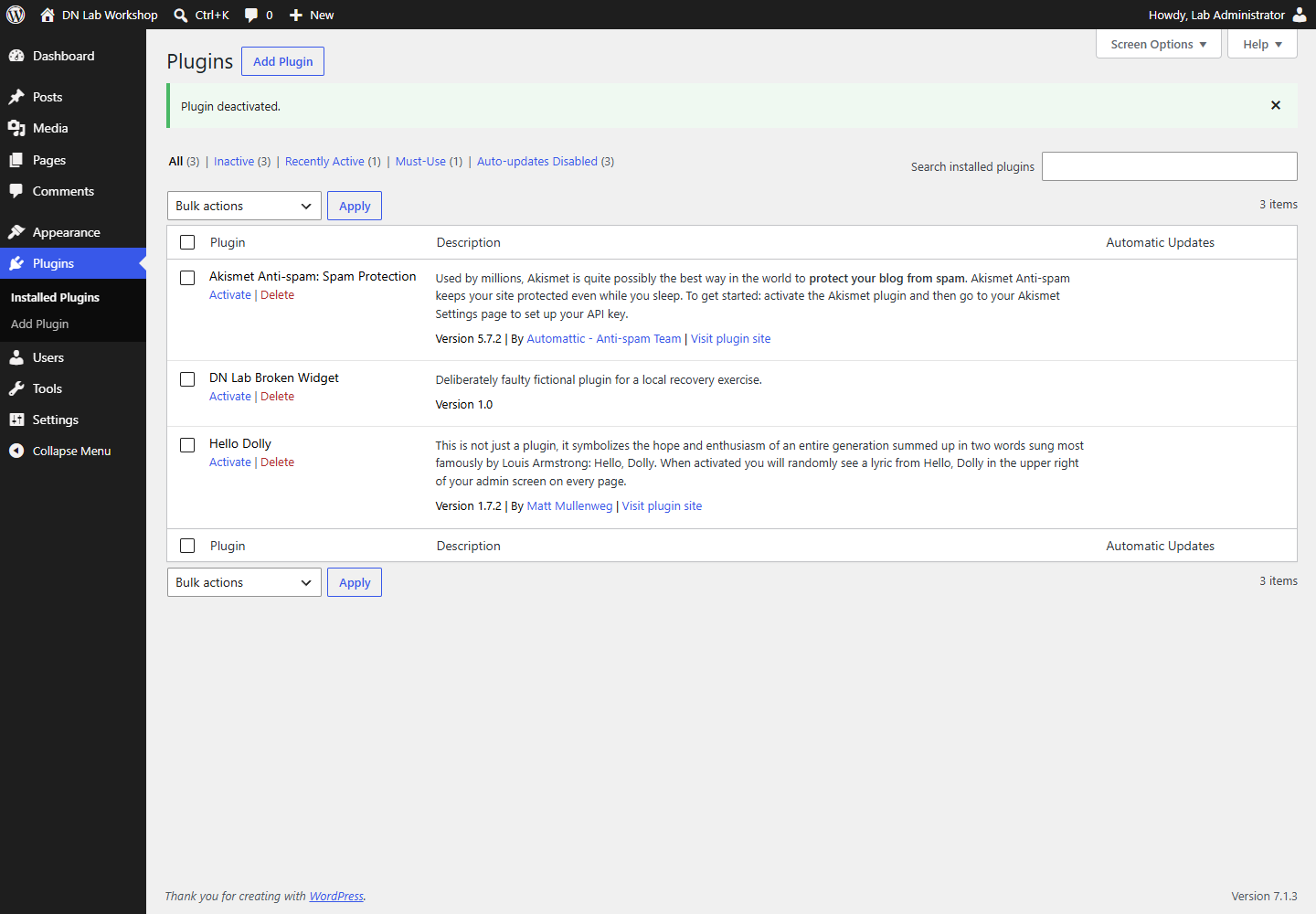
If deactivation changes nothing, preserve that result. Do not keep disabling unrelated components while losing track of the starting state.
If the dashboard cannot load
Use your existing host file manager or SFTP connection. Find the correct site’s WordPress directory, then wp-content/plugins. Hosting layouts differ: if several installations exist, confirm the domain’s document root with the host before editing anything.
For the identified plugin, rename its folder, for example from plugin-folder to plugin-folder.disabled. Write down the exact original and temporary names. Do not rename all of wp-content, delete the folder or change file permissions.
Reload the failed URL and try the dashboard. The missing original path prevents WordPress loading that plugin’s normal file. Once access returns, inspect Installed Plugins and confirm it is inactive. Keep a copy of its files and settings for diagnosis.
Restoring the original folder name is the file-level rollback, but it can expose the original failure again if the plugin is still active. Restore it only with a plan to keep it deactivated or after a fix has been checked outside the live site. Do not overwrite the folder with an unverified download.
This fallback applies to ordinary plugins in that folder. Must-use plugins, theme errors, PHP extensions and core/server failures need their own identified repair; moving an ordinary plugin will not fix them.
Confirm the site is usable again
Check the original failing page signed out, one other public page, and administrator access. Test the feature the plugin supplied: a recovered homepage does not mean its forms, checkout or scheduled work still operate.
If you cannot identify the component, send the host/developer the time, URL, recent change and redacted error. Ask for a staging reproduction or a compatible update. Avoid reinstalling WordPress, weakening permissions or rolling back the entire database as an unexplained first step.
Sources and useful links
- WordPress Recovery Mode — recovery emails, sessions and paused components.
- Debugging WordPress — logs and controlled debugging without showing errors publicly.
- Plugin management — deactivating rather than deleting plugins.