WordPress missed schedule: publish the overdue post once
Recover one overdue scheduled post, verify its public result and separate the immediate fix from recurring WP-Cron problems.
In this guide
If a finished post says Missed schedule, you do not need to recreate it. First publish the existing post deliberately, then investigate why the automatic run was missed.
This guide is for someone who can publish posts on an existing WordPress site. Screens use WordPress 7.1.3. You will check the intended date, publish the same post once, and confirm its public URL. You do not need a scheduling plugin for the immediate fix.
Confirm it is the post you want public now
Open Posts → All Posts and find the title under Scheduled or by searching. Note its existing permalink and status. Check for an already-published copy before changing anything; do not duplicate the post as a workaround.
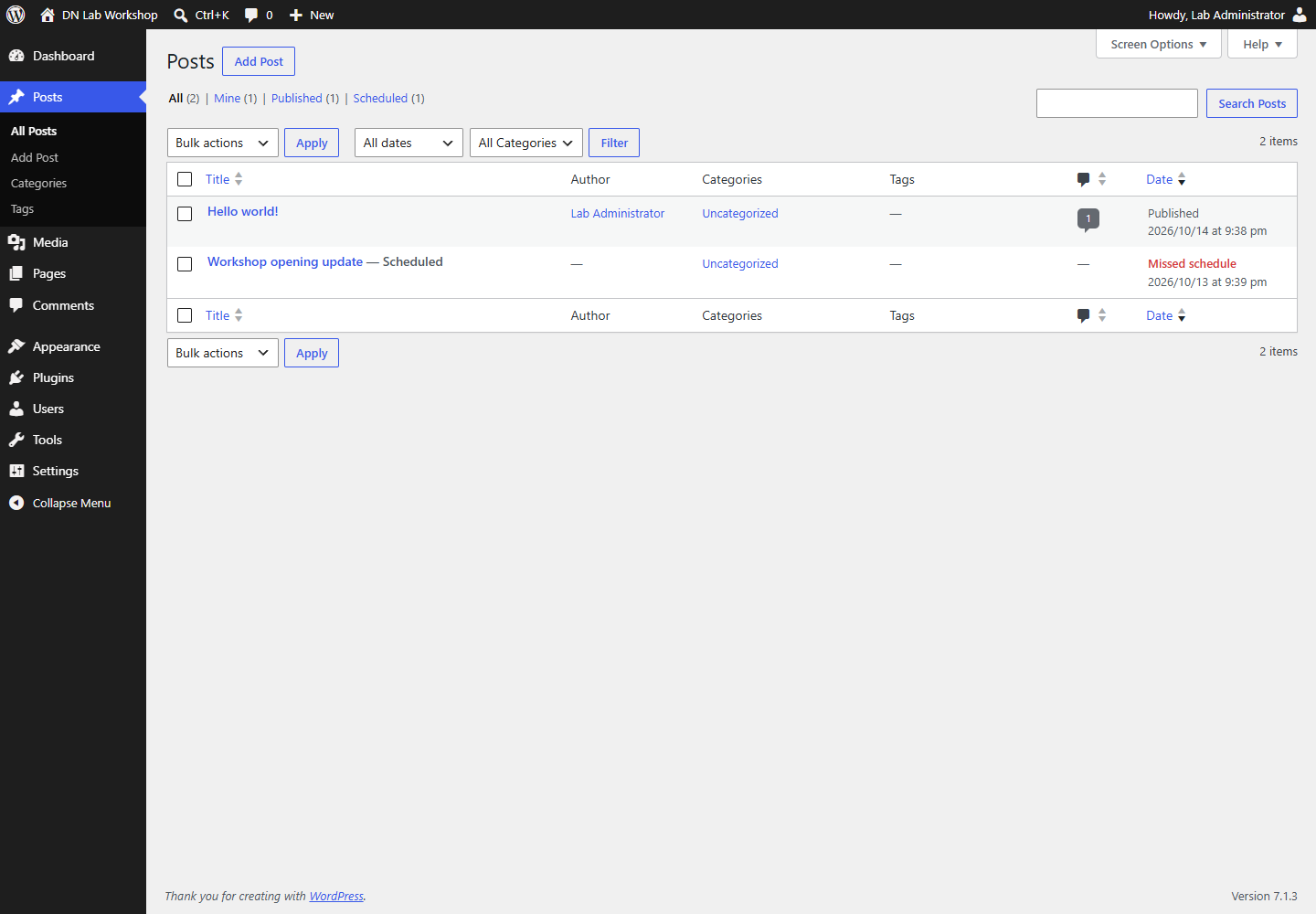
Confirm the content and any campaign timing are still appropriate. If it should no longer go live, change it to Draft instead of publishing stale information.
As Administrator, inspect Settings → General → Timezone. The site’s timezone—not necessarily your laptop’s—controls how scheduled times are interpreted. A named city timezone can account for daylight-saving changes. Record the current value before changing it; a global timezone change can affect other scheduled work.
If the displayed date is actually still in the future in the site’s timezone, this is not the same missed-run case. Correct the intended date in the post if needed rather than forcing unrelated scheduler changes.
Publish the existing post
Return to Posts → All Posts, hover over the correct title and choose Quick Edit. Change Status to Draft, then click Update. This withdraws the overdue schedule without making a duplicate.
Open that same post in the full editor. Check its saved date is the intended past date, not a future time. Click Publish, review the publication panel, and confirm Publish. A past date publishes the post now while retaining that date. If the button says Schedule, inspect the future date before proceeding.
The row should now say Published. If your role or site workflow requires approval, ask an authorized publisher to complete that change; do not create a second administrator account to bypass it.
Open the post’s public permalink in a private window. Check the title and body, then return to All Posts and confirm there is still one intended item. Also check the blog/category listing if the post should appear there.
If the permalink gives a 404 or an older version, confirm the saved status first and inspect the relevant page cache. If an external email/social integration runs on publication, inspect its own result rather than assuming it ran exactly once.
Understand why it happened
WordPress uses WP-Cron for scheduled tasks. On a standard setup, page requests trigger checks for due work. That is different from a server scheduler that runs at a fixed interval even when nobody visits.
A quiet site, a failed loopback request, a disabled built-in trigger, or a failing scheduled task can delay work. One late post does not tell you which cause applies.
Open Tools → Site Health and inspect warnings about scheduled events or loopback requests. A loopback request is WordPress contacting its own site; protection rules or server configuration can block it. Preserve the actual warning and time for your host.
If the host manages scheduling, ask whether a working server job calls this site’s WP-Cron and whether DISABLE_WP_CRON was intentionally set. Do not add a second scheduler while an existing one is running, or disable the built-in trigger before a replacement has been verified.
Changing the timezone does not repair a blocked scheduler. Repeatedly saving a post can hide the symptom without fixing recurring work.
Check the next run separately
Schedule one harmless future test post only if you can safely publish it, or use the next intended real post. Record its site-local due time and check the public result after that time. For a quiet-site problem, the meaningful check includes the period without visitor traffic; opening the page yourself may trigger WP-Cron.
The immediate result of this guide is the overdue post published once. Reliable unattended scheduling is a separate result that needs that later observation or a verified host scheduler. If the problem returns, give support the due time, timezone, Site Health result and any existing scheduler details.
To withdraw the recovered post, change it to Draft and confirm its public URL is no longer accessible as a normal post. This does not undo email or social messages already sent by other services.
Sources and useful links
- Scheduling posts — intended times and publication controls.
- How WP-Cron works — request-triggered scheduled work.
- Site Health screen — scheduled-event and loopback diagnostics.