Streamlit file uploader: build a small CSV viewer
Upload a small CSV to a local Streamlit app, inspect its columns and rows, and catch common file problems without changing the original.
In this guide
Want to check a CSV before processing it? A small Streamlit app can give you a file picker, a table and a row count in your browser. You choose a file; Python reads a copy, and your original stays unchanged.
This guide runs on your own computer, using Windows PowerShell, Python 3.12 and Streamlit 1.65.0. No hosting, account or database is needed. Use a small, non-sensitive UTF-8, comma-separated CSV with a header row. This viewer is for inspection, not a secure public upload service.
Choose the file, then prepare one folder
You can use your own CSV. If you want a quick check first, save this fictional sample as requests.csv in a plain-text editor:
request_id,service,status
R101,Website check,pending
R102,Contact form,done
R103,Website check,pending
In Notepad, choose Save as type → All files, select UTF-8 and check the filename has not become requests.csv.txt.
Create an empty folder called csv-viewer. Open it in File Explorer, type powershell into the address bar and press Enter. Check python --version: it should report Python 3.12. If it opens the Microsoft Store or Python is missing, install from the official Python downloads before continuing.
If you already have a Streamlit project, use its existing environment and skip this setup. Otherwise run:
If python --version reports another version, select your installed Python 3.12 interpreter before creating the sample environment. On Windows with the Python launcher, py -3.12 --version checks that interpreter and py -3.12 -m venv .venv creates the sample environment with it; if it is not installed, finish the official installation first.
python -m venv .venvAfter that succeeds, install Streamlit into this project’s separate environment:
.\.venv\Scripts\python.exe -m pip install streamlit==1.65.0You do not need to activate it: the commands explicitly select its Python.
Save the viewer
Save the complete code below as app.py, beside .venv. For an existing app, use the uploader and parsing section in your current script instead of replacing unrelated code.
import csv
import io
import streamlit as st

st.title("CSV viewer")
st.caption("Preview a small comma-separated UTF-8 file. The original is unchanged.")
uploaded = st.file_uploader("Choose a CSV", type=["csv"], max_upload_size=1)

if uploaded is not None:
    try:
        text = uploaded.getvalue().decode("utf-8-sig")
        reader = csv.DictReader(io.StringIO(text, newline=""), strict=True)
        columns = reader.fieldnames
        if not columns or any(not c.strip() for c in columns):
            raise ValueError("Add a header row with a name for every column.")
        if len(set(columns)) != len(columns):
            raise ValueError("Give each column a different name.")
        rows = list(reader)
        if any(None in row or any(v is None for v in row.values()) for row in rows):
            raise ValueError("Some rows have a different number of columns.")
    except UnicodeDecodeError:
        st.error("This file is not UTF-8. Export a UTF-8 CSV and try again.")
    except (csv.Error, ValueError) as error:
        st.error(f"Could not read this CSV: {error}")
    else:
        st.success(f"{len(rows)} data rows · {len(columns)} columns")
        if rows:
            st.dataframe(rows, hide_index=True)
        else:
            st.info("The header is present, but there are no data rows.")
DictReader uses the first row as column names. utf-8-sig also accepts the invisible byte-order marker some spreadsheet exports add. The 1 MB upload limit keeps this example small; the .csv selector alone does not prove the contents are valid.
Open it and check a real result
The command below starts the new example. In an existing project, keep your current environment and script: from its activated environment, use python -m streamlit run your_script.py --server.address 127.0.0.1, replacing your_script.py with the real filename. Do not create a second environment just to obtain an app.py path.
From the project folder, run:
.\.venv\Scripts\python.exe -m streamlit run app.py --server.address 127.0.0.1Leave that terminal running and open http://127.0.0.1:8501. 127.0.0.1 limits this listener to your computer. If the terminal reports a different port, use its Local URL.
Choose Browse files, select your CSV and check both the table and count. With the sample, you should see 3 data rows · 3 columns, including R103 on the last row.
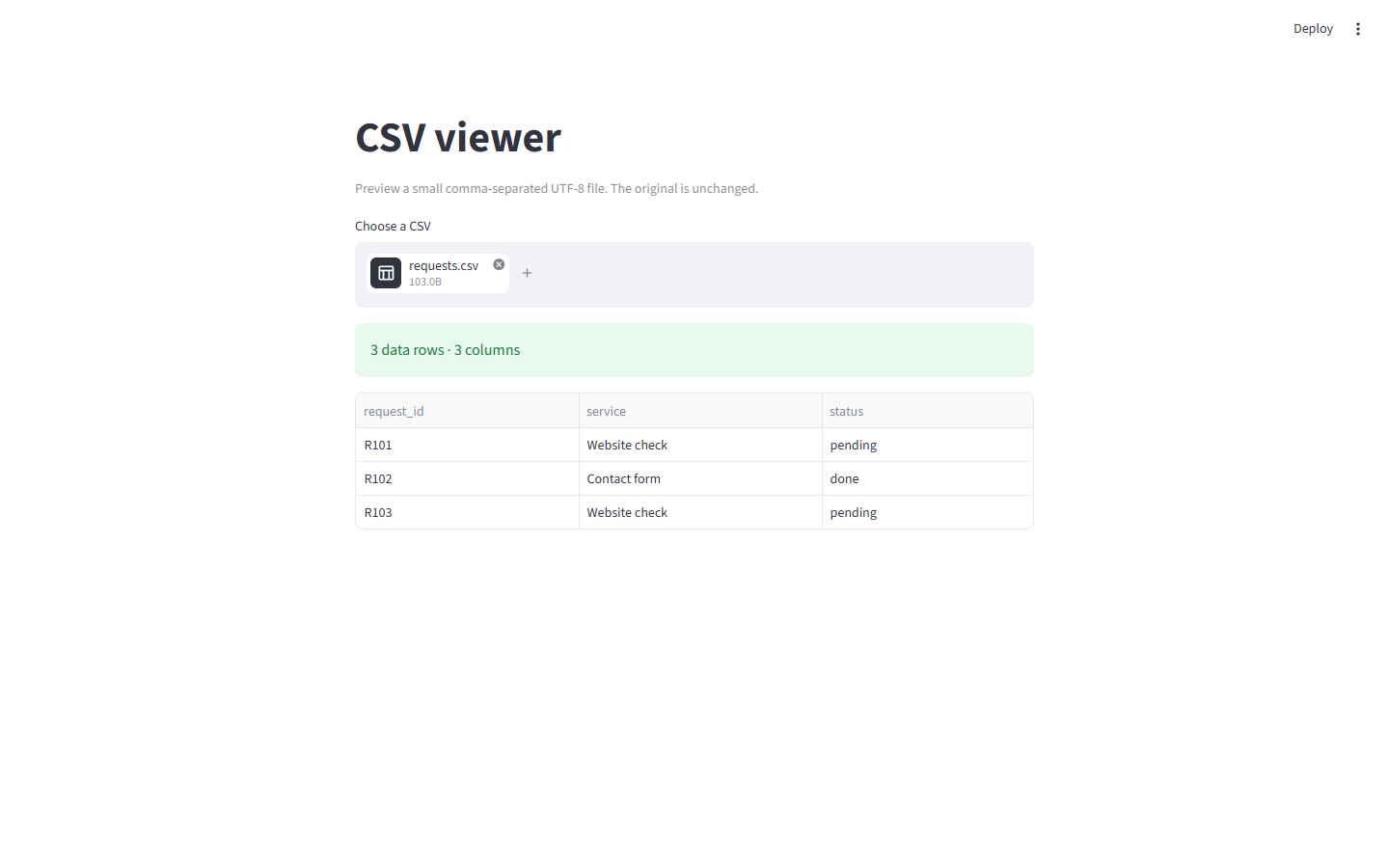
For your own file, compare a known first and last record with the source. A green count does not confirm that the business data is correct.
If the file does not look right
If everything appears in one column, your export may use semicolons or tabs. Export a comma-separated file, or deliberately set delimiter=";" in DictReader for a semicolon file. Do not change delimiters until you know which your file uses.
An encoding error means the bytes are not UTF-8; use your spreadsheet’s UTF-8 export option. The CSV encoding guide explains how to inspect an older file without guessing. An empty file needs a header; a header-only file correctly reports zero rows.
When finished, press Ctrl+C in the terminal. The local app stops; reopening its address will no longer work until you start it again. The viewer does not save uploaded data to a file, although the running process holds it in memory.
Sources and useful links
- Streamlit file uploader — returned file objects, extension filtering and size limits.
- Python CSV documentation — headers, delimiters and parsing rules.
- Streamlit installation — local environments and starting an app.