Streamlit download button: export a filtered CSV report
Give a small Streamlit app a working CSV download, keep its filename and columns predictable, and verify that the saved report matches the selected rows.
In this guide
A table on screen is useful; a CSV your colleague can open is often the actual result you need. Streamlit’s download button can send generated CSV text directly to the browser, without first creating a file on your server.
Here you will select pending requests and download just those rows. The complete example uses fictional service requests, Python 3.12, Streamlit 1.65.0 and Windows PowerShell. It runs locally and does not send email, create orders or require paid hosting.
Use one project
If you have a working Streamlit app, use its existing environment and adapt the export section to your own list of records. You need named columns and the final filtered rows; do not set up another app just for a download button.
For your records, replace both the sample status filter and DictWriter’s fieldnames with your actual fields. Every exported dictionary should use those column names; unexpected names are rejected instead of silently becoming a mismatched report.
For the complete example, create csv-download in File Explorer, open it, type powershell in the address bar and press Enter. Check python --version reports Python 3.12; install from the official Python downloads if needed.
If python --version reports another version, select your installed Python 3.12 interpreter before creating the sample environment. On Windows with the Python launcher, py -3.12 --version checks that interpreter and py -3.12 -m venv .venv creates the sample environment with it; if it is not installed, finish the official installation first.
python -m venv .venvAfter success:
.\.venv\Scripts\python.exe -m pip install streamlit==1.65.0Save this as app.py next to .venv, using a plain-text editor. In Notepad select All files, not a .txt filename.
import csv
import io
import streamlit as st

st.title("Request report")
st.caption("Fictional records. Download only the rows you choose.")
records = [
    {"request_id": "R101", "service": "Website check", "status": "pending"},
    {"request_id": "R102", "service": "Contact form", "status": "done"},
    {"request_id": "R103", "service": "Website check", "status": "pending"},
]
status = st.selectbox("Include", ["pending", "done", "all"])
rows = [r for r in records if status == "all" or r["status"] == status]
st.write(f"{len(rows)} rows in this report")
st.dataframe(rows, hide_index=True)

buffer = io.StringIO(newline="")
writer = csv.DictWriter(buffer, fieldnames=["request_id", "service", "status"])
writer.writeheader()
writer.writerows(rows)
st.download_button(
    "Download CSV",
    data=buffer.getvalue().encode("utf-8-sig"),
    file_name=f"requests-{status}.csv",
    mime="text/csv",
    on_click="ignore",
)
DictWriter fixes the column order and quotes commas when needed. utf-8-sig adds an encoding marker that helps many spreadsheet programs recognize UTF-8. mime="text/csv" identifies the download’s format; it does not validate the contents.
The button receives the current filtered rows. on_click="ignore" prevents that button click from causing an extra script rerun. Changing the Include selector still reruns the app to prepare a different report.
Download and inspect the file
The command below is for the new example folder. In an existing project, use the same environment and start command you already use, with your existing script’s filename. For instance, from its activated environment use python -m streamlit run your_script.py --server.address 127.0.0.1, replacing your_script.py with that file’s actual name. Do not create a second .venv to match this example.
.\.venv\Scripts\python.exe -m streamlit run app.py --server.address 127.0.0.1Leave the terminal running and open http://127.0.0.1:8501, or the Local URL it reports. Keep pending selected: the table should contain R101 and R103, with a count of two. Click Download CSV. Your browser may save automatically or ask for a location.
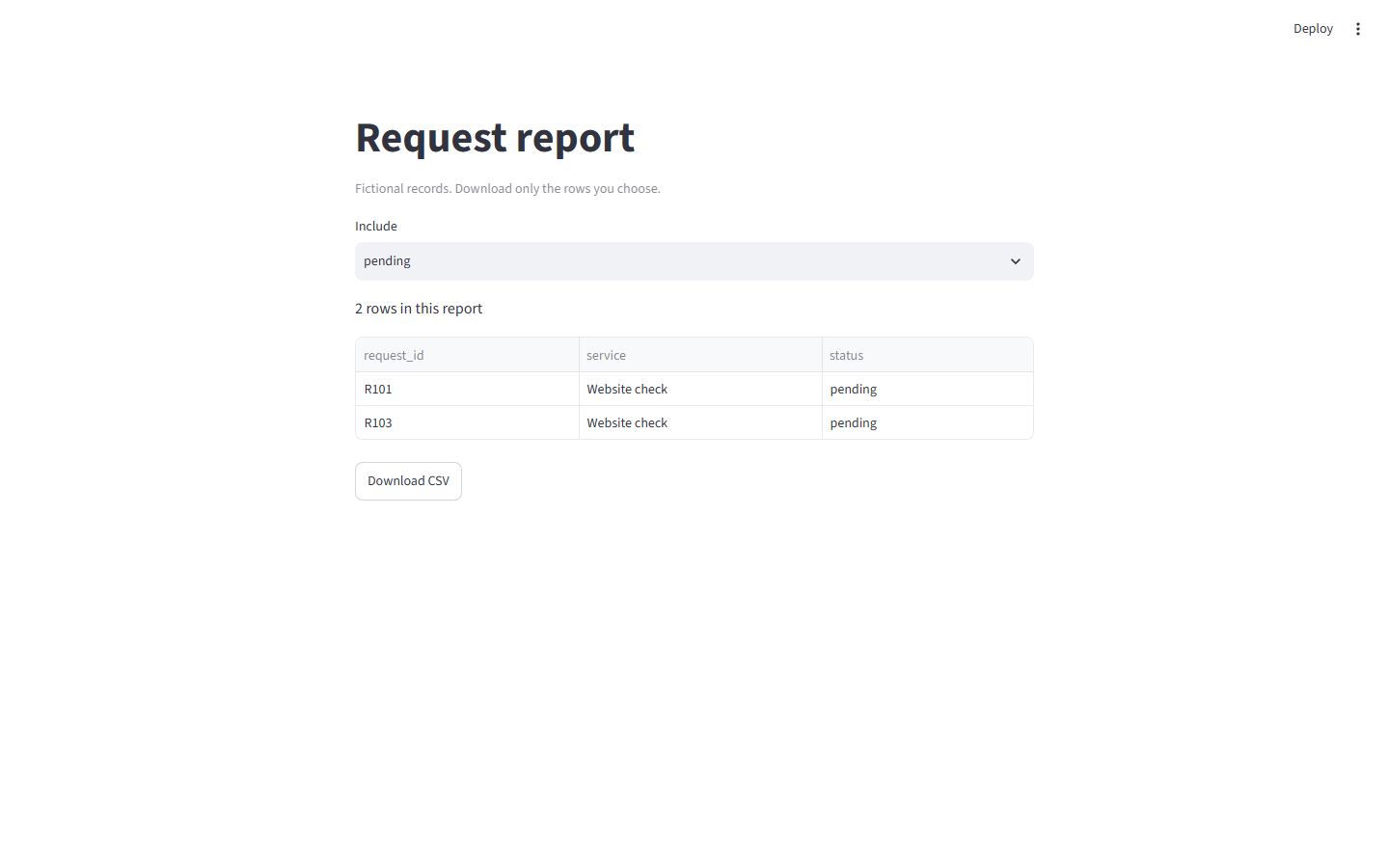
Open requests-pending.csv in a text editor. It should have the header request_id,service,status and those two records. R102 must be absent. Then select all and download again: requests-all.csv should contain all three. The browser can rename repeated downloads with a number; check the newest file.
For an existing app, make the same check using a known record that should be included and one that should be excluded. Do not confirm success from the filename alone.
Keep the export small and predictable
If the downloaded CSV contains extra numeric columns, check whether another library exported its row index. This standard-library example does not add one. If a spreadsheet puts everything in one column, import the file explicitly as comma-separated UTF-8 rather than changing the app’s output at random.
The download bytes are held in server memory. Use this pattern for small reports; large exports need a separate size and delivery plan. For user-entered text, also address spreadsheet formula injection before exporting: cells starting with formula characters can be interpreted by spreadsheet software. The fixed sample here contains no such input.
Press Ctrl+C in the terminal to stop the app. Files already downloaded remain on your computer. The example does not maintain a server-side archive.
Sources and useful links
- Streamlit download button — filenames, MIME types, memory use and click behavior.
- Python CSV writer — explicit columns and quoting.
- Streamlit selectbox — selecting the report input.