Streamlit showing old data? Refresh the right cache
Find why a local CSV still shows an old result, clear one cached loader, and distinguish cache expiry from automatically refreshing the browser.
In this guide
You updated a CSV, but your Streamlit table still shows yesterday’s rows. If the read happens inside a function marked @st.cache_data, Streamlit may be reusing that function’s previous result.
The fix is to make that loader run again, not to keep reloading the whole browser. This local example shows both the stale result and a Refresh button that clears only the relevant function. You will also see when the data was actually read.
Use your loader or a small local example
For an existing app, locate the cached function that reads your data. Apply the load_rows.clear() pattern to that function; do not reinstall Streamlit or replace your app with the example.
Use your function’s actual name, and put the Refresh button’s clear call before that function is called to draw the result. Otherwise this rerun can still display the old value.
The complete example uses Windows PowerShell, Python 3.12 and Streamlit 1.65.0. Create a folder named cache-check, open it in File Explorer, type powershell in the address bar and press Enter. Confirm python --version reports Python 3.12; install from the official Python downloads if necessary.
If python --version reports another version, select your installed Python 3.12 interpreter before creating the sample environment. On Windows with the Python launcher, py -3.12 --version checks that interpreter and py -3.12 -m venv .venv creates the sample environment with it; if it is not installed, finish the official installation first.
python -m venv .venvAfter success:
.\.venv\Scripts\python.exe -m pip install streamlit==1.65.0Save this fictional data as requests.csv, using UTF-8 plain text and All files in Notepad:
request_id,status
R101,pending
R102,done
Save the following as app.py in the same folder:
import csv
from datetime import datetime, timezone
from pathlib import Path
import streamlit as st

CSV_PATH = Path(__file__).resolve().with_name("requests.csv")

@st.cache_data(ttl=300)
def load_rows():
    with CSV_PATH.open(encoding="utf-8-sig", newline="") as handle:
        reader = csv.DictReader(handle, strict=True)
        if reader.fieldnames != ["request_id", "status"]:
            raise ValueError("Use the header request_id,status.")
        rows = list(reader)
        if any(None in row or None in row.values() for row in rows):
            raise ValueError("Check the number of columns in each row.")
    return rows, datetime.now(timezone.utc).isoformat(timespec="seconds")

st.title("Request data: cache check")
st.caption("Local fictional CSV · a five-minute cache lifetime")
if st.button("Refresh data"):
    load_rows.clear()
st.checkbox("Show compact view", key="compact")
try:
    rows, loaded_at = load_rows()
except (OSError, UnicodeError, csv.Error, ValueError) as error:
    st.error(f"Could not read requests.csv: {error}")
else:
    st.write(f"Rows: {len(rows)}")
    st.caption(f"Read from file at {loaded_at}")
    if st.session_state["compact"]:
        st.write(", ".join(row["request_id"] for row in rows))
    else:
        st.dataframe(rows, hide_index=True)
The timestamp is created inside the loader. It therefore shows a real file read, not merely the latest screen rerun. The file path is tied to app.py, so changing the terminal’s working directory does not silently select another CSV.
Reproduce the stale result, then refresh it
The command below starts the new example. For an existing app, keep its current environment and start command. From its activated environment use python -m streamlit run your_script.py --server.address 127.0.0.1, replacing the filename with your actual script; do not create another environment. Verify a known change in your own data rather than requiring the sample R103 record.
.\.venv\Scripts\python.exe -m streamlit run app.py --server.address 127.0.0.1Open http://127.0.0.1:8501 or its reported Local URL. Leave the terminal running. You should see two rows and a read timestamp.
Within five minutes, open requests.csv in your editor, add R103,pending on a new line and save. Back in the browser, toggle Show compact view. The script reruns, but it can still show two rows and the old timestamp: the cached function has no changing arguments, and editing the CSV is not itself a cache key.
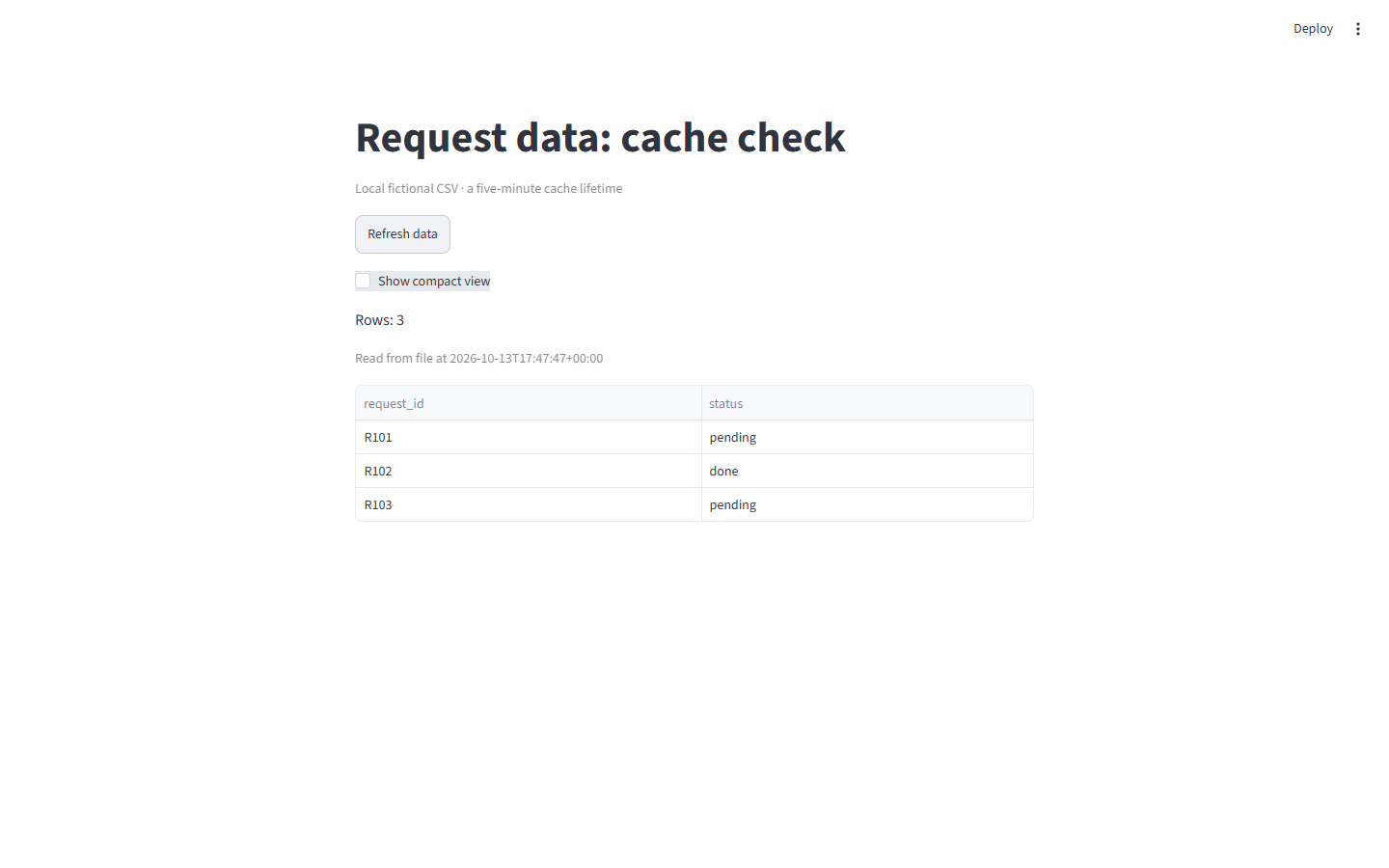
Click Refresh data. It clears this function’s saved result before the next line calls it. You should now see three rows, including R103, and a new read timestamp.
Choose how fresh the data needs to be
ttl=300 allows a cached result to be reused for five minutes. After that, the next call to the loader reads again. It does not schedule a browser update every five minutes. A quiet page can remain unchanged until another interaction runs the script.
For a tiny file that must be read every time, removing this cache may be simpler. For a large or remote source, choose a lifetime that fits the task, or pass a deliberate version value to the loader when the source changes. Reducing the lifetime blindly can increase API use or database work.
Cached data is shared across sessions by default. This example uses non-sensitive fictional rows. Do not place different users’ private results behind a cache key that fails to distinguish their access rights.
If Refresh still shows the old rows, check that you saved the correct requests.csv beside app.py. If the file is missing or its header changed, the app shows a read error rather than silently displaying an old result after the clear.
Press Ctrl+C to stop the local app. No scheduled refresh or background job remains.
Sources and useful links
- Streamlit cache_data reference — clearing one function, expiry and scope.
- Streamlit caching guide — cache keys and when caching helps.
- Python pathlib — finding the intended file relative to the script.