Streamlit session state: keep values across reruns
Keep a shortlist when Streamlit reruns your script, understand when session state resets, and add an explicit reset without losing unrelated settings.
In this guide
You click a button, add an item, then change a checkbox—and your list disappears. In Streamlit, changing a widget normally runs the script again from the top. An ordinary variable created as [] starts empty each time.
Use st.session_state to keep that list between reruns in the same browser session. Below, you will build a small shortlist of requests, change another control without losing it, and reset it deliberately. It is temporary session storage, not a saved customer list.
Prepare the app once
This complete example uses Windows PowerShell, Python 3.12 and Streamlit 1.65.0. In an existing Streamlit project, keep its environment and apply the initialization and button pattern to your current script.
Otherwise create shortlist-app in File Explorer. Open it, type powershell into the address bar and press Enter. Check python --version reports Python 3.12; use the official Python downloads if it is missing. Then:
If python --version reports another version, select your installed Python 3.12 interpreter before creating the sample environment. On Windows with the Python launcher, py -3.12 --version checks that interpreter and py -3.12 -m venv .venv creates the sample environment with it; if it is not installed, finish the official installation first.
python -m venv .venvAfter it succeeds:
.\.venv\Scripts\python.exe -m pip install streamlit==1.65.0Save the following as app.py beside .venv. Use plain text and All files in Notepad so the extension stays .py.
import streamlit as st

st.title("Request shortlist")
st.caption("A temporary list for this browser session.")
if "shortlist" not in st.session_state:
    st.session_state["shortlist"] = []

request = st.selectbox("Request to add", ["R101", "R102", "R103"])
if st.button("Add to shortlist"):
    if request not in st.session_state["shortlist"]:
        st.session_state["shortlist"].append(request)

show_count = st.checkbox("Show item count", value=True)
if st.button("Reset shortlist"):
    st.session_state["shortlist"] = []

if show_count:
    st.write(f"Selected: {len(st.session_state['shortlist'])}")
if st.session_state["shortlist"]:
    st.write(", ".join(st.session_state["shortlist"]))
else:
    st.info("Choose a request and add it to your shortlist.")
The important line is the if "shortlist" not in ... check. It creates the list only when this session does not have one. Assigning an empty list unconditionally at the top would erase it on every rerun.
The Add button updates the list before the code displays it. Duplicate items are ignored. Reset changes only shortlist, leaving unrelated state alone. This small layout does not need a callback or an extra st.rerun().
Check that the value survives
Start the app:
For the new folder use the command below. In an existing project, keep the same environment and start command you already use. From its activated environment, python -m streamlit run your_script.py --server.address 127.0.0.1 starts your current file when you replace your_script.py with its actual name; no second environment is needed.
.\.venv\Scripts\python.exe -m streamlit run app.py --server.address 127.0.0.1Open http://127.0.0.1:8501, or the terminal’s reported Local URL, and leave the terminal running.
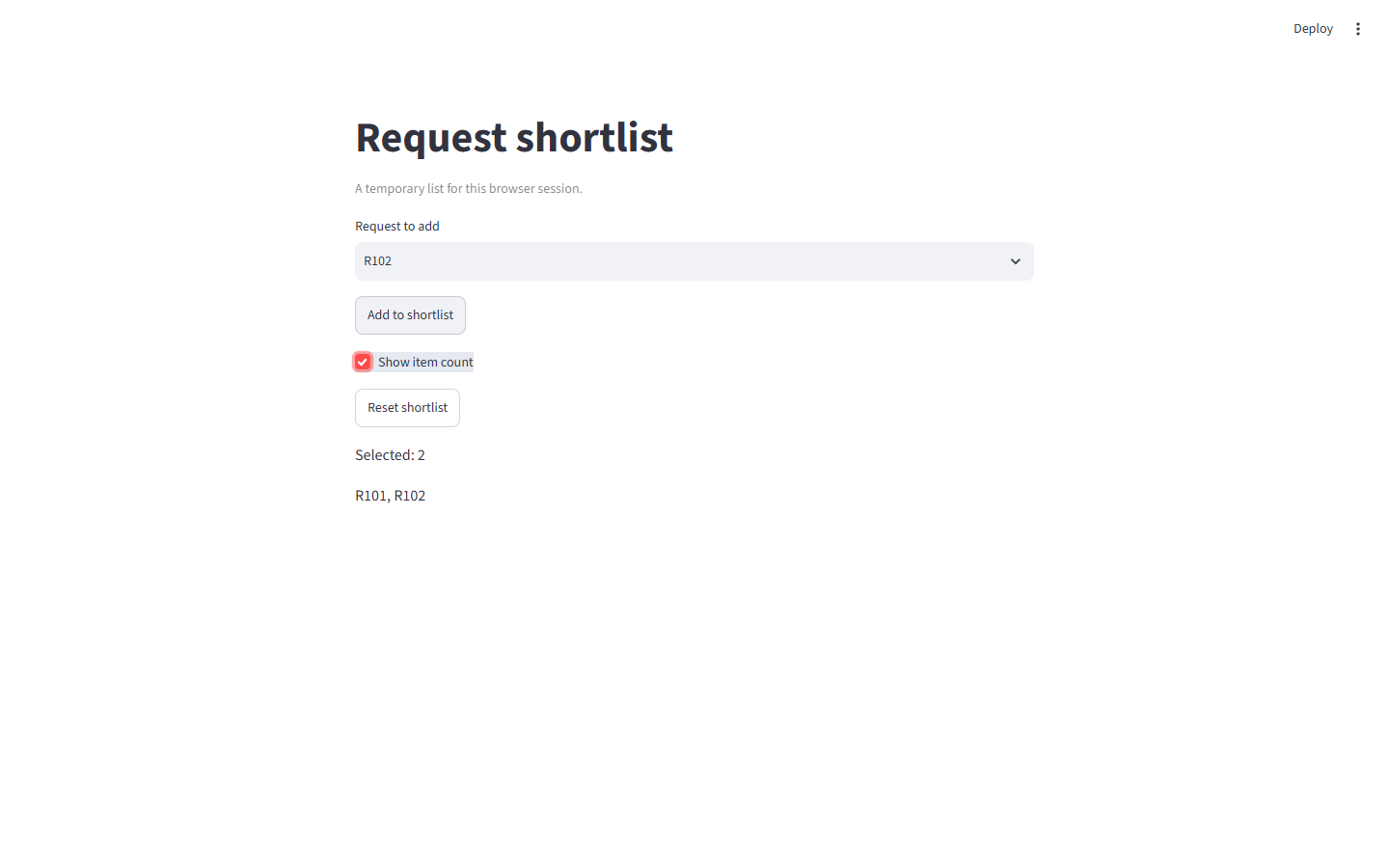
- Select R101, then click Add to shortlist. You should see
Selected: 1andR101. - Untick Show item count. The number disappears, but
R101remains. That widget change reran the script without erasing the list. - Select R102 and add it. The list should show
R101, R102. - Add R102 again. It should still be two items.
- Click Reset shortlist. You should see the empty-list message.
Know what “session” does not promise
Reloading the browser tab resets the WebSocket connection—the live connection between this tab and the app—and its session state. A separate browser session starts with a separate list. State is not a reliable record across refreshes, server restarts or other people’s browsers.
If the reader must come back tomorrow to the same saved shortlist, you need persistent storage and an appropriate way to identify that reader. Do not treat session state as a database or authentication system.
If your own app still loses values, look for an unconditional assignment, a changing widget identity, or a branch that stops rendering a widget whose value you rely on. Keep a stable name for the state you own. Avoid modifying a widget’s state after that widget has already been created in the current run; Streamlit can reject it.
Press Ctrl+C in the terminal to stop the app. Starting again begins a new running process; do not expect this temporary list to be restored.
Sources and useful links
- Streamlit Session State — initialization, updates and session lifetime.
- Streamlit execution model — why widget interactions rerun the script.
- Widget behavior — identity, keys and values when widgets disappear.