Add a WordPress coming soon page, then turn it off cleanly
Use the free CMP plugin for a temporary visitor message, check administrator access and restore the normal site without leaving the placeholder active.
In this guide
A coming soon page lets visitors know your site is being prepared while you work on the real pages. It is a temporary front door, not a password protecting everything on the server.
This guide uses the free CMP – Coming Soon & Maintenance plugin, version 4.1.20, on an existing WordPress site. You need Administrator access and a short message you are ready to show publicly. You do not need a paid theme, an email signup or a new hosting plan.
Use this path for a site that has not launched yet. If an established site is temporarily unavailable, the plugin’s Maintenance Mode is a different choice: it returns HTTP 503 rather than the Coming Soon mode’s 200 response. Avoid hiding a working live site just to draft a new page.
Install the intended plugin
Open Plugins → Add Plugin and search for CMP – Coming Soon & Maintenance by NiteoThemes. Check the author and current compatibility information before installing; similarly named plugins are not interchangeable.
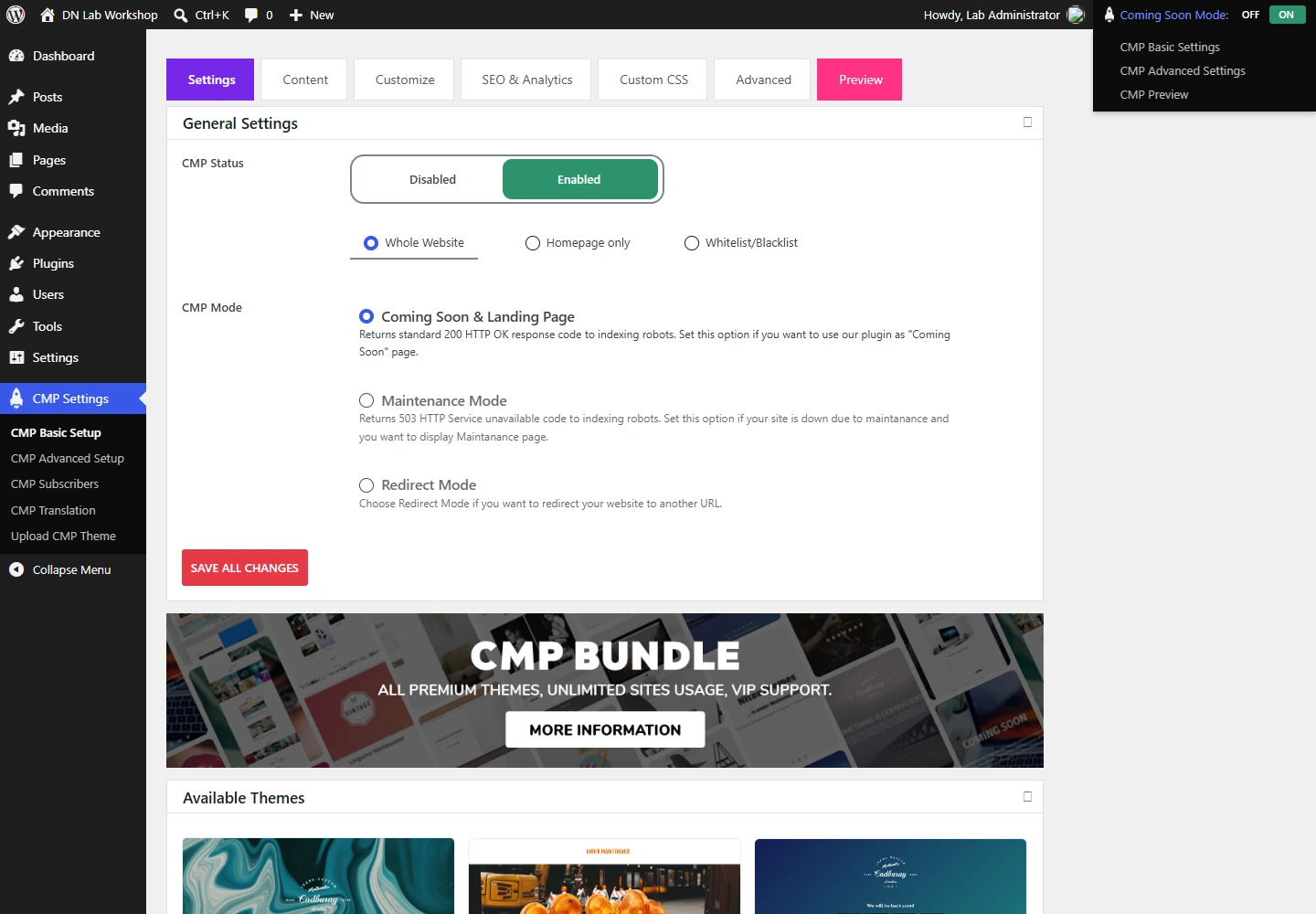
Click Install Now, then Activate. Open CMP Settings → CMP Basic Setup. The initial CMP Status is Disabled. Leave it disabled while preparing the message.
The example keeps the bundled Hardwork theme. Premium themes and donation links are optional. Do not activate a paid offer to complete this page.
Add the message before enabling it
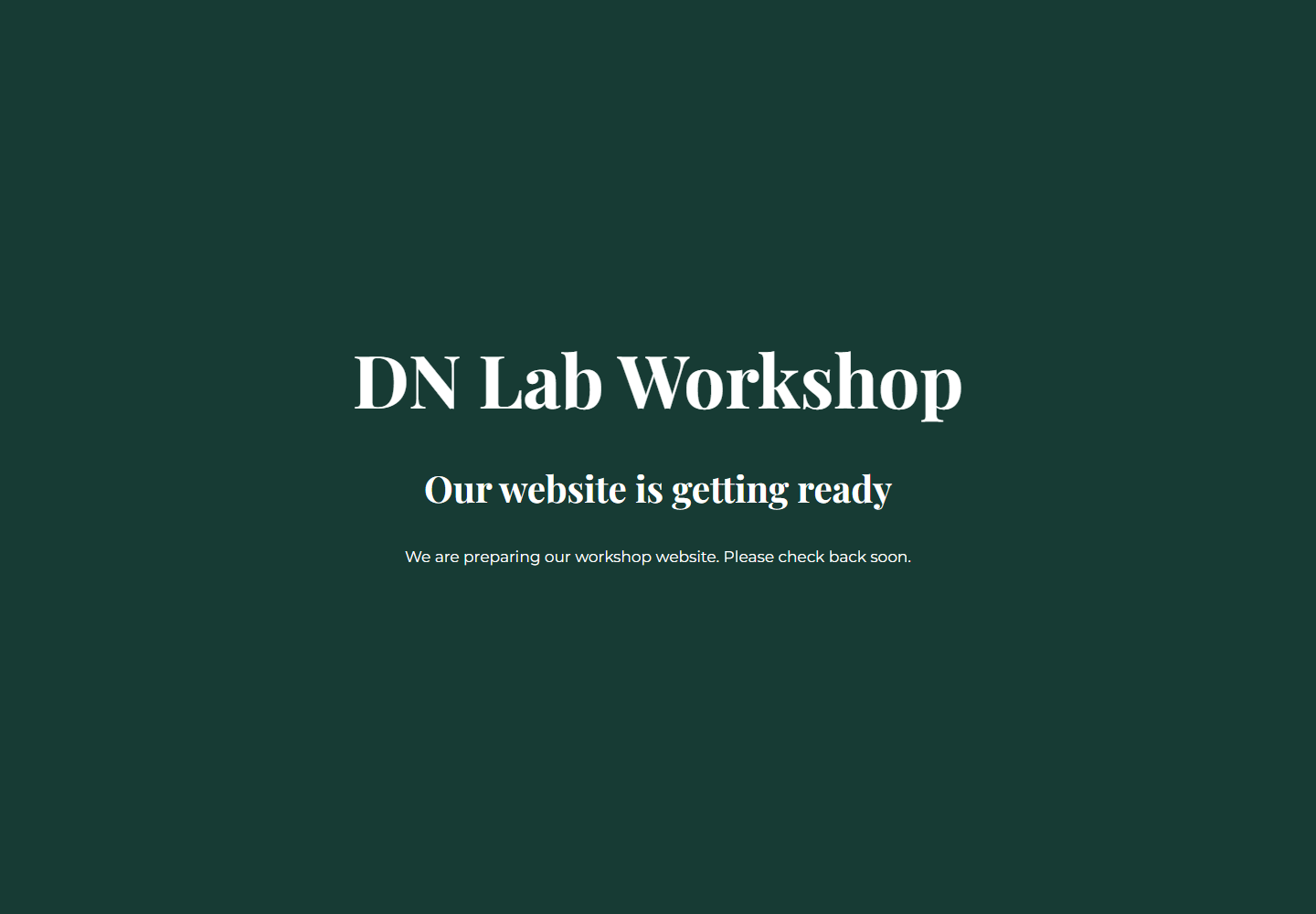
Open the Content tab. Replace the default heading with Our website is getting ready. In the main content area, write something concrete, such as: “We are preparing our workshop website. Please check back soon.” Add a real contact method only if you intend to publish it.
Keep subscription, countdown and social features off unless you actually use them. Do not publish a launch date you have not committed to. In Customize, select a plain solid-color background rather than leaving a stock remote background you do not want.
Click Save All Changes. Use the plugin’s Preview link to inspect the message, but remember that a preview URL is not the same as an ordinary visitor’s request.
Return to Settings, set CMP Status to Enabled, choose Coming Soon & Landing Page, and save again.
Check two separate sessions
Keep your administrator session open. Visit the site’s ordinary homepage there: the default administrator bypass should let you see the real site and continue editing.
Now open a private window and visit the same ordinary URL without a preview parameter. You should see the coming soon message. Try a second existing page too, so you know whether the visitor coverage matches your intention.
If the private window sees the real site, check that the status was saved and that you did not use a bypass or preview URL. If the administrator sees the placeholder too, confirm you are still logged in and inspect the plugin’s access settings before changing roles or permissions.
A host or CDN cache can preserve a version from an earlier session. Check its documented page-exclusion rules, then clear only the relevant cached pages after fixing the configuration. Do not assume clearing browser history changes the server cache.
This mode is not suitable for keeping sensitive drafts or uploaded files confidential. Direct files, APIs and other endpoints may have different access rules. Use proper authentication or staging protection for private work.
Turn it off when you launch
In CMP Basic Setup, set CMP Status to Disabled and click Save All Changes. Check the homepage and your second page in a fresh private window. Both should show the real public site.
If the old message remains, verify the saved status first, then clear the relevant host/CDN page cache and check again. Do not delete pages or reinstall WordPress to remove a cached placeholder.
Once you have confirmed the normal site is visible, you may deactivate CMP under Plugins → Installed Plugins if it is no longer needed. Keep your regular page content intact.
Sources and useful links
- CMP’s official plugin listing — current version, author, modes and available features.
- WordPress plugin management — installation, activation and deactivation.
- HTTP 503 — why a temporary maintenance response differs from a normal page.