Give someone WordPress Editor access without sharing your login
Create a separate Editor user, verify what they can do and withdraw editing access while preserving their published work.
In this guide
Give a collaborator their own account rather than your administrator password. For someone who needs to edit the site’s pages and posts, WordPress’s built-in Editor role is often the relevant starting point.
Editor is a powerful content role: on a standard single-site installation it can edit, publish and delete other people’s posts and pages. It is not a “can edit only this one page” setting. If that is too much access, stop before inviting them and choose a more restricted workflow.
You need Administrator access to an existing single-site WordPress installation, the person’s confirmed email address and agreement about what they should edit. Screens show WordPress 7.1.3. Plugins and custom roles can change permissions; Multisite has different administration rules.
Choose the role for the actual work
Author can manage their own posts, but is not the usual choice for editing the site’s Pages. Contributor cannot publish their own posts by default. Subscriber has no standard content-editing rights. None is a substitute for a specific one-page restriction.
Do not choose Administrator just because an editing task needs to be finished quickly. That role also controls important settings, plugins and other users.
Create a separate user
Open Users → Add User. Enter a unique username and the person’s confirmed email address. Do not use a shared team address if it would make individual access hard to withdraw.
Choose Editor in the Role field. Leave Send User Notification enabled for a normal invitation, so WordPress can send its account/setup email. Check the address again before clicking Add User.
WordPress can generate a strong password. Do not send an administrator password or paste credentials into a public project, shared document or screenshot. The new user should finish account access through the approved invitation/password process.
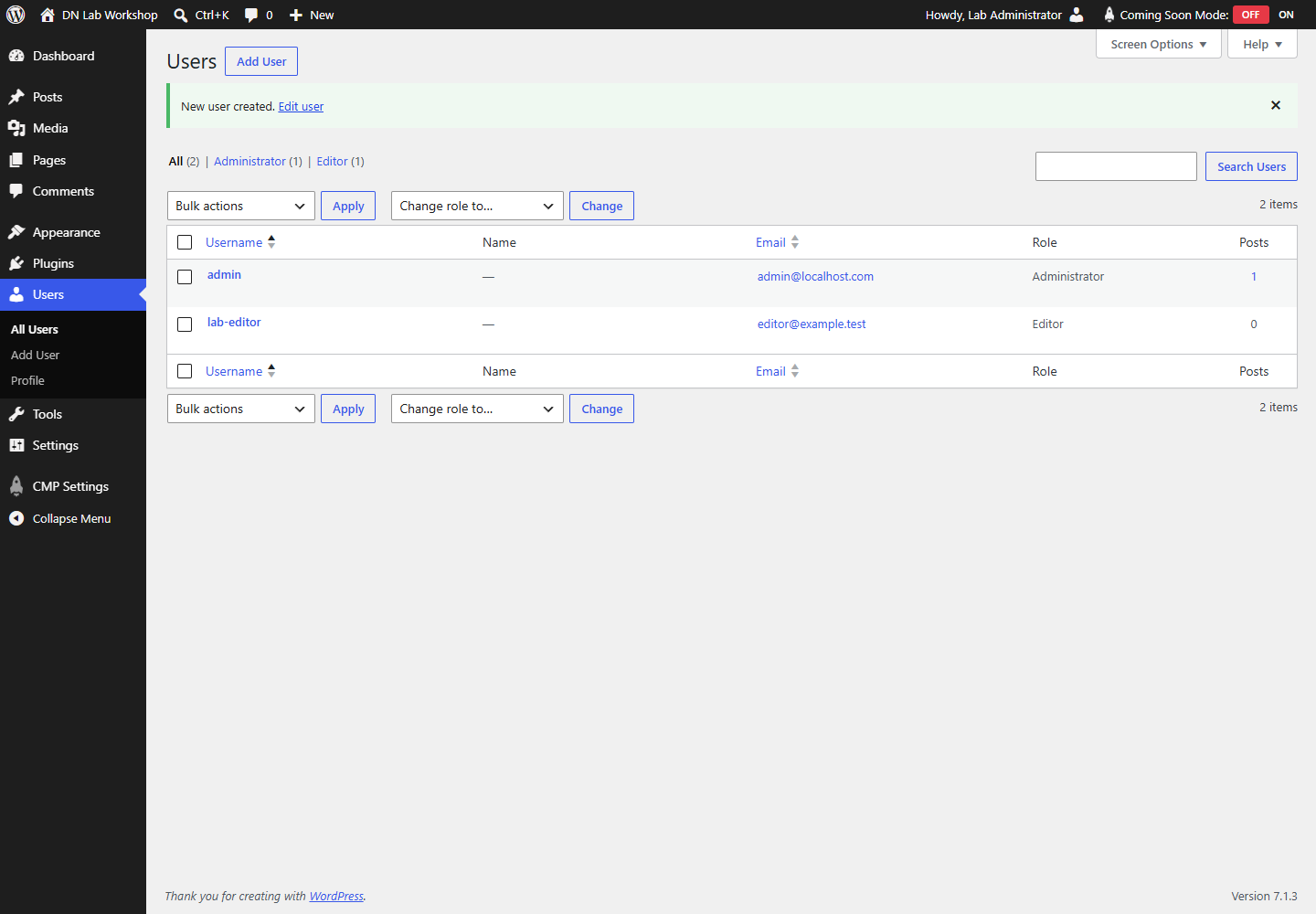
If the email does not arrive, confirm the address and check Spam. Do not keep creating duplicate users. Inspect the site’s mail delivery or use the existing password-reset path; the presence of a user row does not prove email delivery.
Verify the account in a separate session
Ask the collaborator to sign in with their own account, or use a dedicated test user you control. Use a separate browser profile/private window so you do not mistake your administrator session for theirs.
Open Pages and confirm the intended page can be edited. For a save check, create a separate harmless test page and use Save draft; it need not become public. Do not save experimental changes to an already published page: its Save/Update action can change the live page, rather than creating a separate private draft.
Then confirm the account cannot manage Plugins or create users. In that separate session, open your site’s /wp-admin/plugins.php and /wp-admin/user-new.php directly. A missing sidebar item is useful, but these requests should also be refused for a standard Editor. If they are not, inspect custom role/plugin changes before continuing. Keep the intended page’s full edit URL from your browser address bar for the later withdrawal check.
Avoid testing deletion on real content. The role documentation already makes that capability clear; your agreement with the collaborator should too.
Withdraw editing without deleting the account’s work
When editing access ends, open Users → All Users as Administrator. Select the collaborator, choose Subscriber under Change role to, and apply Change. Confirm the row now shows Subscriber.
This is a downgrade, not account deletion. Existing pages and posts should remain; open a page they worked on and check it still exists. The person can normally still sign in and manage their profile, but no longer has the standard editing rights.
Recheck with the collaborator’s account, refreshing or signing in again if needed. Opening the old page-edit URL should now be refused. Custom roles/plugins may require additional review.
If the requirement is to prevent all future login, changing to Subscriber is not enough. Use your site’s documented account/session revocation procedure, or deliberately delete the user with content reassignment after taking a backup. Do not click Delete all content as a shortcut to remove access.
Sources and useful links
- Roles and capabilities — default Editor, Author, Subscriber and Administrator permissions.
- Add a new user — user fields, roles and notifications.
- Users screen — changing roles and handling account deletion.