Create a WordPress navigation menu in a block theme
Link your existing pages, add one useful submenu and check the menu on a phone and keyboard without installing a menu plugin.
In this guide
A small menu should make your existing pages easier to find. Start with a few useful destinations rather than every page you have ever published.
This guide is for an Administrator using a block theme, shown with WordPress 7.1.3 and Twenty Twenty-Five. You will arrange existing pages in the header, add one submenu if needed, and check the result on desktop and mobile. No menu plugin is required.
If Appearance offers Menus rather than Editor, you are using a different theme workflow. Use WordPress’s classic menu instructions instead of changing themes for this task.
Open the menu that visitors actually see
First open the public homepage and note its current menu. Keep a screenshot or list of its labels and order so you can restore them.
In Twenty Twenty-Five, go to Appearance → Editor → Patterns. Under Template parts, open Header, then select the Header pattern and its edit control. If your editor opens a template directly, use Open Navigation at the upper left to return to the editor’s navigation panel first. Other block themes can name their header parts differently.
Inside the header editor, click the Navigation block. Document Overview (List View) helps select it when nested blocks are hard to click. If several headers exist, confirm you opened the one used by the public page you noted.
Do not confuse the editor’s left navigation panel with the site’s Navigation block. You want the block containing your visitor-facing page links.
If it contains a Page List, that is an automatic list of published pages. Use its Edit control and confirm the option to turn it into editable page links. This stops future pages from joining this particular menu automatically.
Keep labels short and destinations real
For a small service site, a reasonable starting set is Home, Services and Contact. Use the block’s add-link control, search for a published page and select it. For Home, use the actual homepage URL if no page result represents it.
Select a link to change its visible label without renaming the underlying page. “Contact” is usually easier to scan than “Get in touch with the workshop team today.” Check the destination after changing labels; readable words do not repair a wrong URL.
Use List View’s move controls to arrange links. To remove an item, remove its navigation-link block, not the destination page.
For one useful submenu, select Services, choose Add submenu, then add an existing service page beneath it. Keep Services linked to its overview page when that is useful, with the separate submenu-opening control available to visitors. Do not create an empty parent that looks like a working destination.
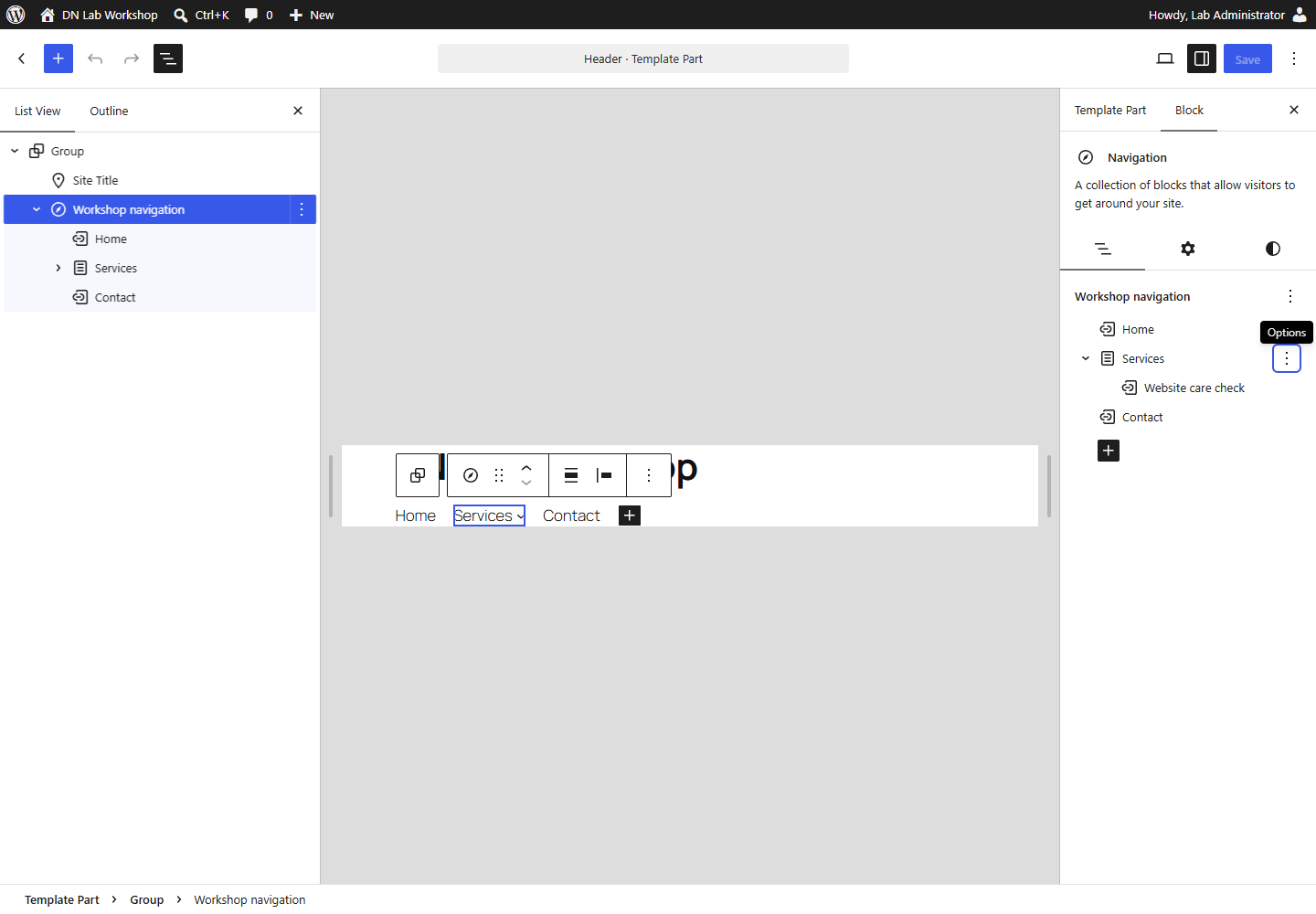
Click Save, inspect the list of changed items, and confirm only the intended Navigation/header changes. If unrelated styles or templates are listed, cancel and inspect them before saving.
Check the expanded and mobile menus
Open the public homepage in a private window. Follow every top-level link and submenu item. Check a second page using the same header, since a correct homepage does not prove every template uses it.
With a keyboard, press Tab until the menu receives focus. Use the submenu button to open its links, Tab through them, then Escape to close it. Enter should follow a focused link. A submenu that only works with a mouse hover needs attention.
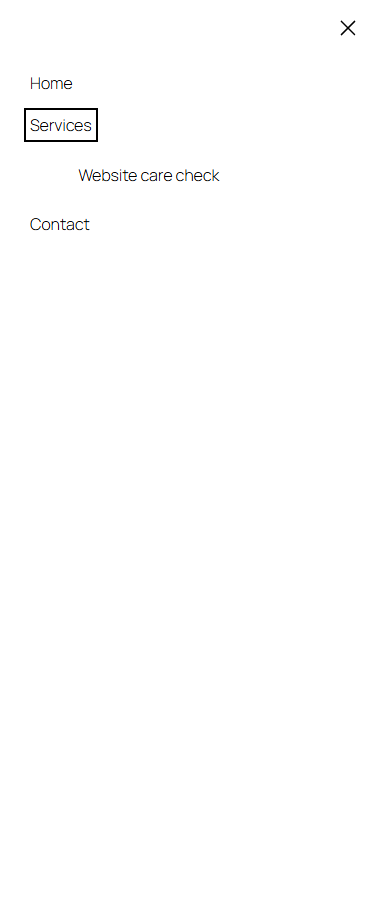
On a phone, open the menu button and check that all intended links fit and can be reached. Close it again and confirm the page can scroll normally. If no button appears, select the Navigation block in the editor, open its block Settings, and set Overlay menu to Mobile rather than Off. Save and check the phone view again.
If a link is missing only on one page, check which header/template that page uses before rebuilding the menu. If a new page appears unexpectedly, confirm you converted the automatic Page List rather than editing a different Navigation block.
To reverse the change, return to the same block and restore the labels/order you recorded. If you selected an existing saved menu, switch back to the previous one where the menu selector offers it. Check and save again; do not delete the shared header merely to remove one link.
Sources and useful links
- Navigation block — links, Page List conversion, submenus and mobile overlay settings.
- Site Editor — block themes and shared templates.
- List View — finding and moving nested blocks.