Create a WordPress landing page with a clear next step
Publish a simple service page with native WordPress blocks, a useful contact link and checks that visitors can actually follow it.
In this guide
You can make a useful landing page without buying a page builder. Start with one offer, explain what the visitor receives, and give them one clear next action.
Here you will publish a small Website care check page using WordPress’s built-in editor. The example describes a fictional service; replace its details with something you actually provide. You need an existing WordPress site, permission to publish Pages, and a working contact page or booking destination. No new hosting or plugin is required.
The screens show WordPress 7.1.3 with the Twenty Twenty-Five block theme. Your theme controls the surrounding header, footer and spacing; the page’s content is edited separately.
Decide where the button should lead
Before writing, open your intended destination in a private browser window. A contact page should explain how to reach you. A booking link should show the actual booking step, not an administrator dashboard.
For this example, the action is Ask about a site check, leading to an existing Contact page. If you do not have a destination, create a basic Contact page first: go to Pages → Add Page, add a title and contact instructions you are comfortable making public, then publish it. Copy its public URL. A page with an unfinished button is not ready to promote.
Do not promise a free consultation, delivery time or price unless those are your actual terms.
Build the page with three small blocks
Go to Pages → Add Page. Close the editor’s welcome guide if it appears. If WordPress offers starting patterns, close that chooser to begin with a blank page. A pattern is a prepared layout, not a requirement.
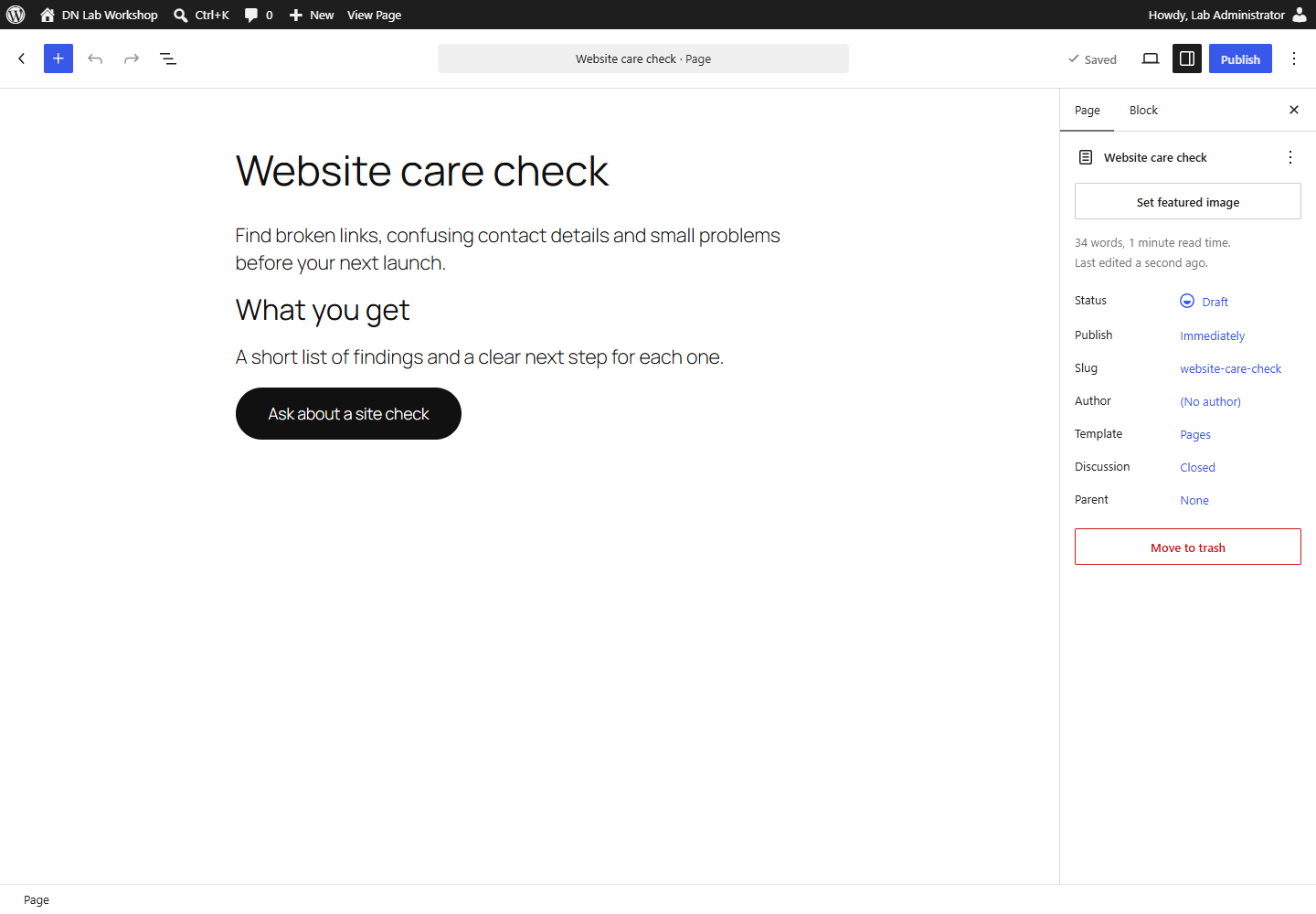
Enter Website care check as the page title. Under it, type a short opening paragraph explaining the result: “Find broken links, confusing contact details and small problems before your next launch.”
Use the + block inserter to add a Heading. Set its level to H2 and write What you get. The title already serves as the main heading, so there is no need for another H1 inside the page.
Add a Paragraph below it: “A short list of findings and a clear next step for each one.” Add the specific scope, exclusions and next-step expectations your own service needs. Keep necessary information on the page rather than hiding it behind a vague promise.
Finally, insert Buttons, then enter Ask about a site check in its button. Select the button, choose its link control, paste the public Contact URL and apply it. Use a normal same-tab link for this simple next step.
If a click opens settings for the entire template, return to the page editor before continuing. Template changes can affect other pages; this task does not require them.
Preview, then publish
Save the draft. Use View → Preview in new tab if offered, or the editor’s preview control. Read the page as a new visitor: can you tell what is offered and what happens after the click?
Check the mobile preview, especially a long service name and button label. Avoid inserting manual spaces or line breaks just to make one desktop width look tidy.
Before publishing, check whether the header uses an automatic Page List. In that case, a newly published page can enter the menu automatically. If you want to share only a direct link, first use the navigation guide to convert that list to explicit links and retain its current items. Otherwise, deliberately accept the new menu entry and check it after publishing.
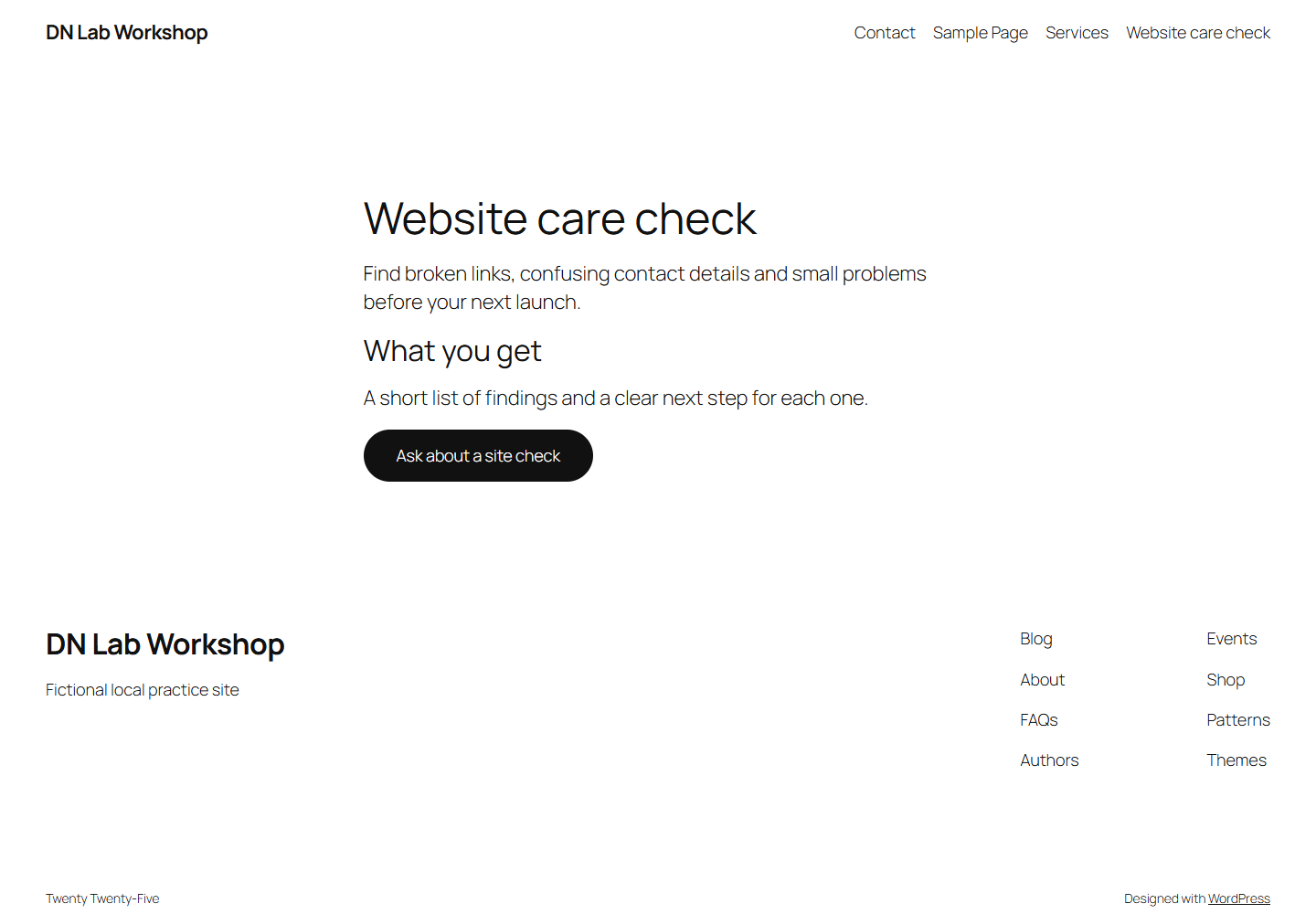
When the content and destination are ready, click Publish, review visibility and timing, then confirm Publish. Copy the resulting public page URL.
Check the visitor’s path
Open that URL in a private window, where you are not signed in. Confirm the page is public and no draft notice appears. Click the button and check the correct Contact or booking page opens. Repeat on your phone, and use Tab then Enter to follow the button from a keyboard.
A successful preview while signed in does not prove visitors can see the destination. If you get a 404, check the copied public URL and whether the destination itself is published. If an older version appears, check your site’s cache after confirming the saved page is correct.
You can share this page’s URL directly. It does not need to become the homepage or enter every menu. To add it deliberately to a block-theme menu, use the navigation guide.
To withdraw the page later, open its editor, change its status to Draft and save. Remove links or campaigns pointing at it too; changing the status does not repair those destinations automatically.
Sources and useful links
- WordPress Pages — creating pages and controlling their publication.
- The block editor — inserting and working with native content blocks.
- Buttons block — button labels, links and layout controls.